

In Microsoft Power BI, there are multiple ways to add a title to a visual. It is also possible to add dynamic titles, where the selected filter value determines what is displayed. Want to know how to create dynamic titles in Power BI? Then read this article step by step.
Step 1: What will the title be used for?
Before a dynamic title can be created, it is important to determine what the title will be used for. The input for the dynamic title comes from filter(s). For example, it is possible to show employee satisfaction in a chart, where the title can be added to indicate the period it applies to. Also consider the possibility to filter by department, where the title can automatically change to ‘Employee Satisfaction Finance’ or ‘Employee Satisfaction Marketing’.
In this article, we cover two different ways to create a dynamic title. The first method uses existing titles from a table, and the second method uses a DAX expression.
Step 2: Create a dynamic title with a table in Power BI
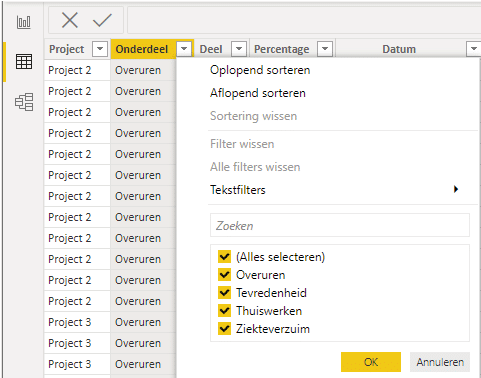
If you choose to use existing titles from a table, it is important that, for example, when using a date per measurement, the title is present in each row. The information must be in the table as shown below.
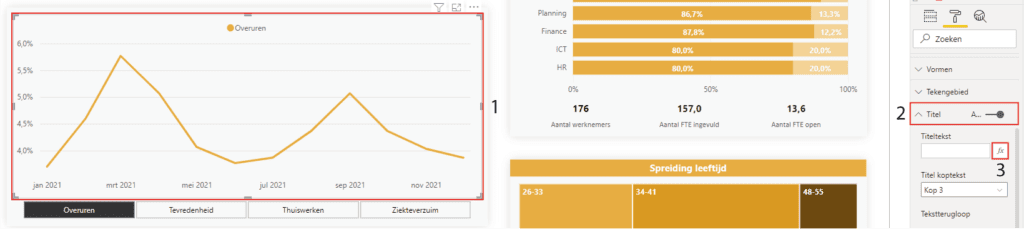
With the above information, you can get started. Click (1) on the visual where you want to add the dynamic title. Then activate (2) the ‘Title’ via ‘Visualizations’ and click (3) on the formula.
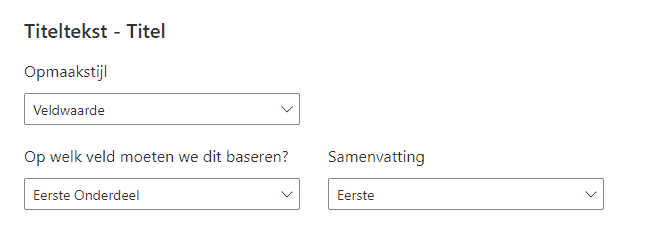
Then select the correct column under ‘Which field should we base this on?’ and press ‘Ok’.
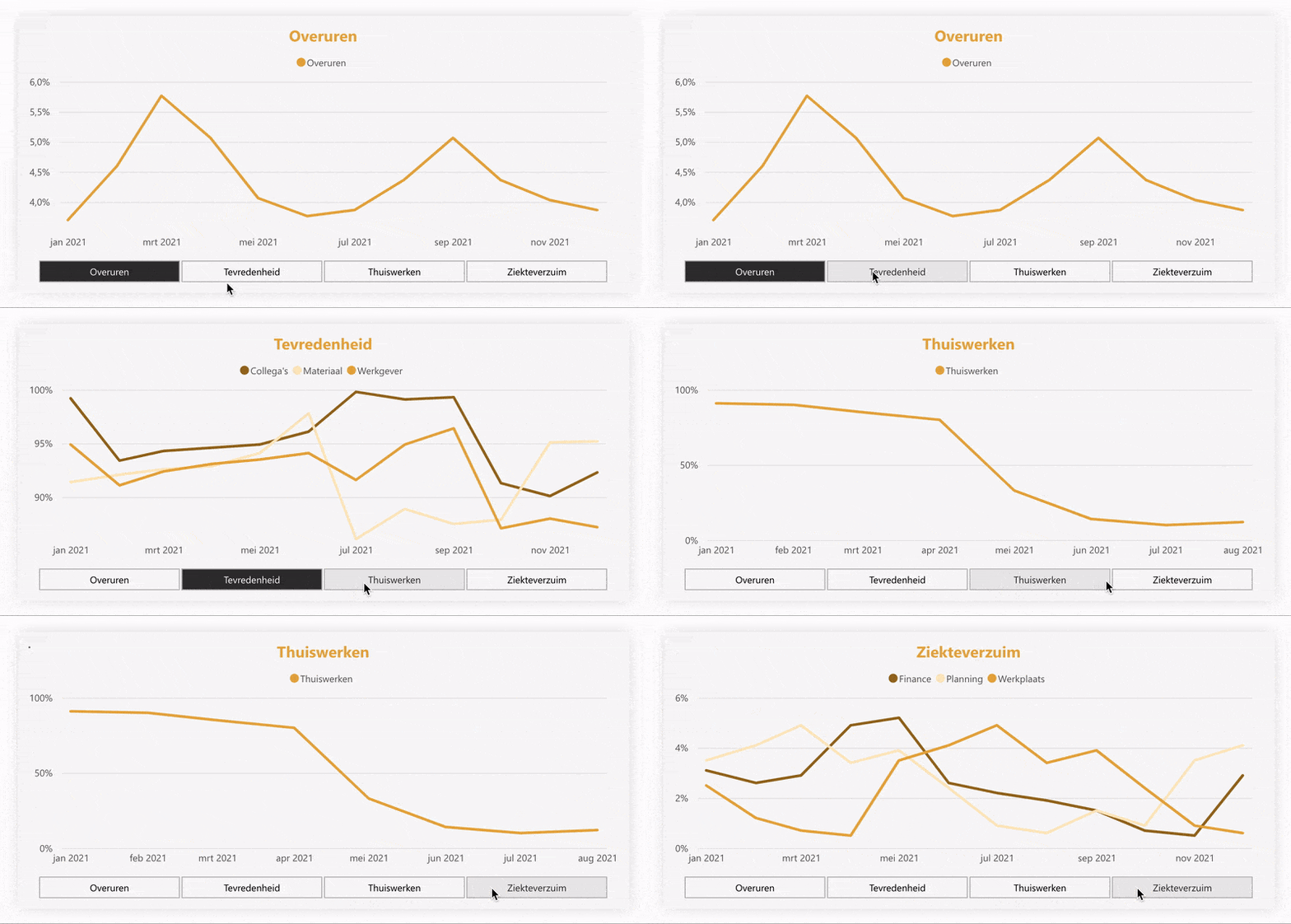
Once this is successful, you can have the title automatically change by selecting a filter value, as shown below.
Step 3: Create a dynamic title with a DAX expression in Power BI
If you choose to use a DAX expression (formula), you first need to create it. Click on a table, then go to ‘Table Tools’ at the top and click on ‘New measure’.
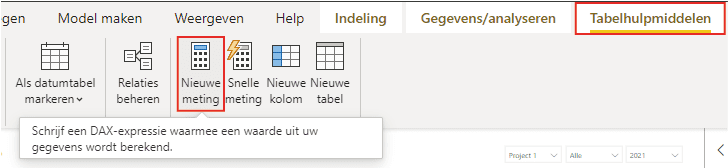
For example, if you want to change the title from ‘Overtime’ to ‘Overtime Trend’, you need to use the DAX expression below.

If you want to add the date or project number to it, use the DAX expression below. Tip: use ” ” to add a space between the two results.

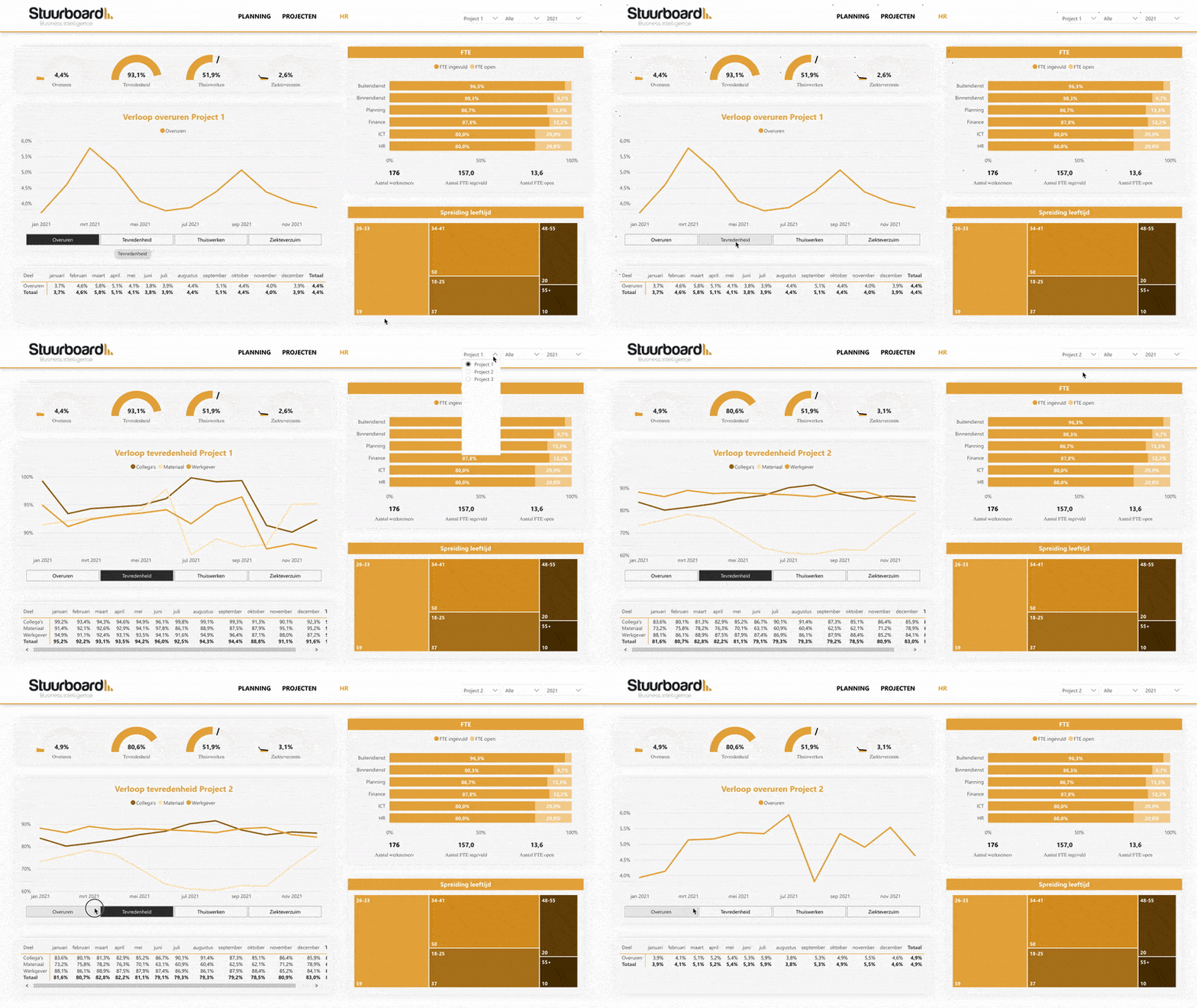
Once this is successful, you will have the result below.
Hopefully, you have also succeeded in creating dynamic titles in Power BI. Curious about other articles in our knowledge base? For example, read here how to create a mobile layout of a Power BI dashboard. Do you have questions? Feel free to contact us.