

Microsoft Power BI offers the ability to create a mobile layout of a dashboard. This can be done without making changes to the original dashboard. This way, it is possible to optimally serve the user, regardless of the device they use for the dashboard. Want to know how to create a mobile layout in Power BI for your dashboard? Then read this article step by step.
Step 1: Switch to the mobile layout in Power BI
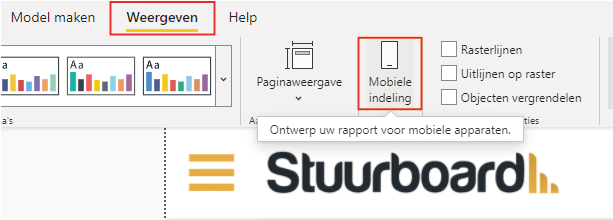
To start designing the mobile layout, it is important to switch to the mobile layout in Power BI Desktop. Open the dashboard for which you want to create a mobile layout and navigate to the ‘View’ tab. Then click on ‘Mobile layout’, as shown below. In this example, we use a sales dashboard, which you can find on this page.
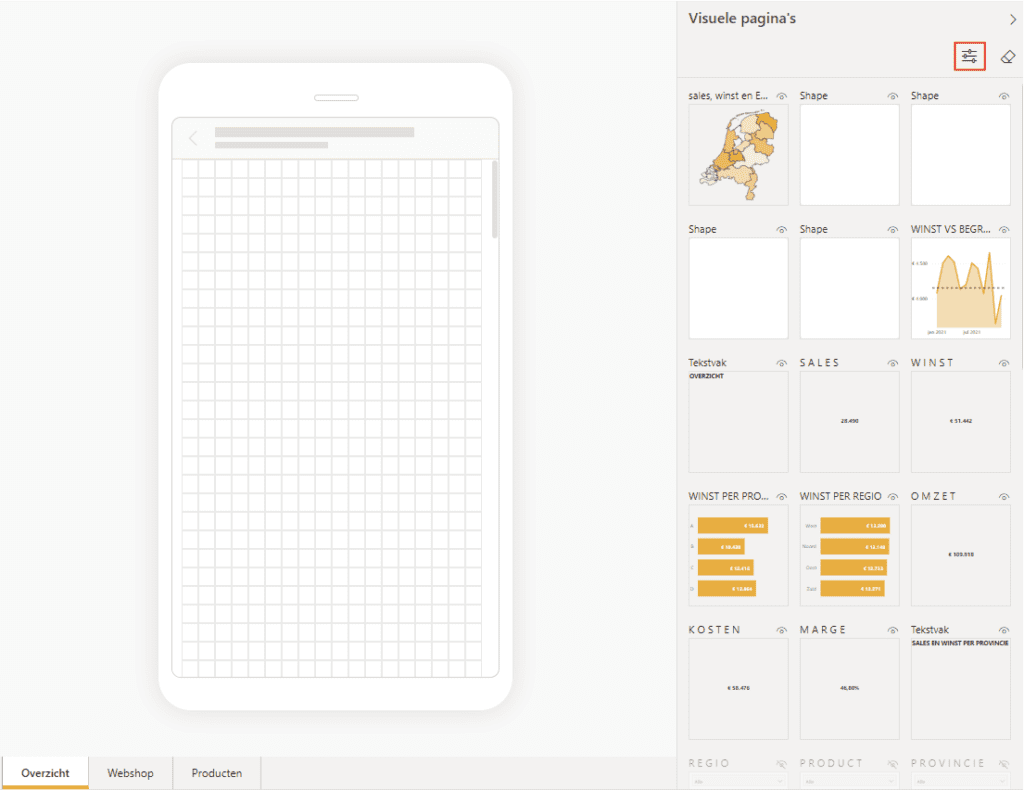
When switching to the mobile layout in Power BI Desktop, you get the screen below. The shape of a mobile phone is visible. Additionally, Power BI keeps the pages as they are in the desktop version. On the right side of the screen are all the visual elements on the respective page. This makes it easy to create the mobile version per page.
Note: if you use bookmarks and some visual elements are hidden by default, they will also be hidden in the mobile version. Want to see only the visible ones? Click on the highlighted filter and choose ‘Visible’.
Step 2: Arrange the mobile version
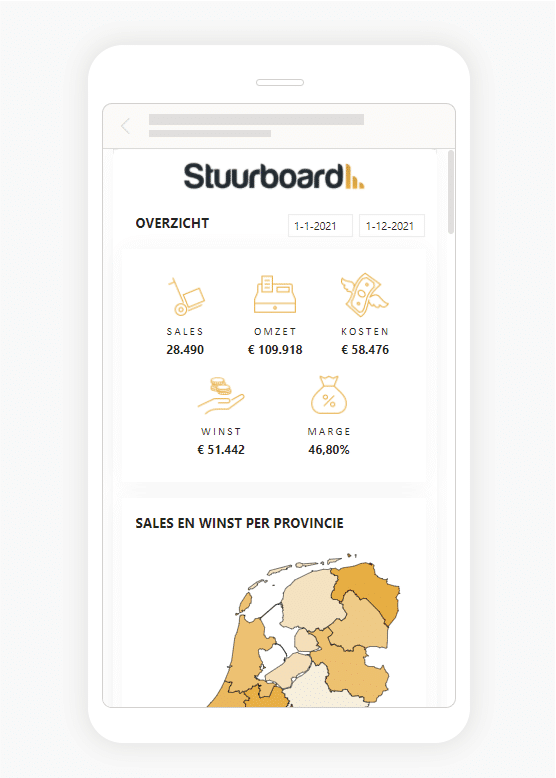
Arranging the mobile version is quite simple because you can choose from the existing visual elements. However, the mobile format can complicate the layout, depending on how you arranged the desktop version. The first step is to drag a visual element to the grid. Then adjust the size so that it fits the mobile version. Note: this has no effect on the size in the desktop version.
In this example, we converted the ‘Overview’ page to a mobile version.
Step 3: Use the mobile version
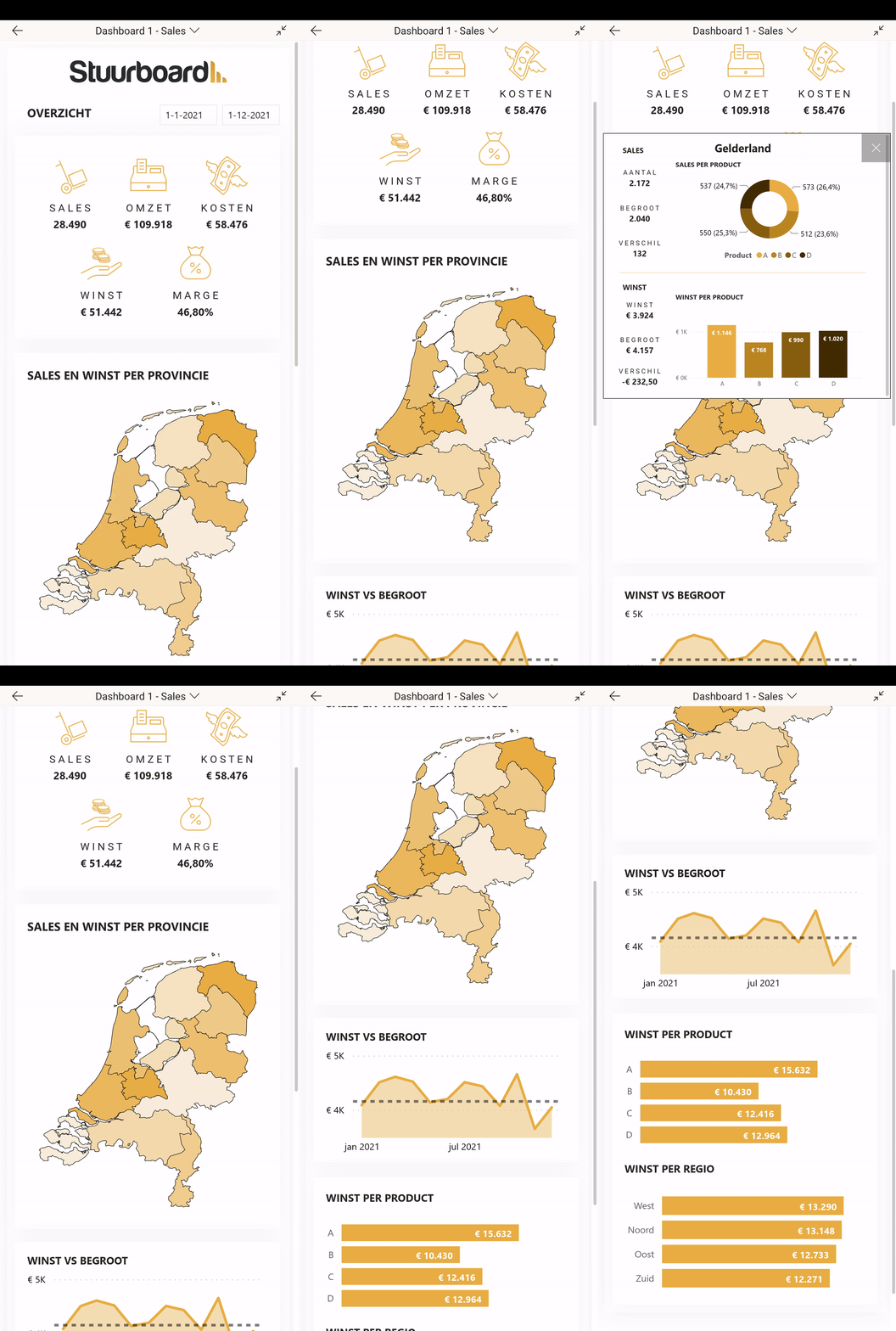
To use the mobile version of your Power BI dashboard, it is important that you have the Power BI app installed on your phone. This can be found in the App Store and in the Google Play Store. Once logged in, navigation in the app works the same as on the computer. Any published dashboard can be opened in the Power BI app, but the mobile version opens if a dashboard has one. The result is shown below.
Tip: The use of tooltips also works in the mobile version. Want to know how to create them? You can read about it here.
Hopefully, you have also succeeded in creating a mobile layout of a dashboard in Power BI. Curious about other articles in our knowledge base? For example, read here how to add sparklines in a table in Power BI. Do you have questions? Feel free to contact us.