
Add a Column in Power BI
In Power BI, you add a column via Power Query or via the report view. In Power Query, use 'Custom column' for M formulas, ideal for data transformations before loading. In the report view, use a DAX formula to add a calculated column to the model. Both methods are only available in Power BI Desktop.
To transform data in a Power BI dashboard, it is useful to add columns. This is possible both in Power Query and in the report view. This allows data to be combined or supplemented.
1: Create a new column in Power Query
To add a column in Power Query, you need to have a report open in Power BI Desktop. Select ‘Home’ and then double-click ‘Transform data’. This opens the Power Query editor.
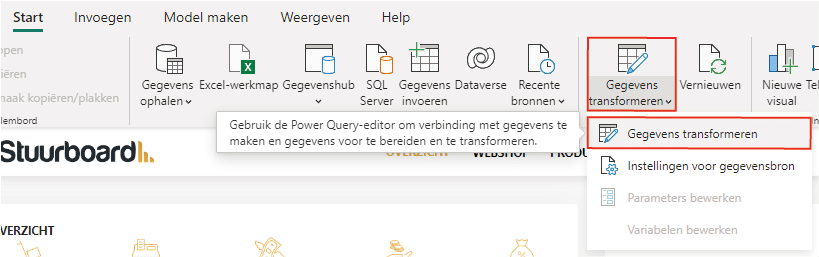
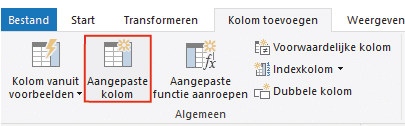
Then select the query in which you want to place a column. Add a new column via ‘Add column’ and ‘Custom column’.
After this, a new screen opens in which Power Query formulas can be entered. This makes it possible not only to perform all kinds of calculations, but also to simply add text.
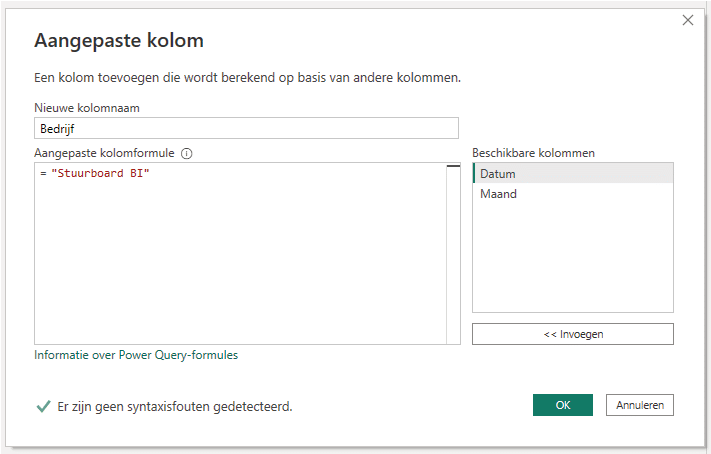
Adding a column is not only possible by writing your own formula, but also by adding an index or conditional column, for example.
2: Add a new column in the report view of Power BI
By adding a new column in the report view, you add a column to a table that is already included in the model. In this case, a DAX formula is used that defines the values of the column. This is also only possible in Power BI Desktop. This allows data from different columns or tables to be merged, added, or transformed. Adding a new column is possible by going to the table view, selecting the ‘Table tools’ tab, and clicking ‘New column’.
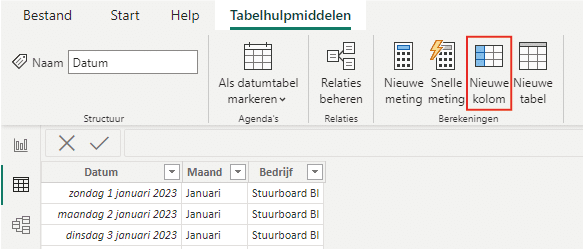
This adds a new column, in which you then need to enter a DAX formula. Depending on the purpose of the column, an endless number of formulas are available. If you use Excel, the DAX formulas will be familiar to you.
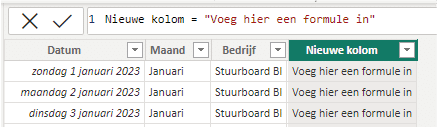
This is how you can add a column in Power BI. Do you have questions? Feel free to contact us.
Our tip: Add data transformations as early as possible in Power Query, not as a DAX column afterwards. Transformations in Power Query are executed once during loading and are therefore faster than DAX columns that are recalculated for every row at each refresh.
Frequently asked questions
How do I create a new column in Power Query?
Open a report in Power BI Desktop and click 'Home' followed by 'Transform data' (double-clicking opens the editor). In the Power Query editor, select the query to which you want to add a column. Click 'Add column' and choose 'Custom column'. In the screen that opens, write a Power Query formula (M formula). You can concatenate text, perform calculations, or assign conditional values. Finish with 'Close and apply' to load the change into the model.
When should I use Power Query and when should I use a DAX column in Power BI?
Use Power Query for transformations on the source data, such as combining columns, cleaning text, or calculating derived values before the data enters the model. Use a DAX calculated column in the report view when the calculation depends on relationships in the data model or on other tables. DAX columns are calculated per row and stored in the model, while Power Query transformations take place before loading. For measures that dynamically respond to filters, use a DAX measure instead of a column.
Can I add a column in Power BI without Power BI Desktop?
No, adding calculated columns via Power Query or DAX is only possible in Power BI Desktop. In the Power BI workspace (the online environment), you cannot modify the data model or add new columns. If you want to add or transform a column, open the .pbix file in Power BI Desktop, make the change, and republish the report to the workspace.