
Creating relationships in Power BI
Relationships are important in Microsoft Power BI for connecting different data sources so that information can be displayed in the dashboard exactly as you want it.
Relationships are important in Microsoft Power BI for connecting different data sources so that information can be displayed in the dashboard exactly as you want it.
1. The purpose of relationships
Relationships in Power BI exist to make data work together. Without creating relationships, the full power of Power BI is not utilised, because the tables remain standalone. To create a relationship between two tables it is important that they have a matching column. That is what the relationship needs to be established on. Once a relationship is created it becomes possible to, for example, visualise data from multiple sources about product A in a single table or other visual.
2. Types of relationships
In Power BI you can choose from four different types of relationships. The names of the relationships below indicate what they apply to. ‘One’ means there is one instance of a given value, while ‘Many’ means a table has multiple instances of a given value.
Many-to-one (*:1): multiple instances in a column of one table and one instance in the related table. This variant is the most common.
One-to-one (1:1): one instance in the columns of both tables.
One-to-many (1:*): one instance in the column of one table and multiple instances in the related table.
Many-to-many (:): multiple instances in the columns of both tables. This variant therefore requires no unique value, which makes it important that the cross-filter direction is set correctly. This depends on the purpose of the relationship and should be set to ‘single’ or ‘both’.
3. Creating a relationship in Power BI
To create a relationship you need at least 2 tables with a column containing matching values imported into Power BI. This is the prerequisite for creating a relationship. Creating a relationship starts by navigating to the relationships screen. You do this by clicking the tab highlighted below.
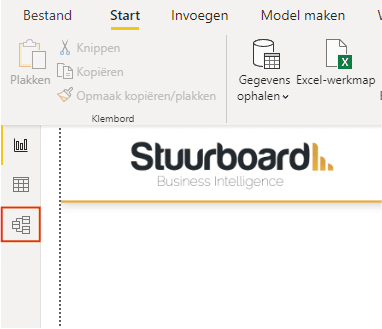
This opens the screen showing all tables and the relationships between them. In this example we use a table with cost centre names and numbers (provinces of the Netherlands) and a table with the corresponding vacancies on a given date. Then click ‘Manage relationships’ at the top, highlighted below.
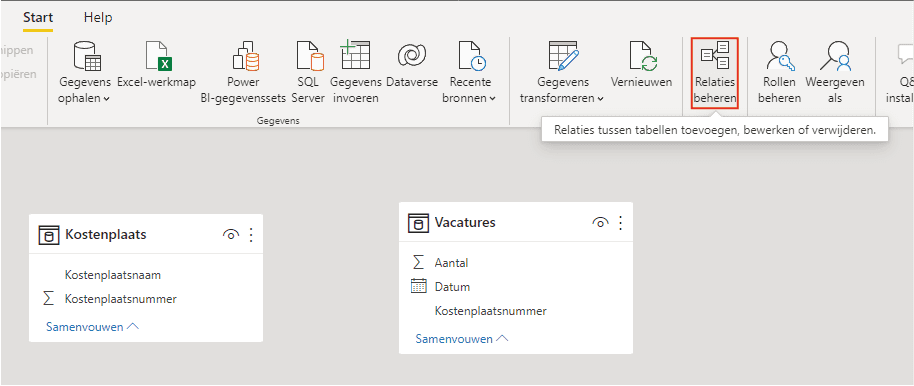
With ‘Manage relationships’ you can add, edit, or delete relationships between tables. Click ‘New…’ to set up a relationship.
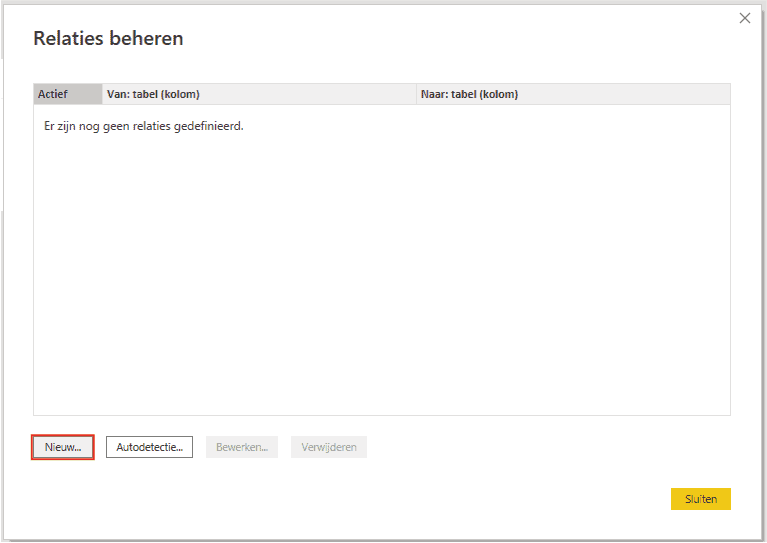
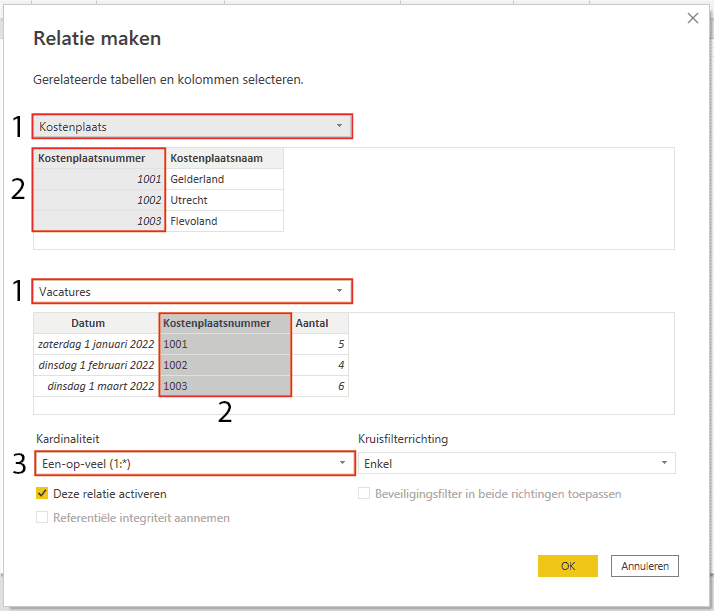
Once you have clicked ‘New…’ the screen for creating a relationship opens. Choose (1) the tables between which a relationship will be created. Then choose (2) the columns that contain matching values. Power BI (3) automatically selects the cardinality that is most logical for this relationship. Other relationships are possible if the column values allow it. The cross-filter direction defaults to single. In this example you filter the ‘Vacancies’ table from the ‘Cost centre’ table. This way you filter multiple values with just one value. Activate the relationship with ‘OK’.
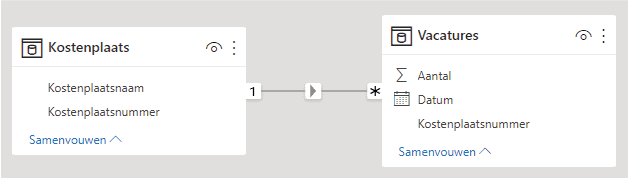
Once the relationship is active, it is also visible on the screen showing all relationships. As shown below, you can directly see which relationship applies. The (1:*) reappears together with the cross-filter direction (from ‘Cost centre’ to ‘Vacancies’).
Hopefully you have also managed to create relationships in Power BI. Do you have questions? Feel free to contact us.
Our tip: Let Power BI automatically detect relationships after importing tables via ‘Manage relationships > Autodetect’. This works well when column names match. Always manually verify afterwards whether the cardinality and cross-filter direction are correct, as automatically detected relationships are not always right for your specific data model.
Frequently asked questions
Why are relationships in Power BI so important for your report?
Relationships in Power BI are necessary to make data from different tables work together. Without relationships, tables are standalone and you cannot create filters, calculations, or visuals that combine data from multiple sources. By creating a relationship between two tables via a matching column, you can cross-filter and combine data in a single visual. This is the foundation of a good data model in Power BI.
What types of relationships exist in Power BI and when do I use which?
There are four types of relationships in Power BI. The most common is Many-to-one (*:1): multiple instances in one table and one instance in the other, for example multiple sales orders linked to one customer. One-to-one (1:1) is used when both tables contain unique values in the join column. One-to-many (1:*) is the mirror of many-to-one. Many-to-many (*:*) is used when both tables have multiple instances, but pay close attention to the cross-filter direction: set it to 'single' or 'both' depending on the reporting goal.
How do I create a relationship between two tables in Power BI?
First make sure both tables are imported and that they have a column with matching values. Then navigate to the relationship view via the tab on the left side of Power BI Desktop. Click 'Manage relationships' and then 'New'. Select the two tables and choose the columns that form the relationship. Power BI automatically selects the most logical cardinality. Set the cross-filter direction and click 'OK' to activate the relationship. The relationship is immediately visible in the relationship diagram.