
Group Data in Power BI
In Power BI you group data using the 'New group' feature in the fields pane. Right-click the field you want to group, choose 'New group' and select the desired values. You don't need to create a separate column — Power BI automatically creates a new field with a group icon. This is useful for bundling individual values into categories, such as merging multiple names under one department or product group.
Do you ever deal with a column of data that you want to group? You don't need to create a separate column for this, because this feature is built right into Power BI. It lets you group data into categories directly in Power BI.
Step 1: Group data in Power BI
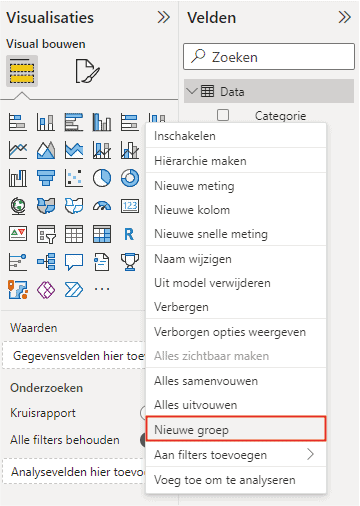
Creating a group is straightforward. Go to ‘Fields’ and right-click the field you want to group. Then click ‘New group’, as shown in the image below.
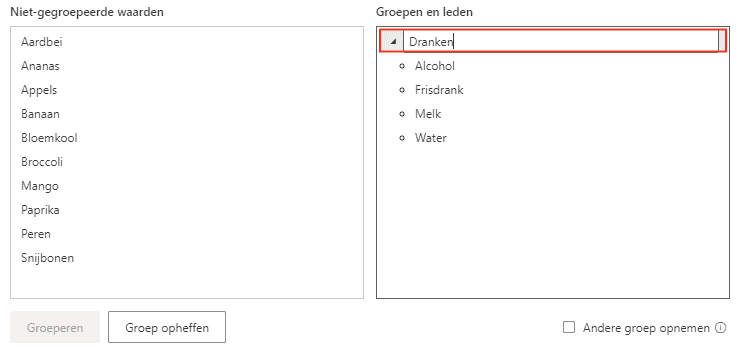
The screen that opens lets you create groups based on the values in the column. In this example, values are grouped into drinks, vegetables and fruit. Select one or more values (with Ctrl) in the left box and click ‘Group’. This creates a group whose name can be changed by double-clicking on the title. You can repeat this step for the remaining ungrouped values.
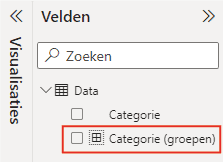
Once the groups have been created you can confirm them, after which a new field is created, as shown in the image below. You can recognise the field by the icon in front of the field name.
Step 2: Using grouped data
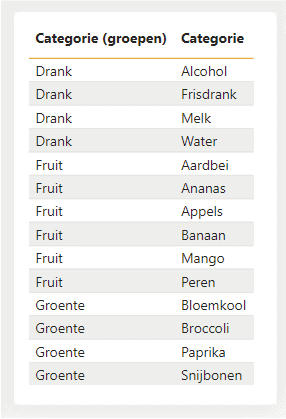
Using the created group is simple. It works just like any other field. The image below shows a table with the added groups, demonstrating how easy it is to go from individual data points to structured groups.
Hopefully you have also managed to group data in Power BI. We have many other articles in our knowledge base as well. Do you have questions? Feel free to contact us.
Our tip: Always create a catch-all group for values you haven’t explicitly grouped. This prevents unknown or new values from falling outside all categories and causing unexpected empty results in your dashboard.
Frequently asked questions
How do I create a new group in Power BI?
In Power BI Desktop, go to the 'Fields' pane and right-click the field you want to group. Choose 'New group'. In the screen that opens, select one or more values from the left box (use Ctrl for multiple selections) and click 'Group'. Give the group a clear name by double-clicking on the group title. Repeat this for all remaining values. Click OK to confirm; Power BI automatically creates a new field.
Can I use grouped data like a regular field in visuals?
Yes, a created grouping field works exactly the same as any other field in Power BI. You can recognise the field by the specific group icon in front of the field name. You can add it to tables, charts and slicers, and also use it in DAX formulas or as a filter. This lets you build clear reports where individual values are brought together into understandable categories.
Is there a limit to the number of groups I can create in Power BI?
Power BI does not impose a hard limit on the number of groups you can create within a grouping field. However, we recommend keeping the number of groups limited to maintain a clear dashboard. Too many categories make visuals harder to read. Ungrouped values can optionally be merged into a catch-all group, so all values in the dataset are categorised.