
Icons in a Table in Power BI
In Power BI you add icons to a table column via 'Conditional formatting'. Select the table, expand 'Conditional formatting', choose the correct column and enable 'Icons'. Via the advanced controls, set the rules and intervals that determine which icon is shown for which value. This lets you visualise numeric statuses directly as recognisable symbols, such as a traffic light model for project progress.
Microsoft Power BI offers all kinds of options for formatting a visual, including features you may not even know exist. For example, Power BI allows you to add icons to a column in a table, letting you represent a numeric value visually.
Step 1: Determine the purpose of the icons
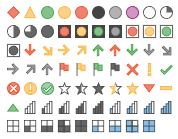
Before adding icons, it is important to consider what you want to achieve with them. There is a wide choice of icons available, as you can see below. First decide which icons best serve your goal. In this example, we want to show the user at a glance whether project tasks are being completed within the budgeted timeframe. For this we use a traffic light model, though other icons may also be suitable.
Step 2: Add icons to a table in Power BI
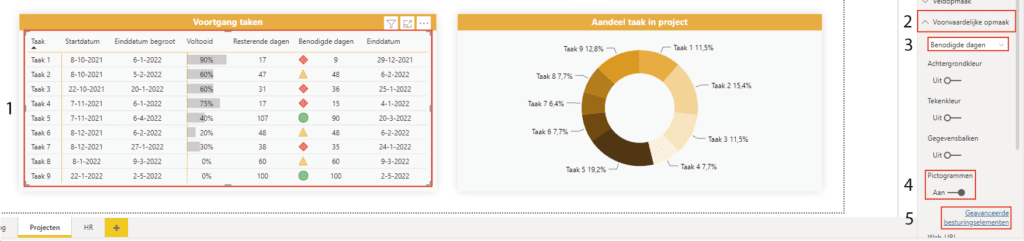
Now that the purpose of the icons is clear, they can be added to a table. (1) First select the table and (2) expand ‘Conditional formatting’ in the list of visualisations. You can then (3) choose the column where the icons should appear. (4) Enable the icons and (5) open the advanced controls.
Step 3: Configure the icons
To display the icons correctly, the settings need to be configured properly. Using rules, icons can be linked to intervals. The input for the icon is provided at (1) ‘On which field should we base this?’. This can be the value of the column or, for example, the difference between budget and actual. In this example, we use the difference between the remaining and required number of days. You can then configure the placement of the icons and set the rules. It is up to you to decide when the value of (1) should show a particular icon. You can choose the icon at (2).
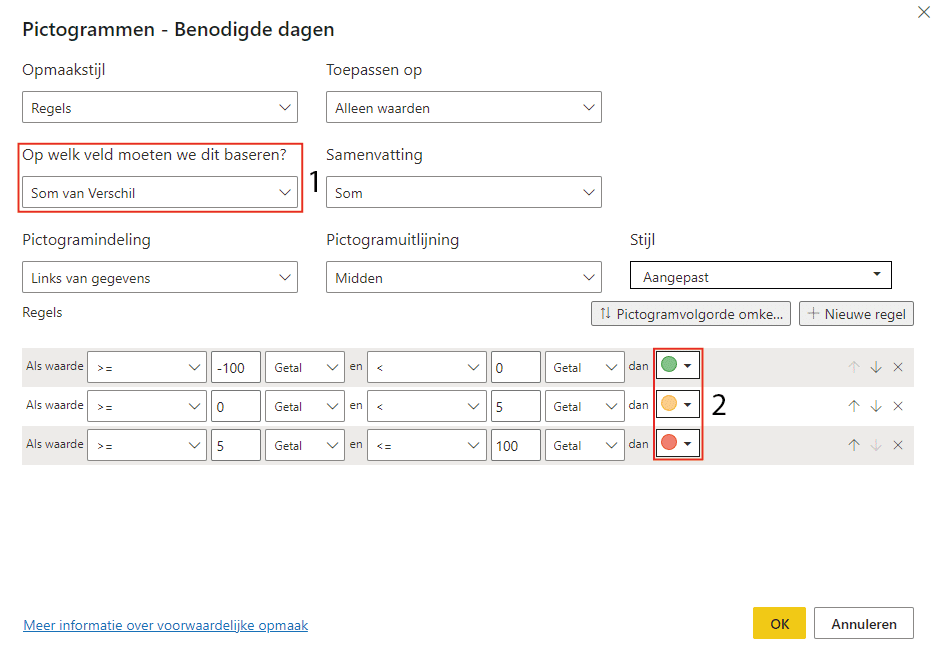
When everything is configured, click ‘OK’. Check whether you see the desired result in the table, as shown below.
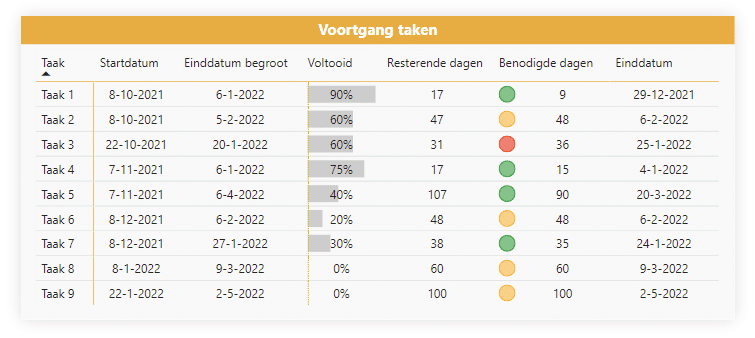
This way, you can see at a glance whether the required number of days is on track, needs attention, or is at risk. Adding icons to a table in Power BI offers all kinds of possibilities. Also check out the other articles in our knowledge base. Have questions? Feel free to contact us.
Our tip: Base the icon rules on a separate measure rather than directly on the column value. This gives you full control over the thresholds without changing the source data, and allows you to easily adjust the logic when business standards change.
Frequently asked questions
How do I add icons to a table in Power BI?
Select the table in your report and find the 'Conditional formatting' section in the formatting pane on the right. Choose the column to which you want to add icons and enable the toggle for 'Icons'. Then click 'Advanced controls'. Choose the field on which the rules are based, set the intervals, and link the desired icon to each interval. Confirm with OK to activate the icons in the table.
What field can I base the icon rules on in Power BI?
When configuring icons in the advanced controls, you choose the field that determines the intervals under 'On which field should we base this?'. This can be the value of the column itself, but also a calculated measure such as the difference between budget and actual, a percentage, or another derived value. This gives a lot of flexibility: the visible value in the table and the value on which the icon rule is based do not have to be the same.
What icon sets are available in Power BI for conditional formatting?
Power BI offers several built-in icon sets, including traffic lights (red, yellow, green), arrows (up, flat, down), stars, flags, and other status symbols. You choose which icon applies to each interval. The choice depends on the goal: traffic lights work well for a go/no-go status, arrows for trend direction, and flags for marking exceptions. Combine icons with colour for additional visual clarity.