
Link an Excel File in Dropbox to Power BI
You connect an Excel file in Dropbox to Power BI via a web connection. Generate a share link in Dropbox, copy the URL and change '?dl=0' at the end to '?dl=1'. Enter this URL via 'Get data > Web' in Power BI. Power BI will then retrieve the file directly from Dropbox, keeping your report automatically up to date with every data refresh.
There are various solutions for storing files in the cloud, such as Microsoft OneDrive or Dropbox.
Step 1: Sharing the Excel file in Dropbox
To create the connection, you need to generate a URL that can then be entered into Power BI. Navigate in Dropbox to the folder containing the file you want to connect. Click the ‘Share’ button, highlighted in red below.

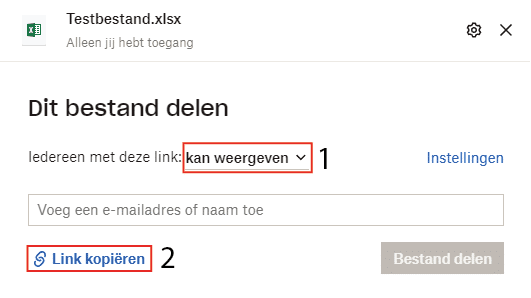
Once you click ‘Share’, a screen appears as shown below. Here, (1) you can choose whether the link allows view-only or also edit access. Once you’ve made your choice, (2) click the ‘Copy link’ button.
The URL you just copied will partially match this URL:
https://www.dropbox.com/s/xxxxxxxx/Testfile.xlsx?dl=0
Step 2: Processing the URL in Power BI
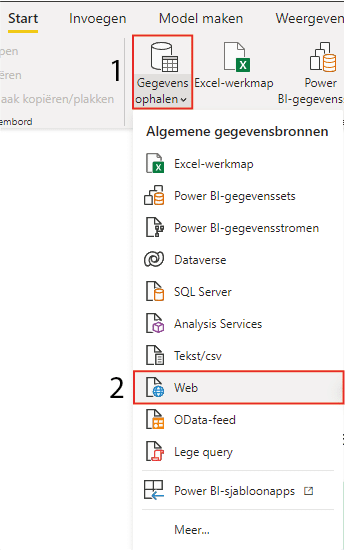
Now that the URL of the Excel file in Dropbox is known, it can be entered into Power BI. Select (1) ‘Get data’ and then (2) ‘Web’.
Paste the URL you generated in step 1 and change the end of the URL as follows:
https://www.dropbox.com/s/xxxxxxxx/Testfile.xlsx?dl=0
https://www.dropbox.com/s/xxxxxxxx/Testfile.xlsx?dl=1
Then press ‘OK’. Power BI can then give one of two results. The first shows the screen where you can select the desired tables/sheets from the Excel file. Click ‘Load’ and the connection between the Excel file in Dropbox and Power BI is established. When you refresh the data in Power BI, it will retrieve the latest data from the Excel file. The second option navigates to the Power Query editor — proceed to the next step if that happens.
Step 3: From text file to Excel file in the Power Query editor
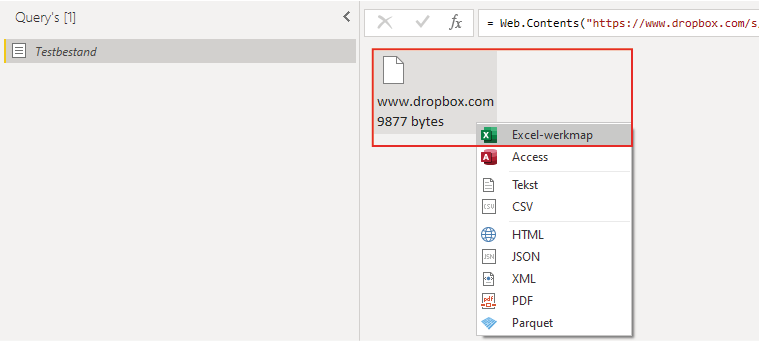
If you encounter the second option from the previous step, a few more actions are needed to get the desired tables in Power BI. First, right-click on the file and select ‘Excel workbook’.
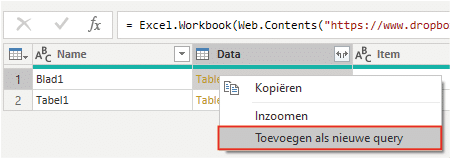
Converting to ‘Excel workbook’ gives a table containing the tabs and tables. To create a separate query (i.e. table) from a tab, right-click on ‘Table’ in the ‘Data’ column and then click ‘Add as new query’. This generates a new query where you can apply all desired changes.
This is how you can connect an Excel file in Dropbox to Microsoft Power BI. Do you have questions? Feel free to contact us.
Our tip: Store source files on SharePoint or OneDrive rather than a local drive. This ensures Power BI’s automatic refresh works outside the office as well.
Frequently asked questions
How do I generate a share link for an Excel file in Dropbox?
Navigate in Dropbox to the Excel file you want to connect. Click the 'Share' button next to the file. Choose whether the link gives view-only or also edit access, then click 'Copy link'. The generated URL ends in '?dl=0'. Change this to '?dl=1' before entering the URL in Power BI. The dl=1 parameter tells Dropbox to offer the file as a direct download, which is required for the connection with Power BI.
How do I enter the Dropbox URL as a data source in Power BI?
Open Power BI Desktop and click 'Get data'. Choose 'Web' and paste the Dropbox URL with the modified parameter '?dl=1'. Click 'OK'. Power BI can then give two results: either directly show a screen with available tables, or open the Power Query editor with the file as a text file. In the second case, right-click on the file and choose 'Excel workbook' to make the tables available.
What do I do if Power BI opens the Dropbox connection as a text file?
If Power BI opens the Power Query editor after entering the Dropbox URL and shows the file as a text file, right-click on the file in the query and choose 'Excel workbook'. A table now appears with the available tabs and tables. In the 'Data' column, right-click on 'Table' next to the desired tab and choose 'Add as new query'. You can then perform your transformations and build the report.