
Dynamic Images in Power BI
You display dynamic images in Power BI using an external visual such as 'Simple Image', which you download from the marketplace. Store the URLs of the images in an Excel table, import that table into Power BI, and use the URL column as input for the image visual. Using a filter or slicer, you can automatically switch between images based on the selected value.
Microsoft Power BI lets you add images to a dashboard, such as a company logo or other icons. Did you know it's also possible to add dynamic images? This way, specific images are shown depending on a filter value.
1. URLs of the images
To use dynamic images, the images need to be available on the internet. Power BI uses a URL to retrieve the image. To get that URL, you need to copy the address of the image. Do this by searching for the image online, then right-clicking on it and selecting ‘Copy image address’.

In this example we use images of social media platforms. We recommend creating a table in Excel with the name and URL of each image. The name is important so you can apply a filter to it in Power BI.

Save the Excel file somewhere so you can proceed to the next step.
2. Adding dynamic images in Power BI
This step starts with connecting the Excel file from the previous step to the dashboard. Once the table has been imported, you need to add a visual that can display images. Power BI does not have a standard visual for this. Click the three dots at the bottom of ‘Visualisations’ and then ‘Get more visuals’.
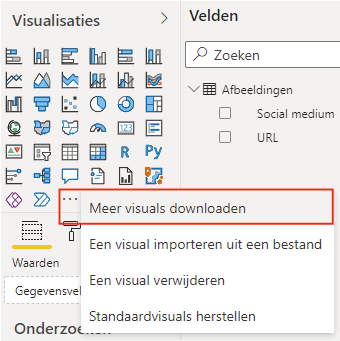
Then search for ‘Image’, which will show you visuals that can display images. In this example we use the ‘Simple Image’ visual. Add it to the dashboard and provide the column from the table containing the image URLs as input. You can easily adjust the size of the image by resizing the visual box. Using a filter makes it possible to switch between images, as shown below.

Hopefully you have also managed to create dynamic images in Power BI. Do you have questions? Feel free to contact us.
Our tip: Store the image URLs in an Excel file on OneDrive or SharePoint rather than on a local drive. This ensures the dashboard refreshes correctly outside the office and allows colleagues to open the report without errors about missing files.
Frequently asked questions
How do I add dynamic images to a Power BI dashboard?
First create an Excel table with the name and URL of each image. Save the file in OneDrive or SharePoint. Import the table into Power BI and add an image visual from the marketplace, such as 'Simple Image'. Use the URL column from the table as input for the visual. By setting a slicer or filter on the name column, the image changes automatically based on the chosen filter value.
How do I get the URL of an image to use in Power BI?
Search for the image on the internet. Right-click on the image and choose 'Copy image address'. Paste this URL into the Excel table next to the name or description of the image. Make sure the URL points directly to the image file, meaning the URL ends in a file extension such as .png or .jpg. Power BI then retrieves the image via this URL when loading the report.
Which visual should I use to display images in Power BI?
Power BI does not have a built-in visual for displaying images based on a URL column. Download a custom visual from the marketplace by clicking the three dots at the bottom of the visualisation panel and choosing 'Get more visuals'. Search for 'Image' or 'Picture' and add a suitable visual, such as 'Simple Image'. Provide the URL column as input and adjust the size by scaling the visual on the canvas.