
Sparklines in a Table in Power BI
Sparklines are small diagrams that you can add to a table or matrix in Power BI. They let you visually display the trend of a value per row, alongside existing numbers. You add a sparkline via the Insert tab and configure the Y-axis (the value) and the X-axis (for example a date). The chart type, colour and markers can be further customised.
Microsoft Power BI continues to evolve, and since December 2021 it has been possible to add sparklines (small diagrams) to a table or matrix. This adds an extra dimension to your table or matrix by visually displaying a trend.
Step 1: Adding sparklines in Power BI
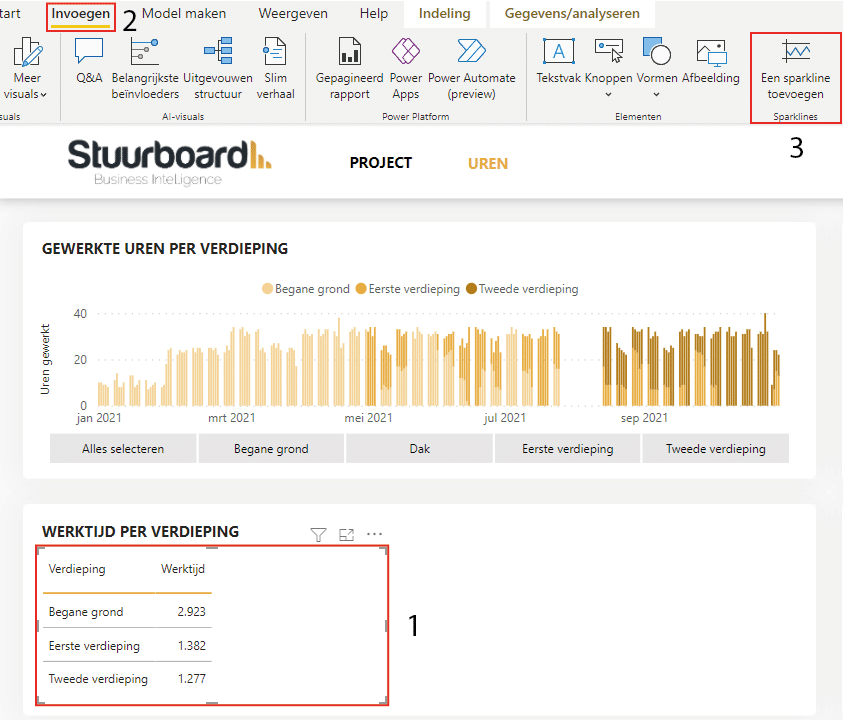
To add a sparkline, (1) first select a table or matrix. Then (2) navigate to ‘Insert’ and (3) click ‘Add a sparkline’.
The screen below then opens, where you fill in the Y-axis with the value whose trend you want to show. In this example we use the sum of ‘Working hours’, but you could also choose the average, for instance. The X-axis can be a date, client, employee or something else — it’s up to you.
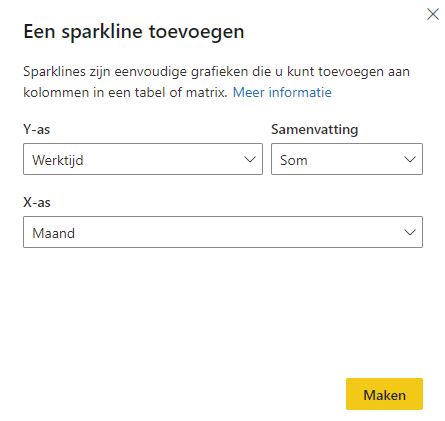
Click ‘Create’, after which a column with the sparklines is added to the table or matrix.
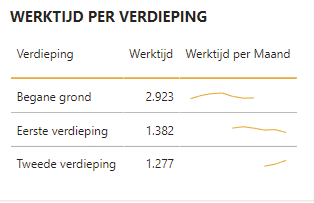
In this simple way you’ve added sparklines, but we can extend the table further. We’ll show you how in the next step.
Step 2: Changing sparklines visually
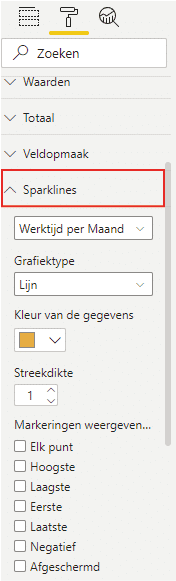
The sparklines have been added, but they can still be adjusted visually. To do this, click on the table or matrix, navigate to ‘Visualisations’ and expand ‘Sparklines’. This option will appear in the menu after completing step 1. Here you can change the chart type, data colour, line thickness and markers. Adding markers can be interesting because they let you mark the highest point, for example. The tooltip then shows you what the value was at that moment.
When you choose the ‘Column’ chart type, you get the result shown below in this example.
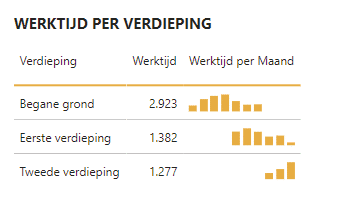
Explore the settings yourself to find which ones give you the desired result. You can use sparklines in a table or matrix in Power BI in all sorts of ways! Do you have questions? Feel free to contact us.
Our tip: Enable markers on your sparklines and set the highest point as a marker. This lets you see at a glance which row has the peak value without having to scan the entire table. Combine this with conditional formatting on the numeric column for an even clearer overview.
Frequently asked questions
How do I add a sparkline to a table in Power BI?
First select the table or matrix to which you want to add a sparkline. Then go to the Insert tab in the menu bar and click 'Add a sparkline'. In the configuration screen, set the Y-axis to the measure whose trend you want to show, such as the sum of working hours. The X-axis can be based on a date, employee or another dimension. Click Create and the sparkline column is automatically added to the table.
What visual adjustments can I make to sparklines?
After a sparkline has been added, you can change the chart type from line to column, adjust the data colour and set the line thickness. You can also enable markers to highlight specific points, such as the highest or lowest point. The tooltip then shows the exact value at that point. All visual settings are available via the Visualisations panel after selecting the table and expanding the Sparklines category.
When are sparklines in Power BI useful compared to a separate chart?
Sparklines are useful when you want to show the trend of a value per row in a table without creating a separate chart. They are compact and contextual — the trend is directly visible next to the corresponding row, which improves readability. A separate line or column chart is better suited when you want to compare multiple series or when the time axis needs to be explained in more detail. Sparklines are an addition to existing tables, not a replacement for full visualisations.