
Replace Values in Power BI
In Power BI, you replace values via Power Query. Select a cell and choose 'Replace values' via right-click, or select the column and use the 'Replace values' button on the Home tab. Enter the value to be replaced and the replacement value. The change applies to the entire column and is saved as a step in the query history.
In Power BI, Power Query provides the capabilities to transform data. The data is retrieved in a certain way, but you often still need to perform operations on it.
Replace values in Power BI
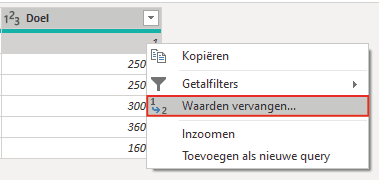
It is easy to replace values in Power Query. Power BI offers multiple options for this. You can select a specific cell and open the options below by right-clicking. Then click ‘Replace values…’, after which the selected value is automatically filled in. Fill in the value you want to replace it with. Replacing the value does not only apply to the selected cell, but to the entire column.
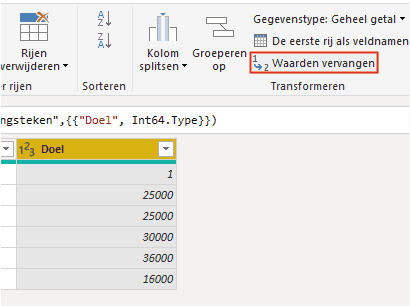
Another option is to select the column that contains the value to be replaced. Then go to the ‘Home’ tab and click ‘Replace values’. Fill in the value to be replaced and what you want to replace it with. The result is the same as the previous method, so choose whichever you find easier!
Hopefully you have managed to replace values in Power BI. The Power Query editor offers many possibilities for replacing values. In addition to this article, we have more articles in our knowledge base. Do you have questions? Feel free to contact us!
Our tip: Every replacement you perform via Power Query is saved as a separate step in the query history. Give each step a clear name via right-clicking on the step, so you can quickly see later what was changed and why. This makes the report easier to maintain.
Frequently asked questions
How do I replace values in a column via Power Query in Power BI?
There are two ways. The first: select a specific cell in the column, right-click, and choose 'Replace values'. The selected value is automatically filled in as the value to be replaced. Enter the replacement value and click OK. The second way: select the entire column, go to the Home tab, and click 'Replace values'. Enter the value to be replaced and the new value. Both methods apply the changes to the entire column, not just the selected cell.
Can I also replace part of a value in Power Query, such as a text fragment?
Yes, Power Query also supports replacing part of a text value. Use the same 'Replace values' function for this. If the value to be replaced is a substring that is part of a longer text, uncheck the option 'Match entire cell contents'. This replaces the text fragment wherever it appears in the column, even if it is part of a longer string. This is useful for cleaning up consistency issues in text columns.
When do I use 'Replace values' and when do I use a custom column in Power Query?
Use 'Replace values' when you want to correct specific, known values, such as typos, codes, or incorrect labels. This is quick and requires no formula. Use a custom column or a conditional column when the replacement depends on a logical condition, such as 'if the value is greater than 100, replace with High, otherwise Low'. A custom column offers more flexibility for more complex transformations, but requires knowledge of M code or the visual interface for conditional columns.