
Split a Column in Power BI
In Power BI, you split a column via the Power Query editor using the 'Split column' option on the 'Home' tab. You can split by delimiter (such as a space or comma), by number of characters, or by non-digits to digits. This is useful for splitting names or addresses that are in one column into separate columns for first and last name or street name and house number.
In Power BI, Power Query provides the capabilities to transform data. The data is retrieved in a certain way, but you often still need to perform operations on it.
In Power BI, Power Query provides the capabilities to transform data. The data is retrieved in a certain way, but you often still need to perform operations on it. This makes it possible to get the data into the report in the desired way, after which it can be visualized as information. One of the capabilities in Power Query is splitting a column. This is useful when data is in one column that you want to distribute across multiple columns based on, for example, a delimiter or digits/non-digits. Want to know how to split a column in Power BI? Then read this article step by step.
In this article, we use the table below. The goal is to split column A into first and last name, and to split column B into street name and house number.

Split a column by delimiter in Power BI
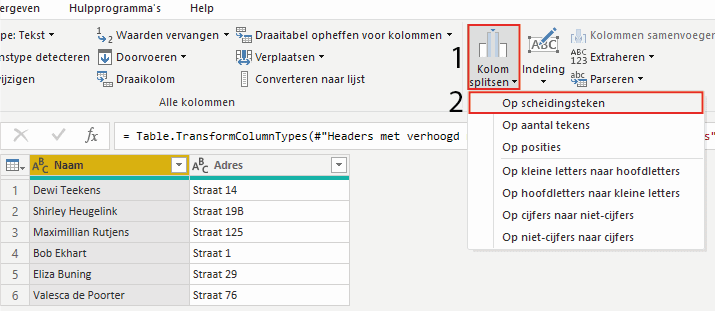
Splitting a column in Power BI is straightforward. Go to the Power Query editor, select the column, and click (1) ‘Split column’ and (2) ‘By delimiter’ on the ‘Home’ tab.
Splitting a column can be done based on different settings, which are shown in the screen below.
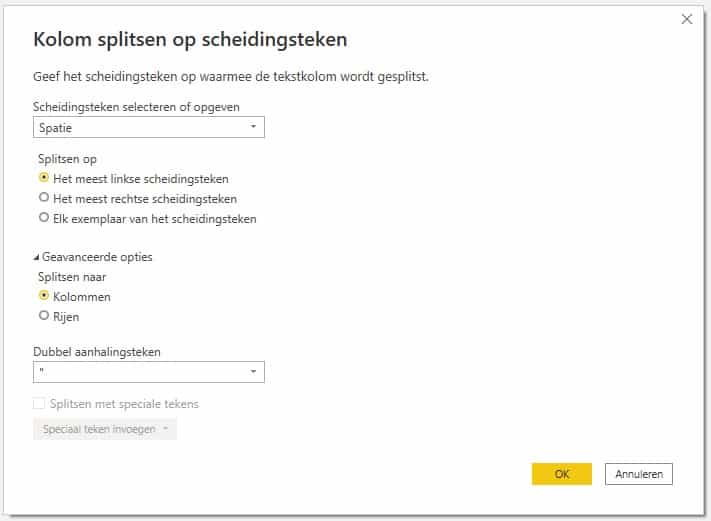
In this example, the column is split based on a space. We also choose to split at the leftmost delimiter, so that middle names and last names end up in one column. Take a look at all the options yourself and try them out to discover all the possibilities.
Splitting the column gives the result shown in the image below. Note that the column names were automatically created. In this case, they were changed to first name and last name. This is possible by adjusting the highlighted code of the step.

Split a column by non-digits/digits
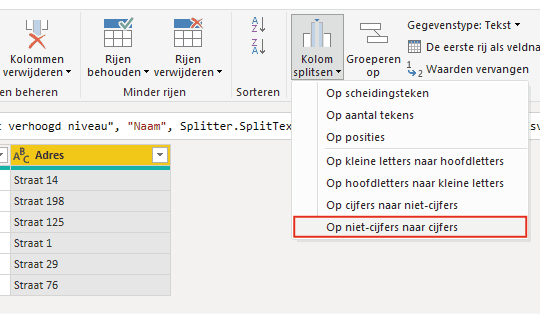
In addition to splitting a column by a delimiter or number of positions, it is also possible to split a column by non-digits/digits. Follow the earlier steps and click ‘By non-digit to digit’.
Hopefully you have managed to split a column in Power BI. The Power Query editor offers many possibilities for splitting columns. In addition to this article, we have more articles in our knowledge base. Do you have questions? Feel free to contact us!
Our tip: Document each Power Query step with a clear name. This allows a colleague (or yourself six months from now) to immediately understand what is happening without having to read the formula.
Frequently asked questions
How do I split a column by delimiter in Power BI?
Open the Power Query editor via 'Home > Transform data'. Select the column you want to split and click 'Split column' on the 'Home' tab, then click 'By delimiter'. In the screen that opens, choose the delimiter (space, comma, semicolon, or custom). Also set at which position to split: leftmost, rightmost, or every occurrence. Confirm with OK; Power Query automatically creates new columns with generated names that you can then rename.
How do I split a column by digits and non-digits in Power BI?
In the Power Query editor, go to 'Home > Split column' and choose 'By non-digit to digit' or 'By digit to non-digit'. This is useful for columns that combine text and numbers, such as an address column with a street name and house number joined together. Power Query automatically detects where the transition from letters to digits (or vice versa) occurs and splits the column at that position. So a value like 'MainStreet12' can be directly separated into 'MainStreet' and '12'.
Can I split a column in Power BI by multiple delimiters at once?
Yes, this is possible via a custom delimiter or via multiple consecutive split steps in Power Query. Under 'By delimiter', choose the 'Custom' option and enter the delimiter. For multiple different delimiters, the most reliable method is to split the column in steps: first by the first delimiter, then split the resulting column again by the next character. Alternatively, use a custom M formula in a custom column for more complex split logic.