
Unpivot a Pivot Table in Power BI
Unpivoting a table in Power BI converts columns into rows via the Power Query editor. Select the columns you want to convert and right-click 'Unpivot columns'. A faster method is to select the columns you want to keep and choose 'Unpivot other columns'. This makes the data suitable for visualization in charts and filters.
In Power BI, data can be transformed via Power Query. The data is retrieved in a certain way, but you often still need to perform operations on it.
In Power BI, data can be transformed via Power Query. The data is retrieved in a certain way, but you often still need to perform operations on it. This makes it possible to get the data into the report in the desired way, after which it can be visualized as information. One of the capabilities in Power Query is rotating columns to rows and vice versa: unpivoting a table in Power BI. This is called unpivot, which means converting columns in a pivot table to rows. There are multiple options for this, which are described step by step in this article.
In this article, we use the table below. To be able to visualize the data clearly, the goal is to place the data from columns C through N into two columns.

Step 1: Method 1
Converting the columns to rows is straightforward. Go to the Power Query editor and select the columns you want to convert. Then right-click on one of the columns and select ‘Unpivot columns’.
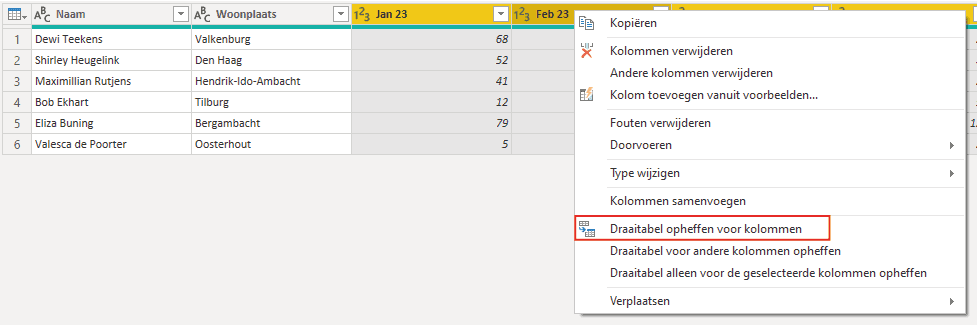
Step 1: Method 2
The second method is to select the columns you do not want to unpivot. This prevents you from having to select a large number of columns to unpivot them. Select the columns you do not want to unpivot. The option available via right-click is also available in the top menu: in the ‘Transform’ tab, click the arrow next to ‘Unpivot columns’ and then click ‘Unpivot other columns’.
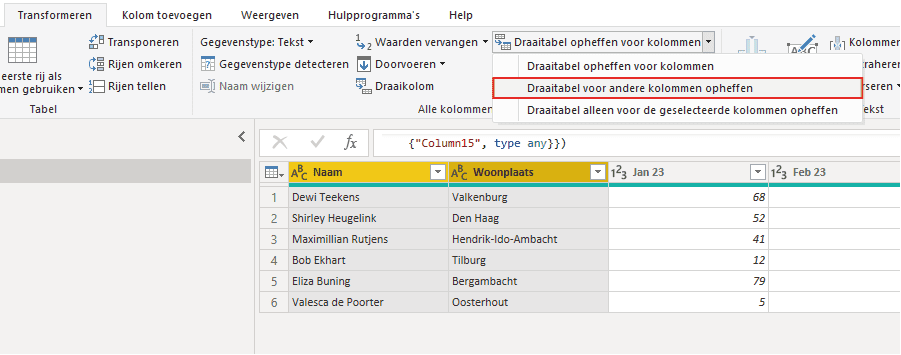
Step 2: The result of unpivoting in Power BI
It does not matter which method you chose, because if you have done it correctly you will get the desired result. The result for this example is shown in the image below.
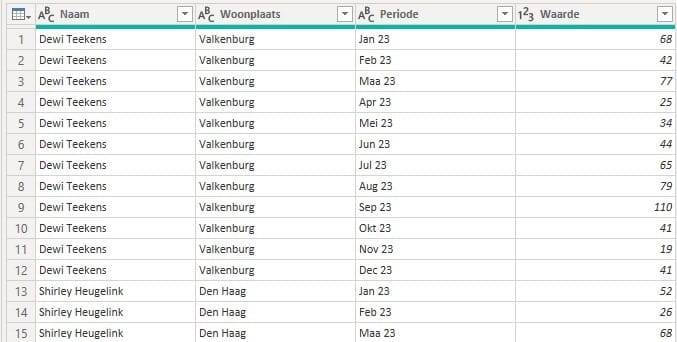
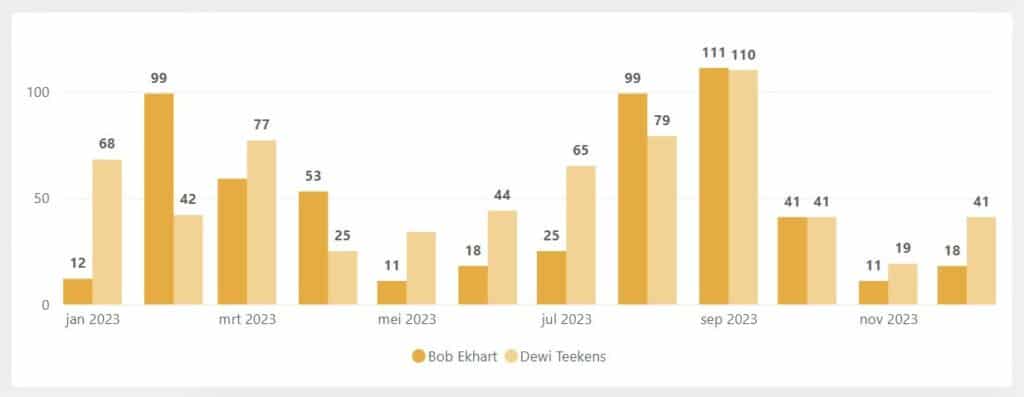
The periods and their corresponding values have been placed in two columns. This makes it possible to filter by period or value and to visualize the data in a chart.
Hopefully you have also managed to unpivot a table in Power BI. In addition to this article, we have other articles in our knowledge base. Do you have questions? Feel free to contact us.
Our tip: It does not matter which method you chose, because if you have done it correctly you will get the desired result.
Frequently asked questions
How do I unpivot a table in Power BI?
Open the Power Query editor via 'Transform data'. Select the columns you want to convert from columns to rows. Then right-click on one of the selected columns and choose 'Unpivot columns'. The selected columns are now converted into two columns: one column with the original column names and one column with the corresponding values. Then click 'Close and apply' to apply the transformation.
What is the difference between the two methods for unpivoting?
Method 1 is suitable when you want to convert a limited number of columns: select those columns and choose 'Unpivot columns'. Method 2 is more convenient when you want to unpivot many columns and only keep a few: select the columns you want to keep and choose 'Unpivot other columns'. With method 2, all unselected columns are automatically converted to rows, which saves a lot of clicking for wide tables.
When should I unpivot a table in Power BI?
You should unpivot a table when data is arranged horizontally in columns that should actually be rows. A common example is an Excel table with months as column headers, while Power BI expects months to be stored as rows with a separate value per row. After unpivoting, you can easily visualize the data in time series charts and filter by period.