
Export a Power BI dashboard to PowerPoint
You export a Power BI dashboard to PowerPoint via the 'Export' option in the online Power BI environment. Then choose 'PowerPoint' and select whether you want to export the current values or the default values. Each report page becomes a separate slide. The PowerPoint contains a clickable link back to the live dashboard in Power BI.
A Microsoft Power BI dashboard is accessible in multiple ways. When you want to share a snapshot of the dashboard with others, this is possible in a straightforward way. You can export one or more pages to Microsoft PowerPoint.
Step 1: Export a Power BI dashboard to PowerPoint
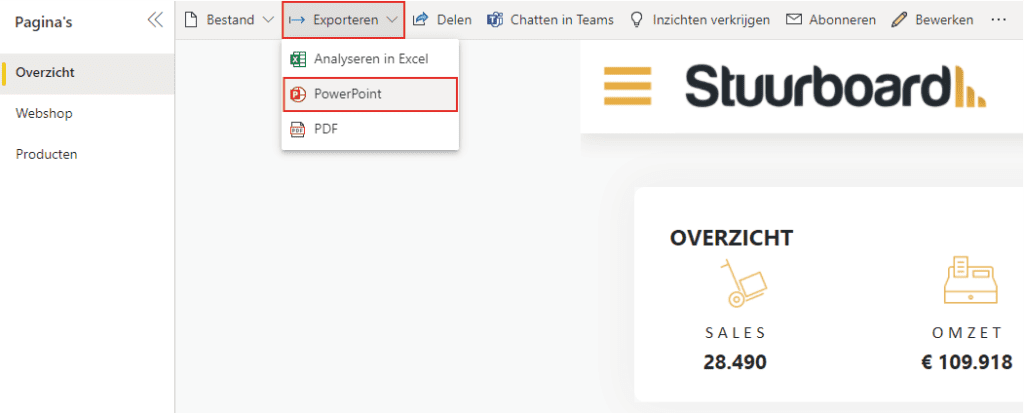
Navigate to the Power BI page at app.powerbi.com and then to the dashboard you want to export. Once you have opened the dashboard, click ‘Export’ and ‘PowerPoint’, as shown below.
Clicking ‘Export’ and ‘PowerPoint’ opens a screen with export options. In this screen you can choose between ‘Current values’ or ‘Default values’. We recommend leaving it on ‘Current values’. The same applies to the default ticked option. The last option is to export only the current page. Make sure you have selected the correct page.
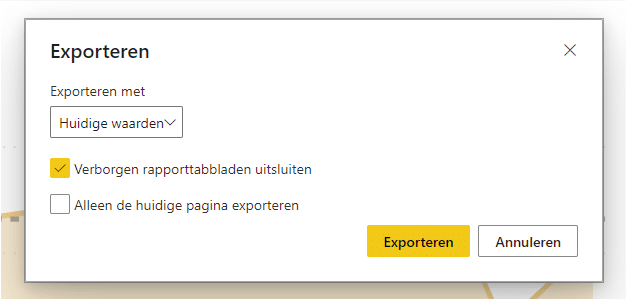
Once the options are correct, click ‘Export’. The export may take some time. Once complete, the PowerPoint will open automatically. You can then edit, use, and share it however you like. In the PowerPoint you can navigate to the dashboard in Power BI by clicking anywhere while holding CTRL + left mouse button.
Once you have followed the steps, you will have exported your Power BI dashboard to PowerPoint. Do you have questions? Feel free to contact us.
Our tip: Always ask the end user first what decisions they make on a daily basis. A good dashboard answers exactly those questions, nothing more and nothing less.
Frequently asked questions
How do I export a Power BI dashboard to PowerPoint?
Open the report in the online Power BI environment at app.powerbi.com. Click 'Export' in the menu and choose 'PowerPoint'. Select whether you want to export the current filtered values or the default values. Then click 'Export' and wait for the download to complete. The PowerPoint will automatically open with each report page as a separate slide, including a link back to the live report.
Can I export just one page to PowerPoint?
Yes, when exporting you can tick the option to export only the current page. Make sure you have selected the correct page in the report before clicking 'Export'. This way you avoid exporting all pages when you only need one for your presentation.
What is the difference between current values and default values when exporting?
With 'Current values', Power BI exports the data as it currently appears on screen, including all active filters and slicers. With 'Default values', the filters are ignored and you see the report data as it is set by default. Use 'Current values' when you want to share a snapshot of a specific filtered view, such as a particular region or period.