
Export a Power BI Dashboard to PDF
You export a Power BI dashboard to PDF via File > Export > PDF in Power BI Desktop, or via the Export button in the Power BI workspace. In the workspace, you then choose between current values or default values. The export contains all report pages as separate pages in one file. This lets you share a static snapshot without recipients needing direct access to the dashboard.
A Microsoft Power BI dashboard can be accessed in several ways. When you want to share a snapshot of the dashboard with others, this can be done easily. You can export one or more pages to PDF.
Step 1: Export a dashboard in Power BI Desktop
To export a dashboard in Microsoft Power BI Desktop, the file must first be open. When the dashboard is ready to export, click the ‘File’ tab at the top.
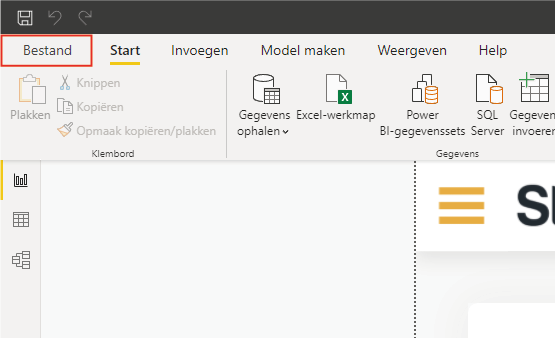
When you expand the ‘File’ tab, a menu appears. In this menu, click (1) ‘Export’ and (2) then ‘Export to PDF’.
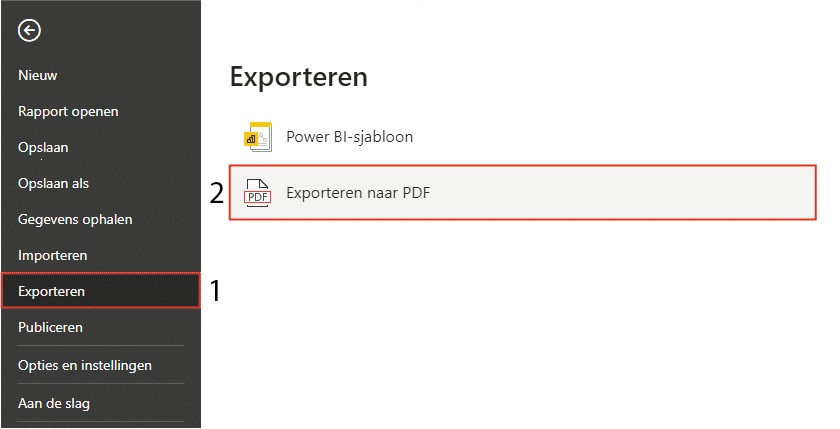
As soon as you click ‘Export to PDF’, Power BI begins exporting. Depending on the file size of the dashboard and the capabilities of the computer, this will take a few seconds. The PDF then opens in the default browser and you can edit and save it as desired.
Step 2: Export a dashboard in the workspace
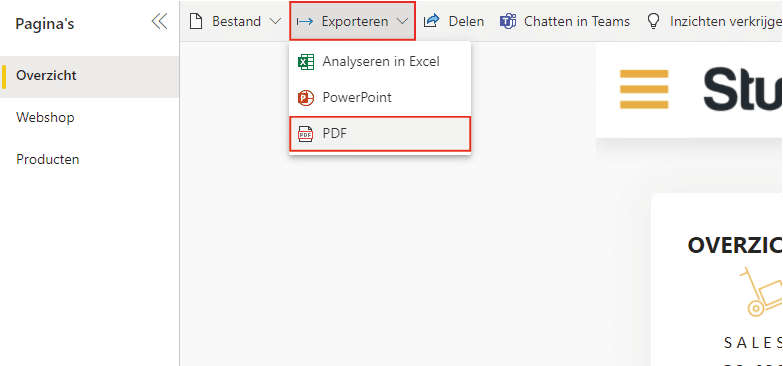
In the previous step, we showed how a dashboard in Power BI Desktop can be exported to PDF. This can also be done in the workspace, meaning you do not need Microsoft Power BI installed on your computer. Navigate to the Power BI service and then to the dashboard you want to export. Click ‘Export’ and ‘PDF’, as shown below.
Clicking ‘Export’ and ‘PDF’ opens a screen with export options. These options are only available in the workspace, not in Power BI Desktop. Here you can choose between ‘Current values’ or ‘Default values’. We recommend leaving this set to ‘Current values’. The same applies to the default ticked option. The last option is to export only the current page. Make sure you have selected the correct page.
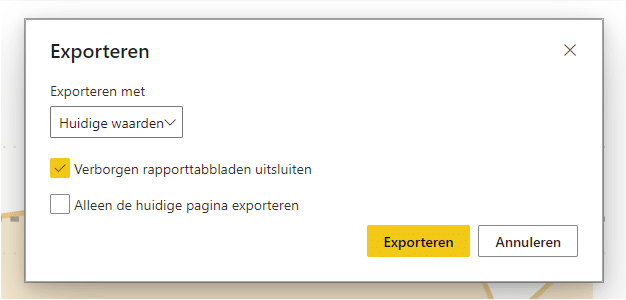
When the options are set correctly, click ‘Export’. The time it takes to export may be longer than in Power BI Desktop. Once the export is complete, the PDF will be downloaded automatically.
In addition to the differences mentioned, it is important to know that the export from step 1 adds a white border around the page. The export from step 2 shows only the page(s) themselves. Once you have followed the steps, you have successfully exported your Power BI dashboard to PDF.
Our tip: In the workspace, choose ‘Current values’ so that the active filters and slicers are included in the PDF. This way you share exactly the view you intend, rather than the default state of the report.
Frequently asked questions
How do I export a Power BI dashboard to PDF from Desktop?
Open the report in Power BI Desktop and click the 'File' tab at the top. Then choose 'Export' and then 'Export to PDF'. Power BI starts exporting immediately; depending on the file size this takes a few seconds. The PDF then automatically opens in your default browser, where you can save or edit it. Note: the export from Desktop adds a white border around the page.
What is the difference between exporting from Desktop and from the workspace?
When exporting from Power BI Desktop, you get a PDF with a white border around each page. When exporting from the Power BI workspace, you only see the pages themselves, without an extra border. Additionally, the workspace offers extra options: you can choose between 'Current values' or 'Default values', and you can specify whether to export all pages or only the current page. Exporting via the workspace does not require Power BI Desktop to be installed.
Can I control which pages are included in the PDF export?
Yes, in the Power BI workspace you can choose whether to include all pages or only the current page when exporting. Make sure the dashboard is in the desired state before exporting, as the PDF is a static snapshot. Visual elements hidden via bookmarks are also included in the export. So check in advance which page is active and which filters are set.