
Publishing a Power BI dashboard
You publish a Power BI dashboard from Power BI Desktop via the 'Home' tab, 'Publish' button. You then choose the workspace to publish to. You need at least a free Power BI licence and a Microsoft account. After publishing, the report is available in the online Power BI environment, where you can share it with colleagues who have the appropriate licence.
Once you have created a dashboard in Microsoft Power BI Desktop, you can publish it to the Power BI workspace. This makes it easy to share the dashboard with others.
Step 1: Prerequisites
Before the dashboard can be published, you need at least a free Power BI licence. If you do not have one, you can obtain it at app.powerbi.com.
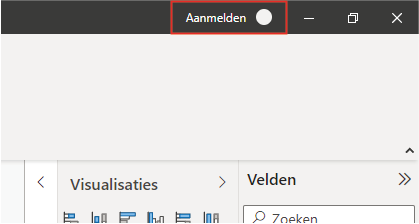
Log in to Power BI Desktop with a Microsoft account. You can do this by clicking the button shown below.
Step 2: Publishing in Power BI Desktop
Once the prerequisites from the previous step have been met, make sure you have opened the dashboard you want to publish. You can do this easily by clicking ‘Publish’ under ‘Home’.
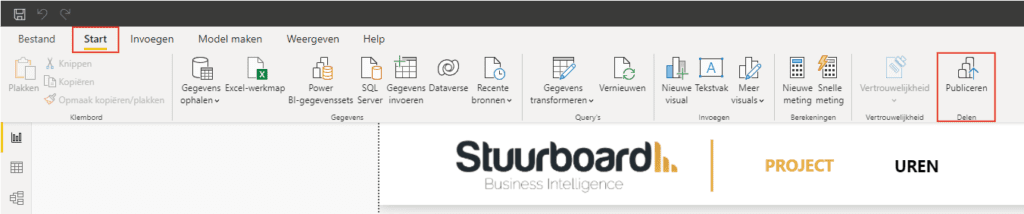
Once you click ‘Publish’, a screen opens where you can specify which workspace you want to publish the dashboard to.
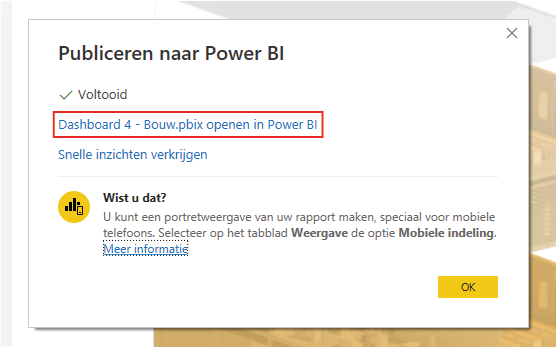
Click ‘My workspace’ and then ‘Select’. This uploads the dashboard to your workspace. When this is successfully completed, you can easily open it by clicking the highlighted link below. This opens the dashboard in your online Power BI environment.
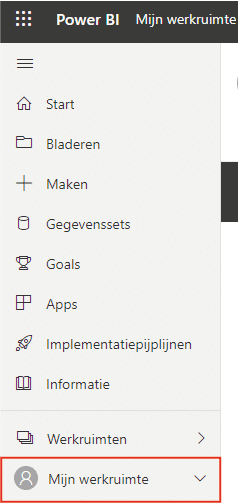
If you have closed the screen above, you can always access the published dashboard again by going to ‘My workspace’ in Power BI, as highlighted below.
Step 3: Creating a workspace
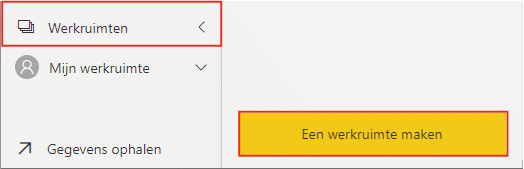
If you want to publish multiple dashboards, it is useful to structure them. You can create multiple workspaces to subdivide the dashboards. You create a new workspace by clicking ‘Workspaces’ and ‘Create a workspace’ in Power BI, as shown below. This opens a screen where you can configure the workspace, including adding an image.
Try repeating step 2 once you have created a new workspace. You will see that you can now publish the dashboard to the new workspace. Do you have questions? Feel free to contact us.
Our tip: Always ask the end user first what decisions they make on a daily basis. A good dashboard answers exactly those questions, nothing more and nothing less.
Frequently asked questions
How do I publish a Power BI report to the workspace?
Open the report in Power BI Desktop and log in with your Microsoft account. Go to the 'Home' tab and click 'Publish'. Select the workspace you want to publish to, for example 'My workspace' or a shared workspace. Click 'Select' to upload the report. After a short processing time, a link appears that lets you open the published report directly in the online environment.
What licence do I need to publish a Power BI report?
A free Power BI licence is sufficient for publishing to your own workspace. To share a report with others via a shared workspace or an App, you need a Power BI Pro licence. Without a Pro licence, others cannot view the report through the workspace unless the content is published via Premium capacity.
How do I create a new workspace in Power BI?
Log in to app.powerbi.com and click 'Workspaces' in the left navigation. Then click 'Create a workspace' and give the workspace a name. You can also add an image and invite members. Workspaces are useful for organising reports by team, department, or project. Once the workspace has been created, you can publish directly to it from Power BI Desktop.