
Add Page Navigation in Power BI
In Power BI you add page navigation via 'Insert > Buttons > Navigator > Page navigator'. Power BI automatically generates buttons based on the page names in the report. The navigation is immediately usable and fully customisable in colour, shape, font and states such as hover, press and selected. This lets you create a professional navigation menu that is integrated into the dashboard itself.
A dashboard in Microsoft Power BI quickly ends up with multiple pages. You can navigate between them via the tab menu in Power BI, but it is also possible to add page navigation directly in Power BI.
A dashboard in Microsoft Power BI quickly ends up with multiple pages. You can navigate between them via the tab menu in Power BI, but it is also possible to add page navigation directly in Power BI. This lets you design the buttons yourself and have them integrated into the dashboard. Power BI offers a feature that makes setting this up straightforward. Want to know how to add page navigation in Power BI? Read this article step by step. Hopefully you’ll be able to achieve a result like the one shown below.

1. Adding page navigation in Power BI
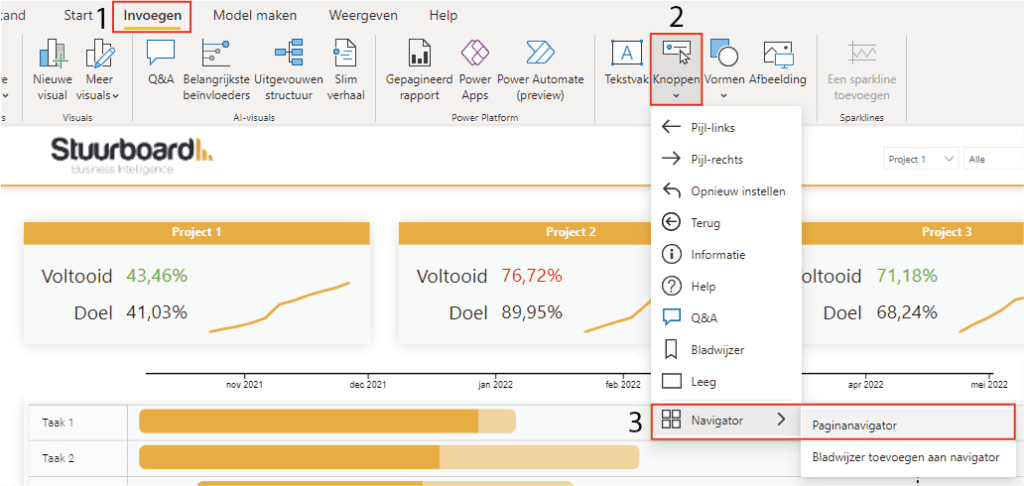
It’s important that your dashboard has multiple pages before adding page navigation. Give these pages the desired names, as those serve as direct input for the navigation. The ‘Page navigator’ can be added by clicking (1) the ‘Insert’ tab and then (2) ‘Buttons’. This opens a menu from which you then choose (3) ‘Navigator’ and ‘Page navigator’.
The above action generates the page navigation. It is ready to use immediately. In the Power BI workspace, a simple left-click is enough to use the page navigation.
2. Customising page navigation
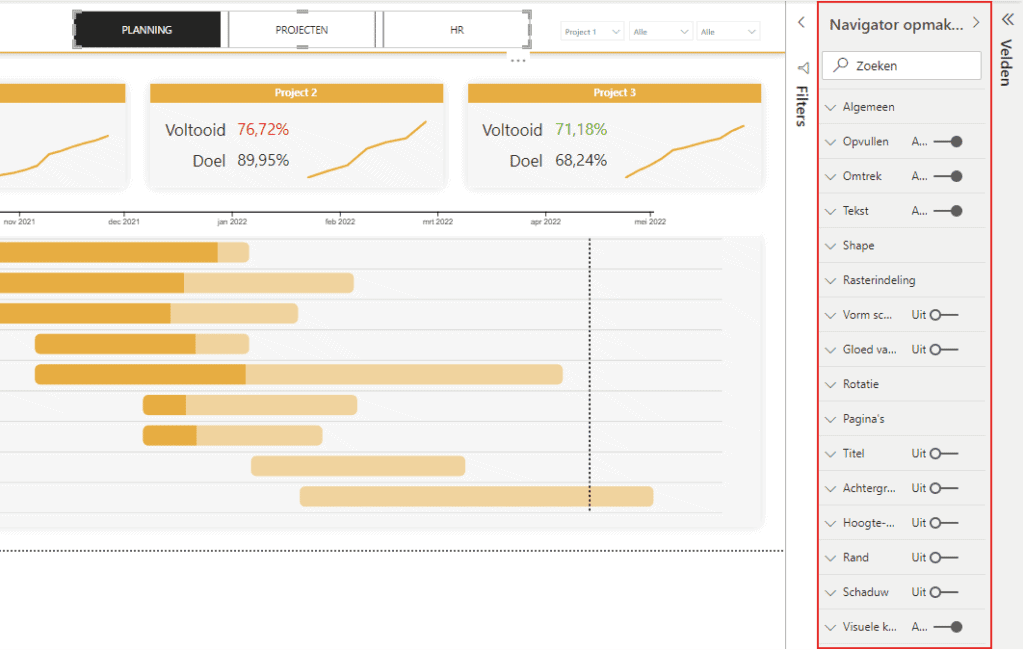
A generated page navigation always comes in a default style, but all sorts of adjustments can be made to it. This is done by selecting the page navigation and then, on the right side of the screen, choosing the settings you want via ‘Format navigator’. You can adjust colours, shape, shadow, background, font, grid and many other settings.
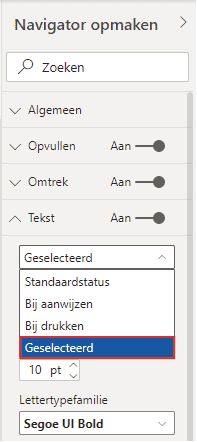
A useful tip when styling the page navigation is that for fill, outline and text there are four options: default state, on hover, on press and selected. These are shown below. The ‘Selected’ option relates to when the page is active.
Hopefully you have also managed to add page navigation in Power BI. Do you have questions? Feel free to contact us.
Our tip: Give pages a short, descriptive name before creating the page navigator. The page names are used directly as button labels and are difficult to change afterwards without resetting the navigation. Also think about the order of the pages, as this determines the order of the buttons.
Frequently asked questions
How do I add page navigation in Power BI?
First make sure your dashboard has multiple pages and that each page has the desired name, because those names are used directly as button labels. Go to the 'Insert' tab, click 'Buttons', choose 'Navigator' and select 'Page navigator'. Power BI immediately places a navigation bar with buttons for all pages. In the workspace, left-click a button to navigate to the corresponding page. In Desktop, hold Ctrl.
How do I customise the style of the page navigation in Power BI?
Select the page navigation and open the format pane 'Format navigator' on the right. Here you can adjust colours, font, border shape, shadow and background. For fill, outline and text there are four states available: default, on hover, on press and selected. The 'Selected' state determines how the active page looks. This lets you make the navigation match the house style of the dashboard and be recognisable to the user.
Are hidden pages also shown in the page navigation?
No, pages that are hidden in the report are not shown by default in the page navigator. This is useful if you have tooltip pages or technical pages that should not be visible to end users. To hide a page, right-click on the page tab and choose 'Hide page'. The page remains available for bookmarks and drill-through navigation.