
Dynamic Titles in Power BI
Dynamic titles in Power BI automatically adjust based on the chosen filter value. You link the title of a visual to a column from a table or to a DAX measure. This way, the title changes automatically when a user filters by period, department or another value. This makes dashboards more personal and clearer without needing to create a separate page for every combination.
Microsoft Power BI offers multiple ways to add a title to a visual. One of these is adding dynamic titles, where the chosen filter value determines what appears. Want to know how to create dynamic titles in Power BI?
Step 1: What will the title be used for?
Before creating a dynamic title, it’s important to decide what the title will be used for. The input for a dynamic title comes from filters. For example, you could show employee satisfaction in a chart and add the relevant period to the title, so the title changes automatically. Another option is filtering by department, where the title automatically changes to ‘Employee satisfaction Finance’ or ‘Employee satisfaction Marketing’.
In this article we cover two different ways to create a dynamic title. The first method uses existing titles from a table, and the second method uses a DAX expression.
Step 2: Dynamic title using a table in Power BI
If you choose to use existing titles from a table, it’s important that the title is present in every row — for example when working with a date per measure. The information must be present in the table as shown below.
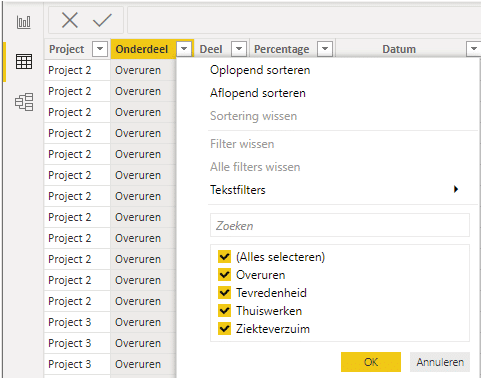
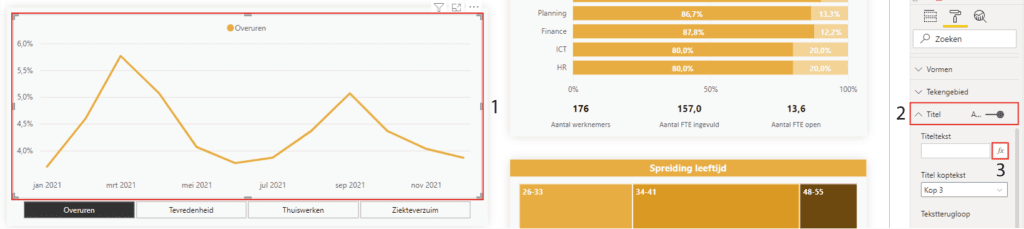
With the above information you’re ready to get started. (1) Click on the visual to which you want to add the dynamic title. (2) Then enable the ‘Title’ via ‘Visualisations’ and (3) click on the formula icon.
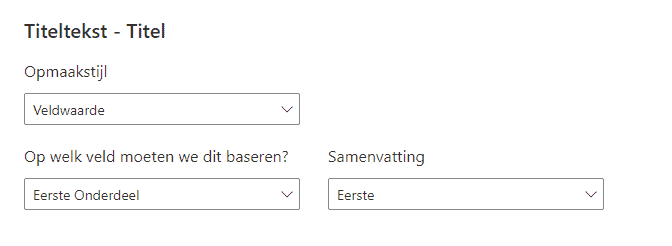
Then select the correct column under ‘What field should we base this on?’ and press ‘OK’.
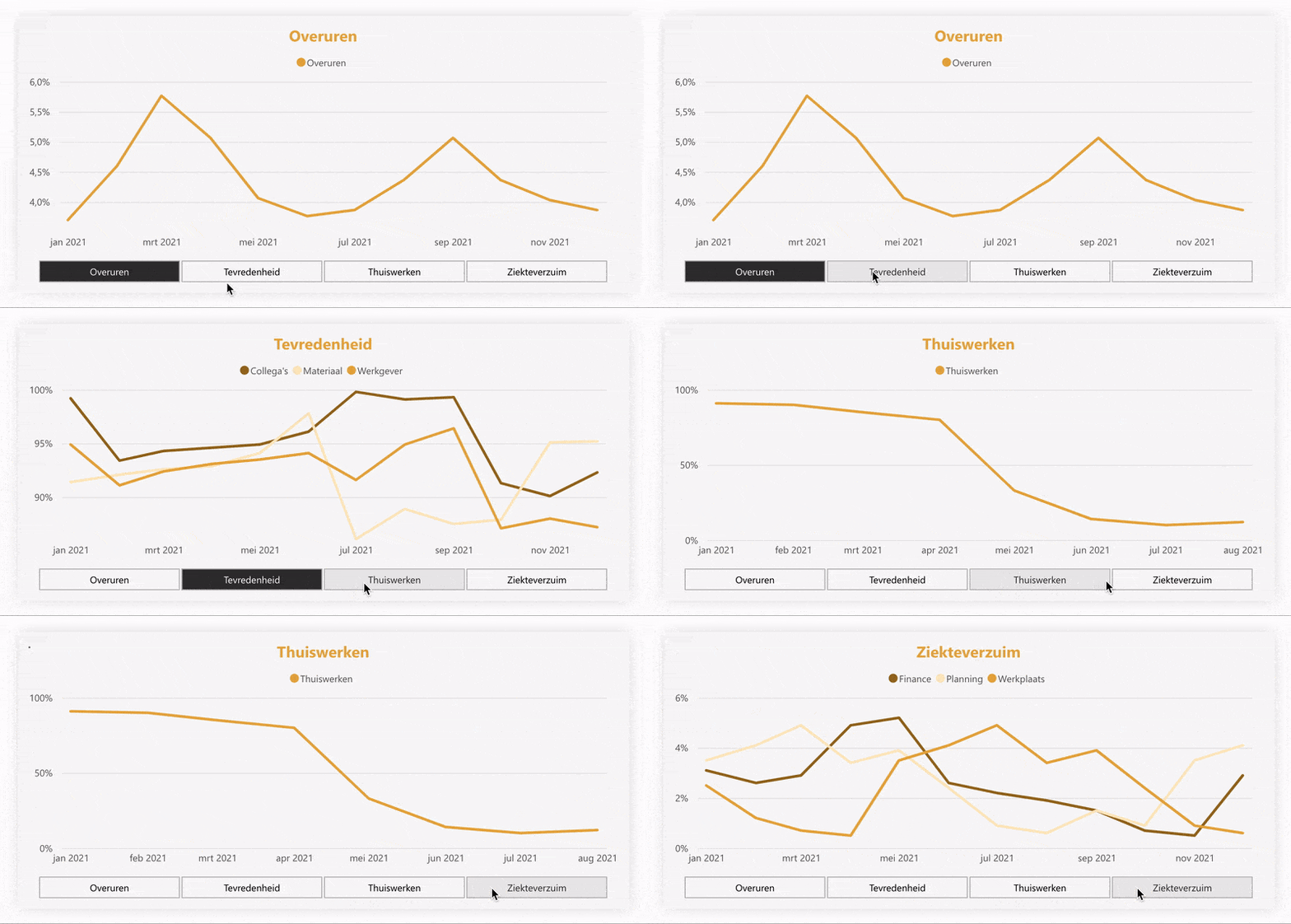
Once this is done successfully, the title will automatically change when you select a filter value, as shown below.
Step 3: Dynamic title using a DAX expression in Power BI
If you choose to use a DAX expression (formula), you first need to create it. Click on a table, then go to ‘Table tools’ in the top menu and click ‘New measure’.
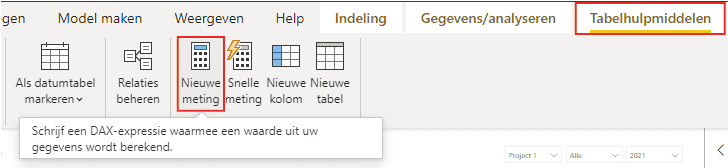
For example, if you want to change the title from ‘Overtime’ to ‘Overtime trend’, use the DAX expression below.

If you also want to add the date or project number, use the DAX expression below. Tip: use ” ” to add a space between the two outputs.

Once this is done, you will have the result shown below.
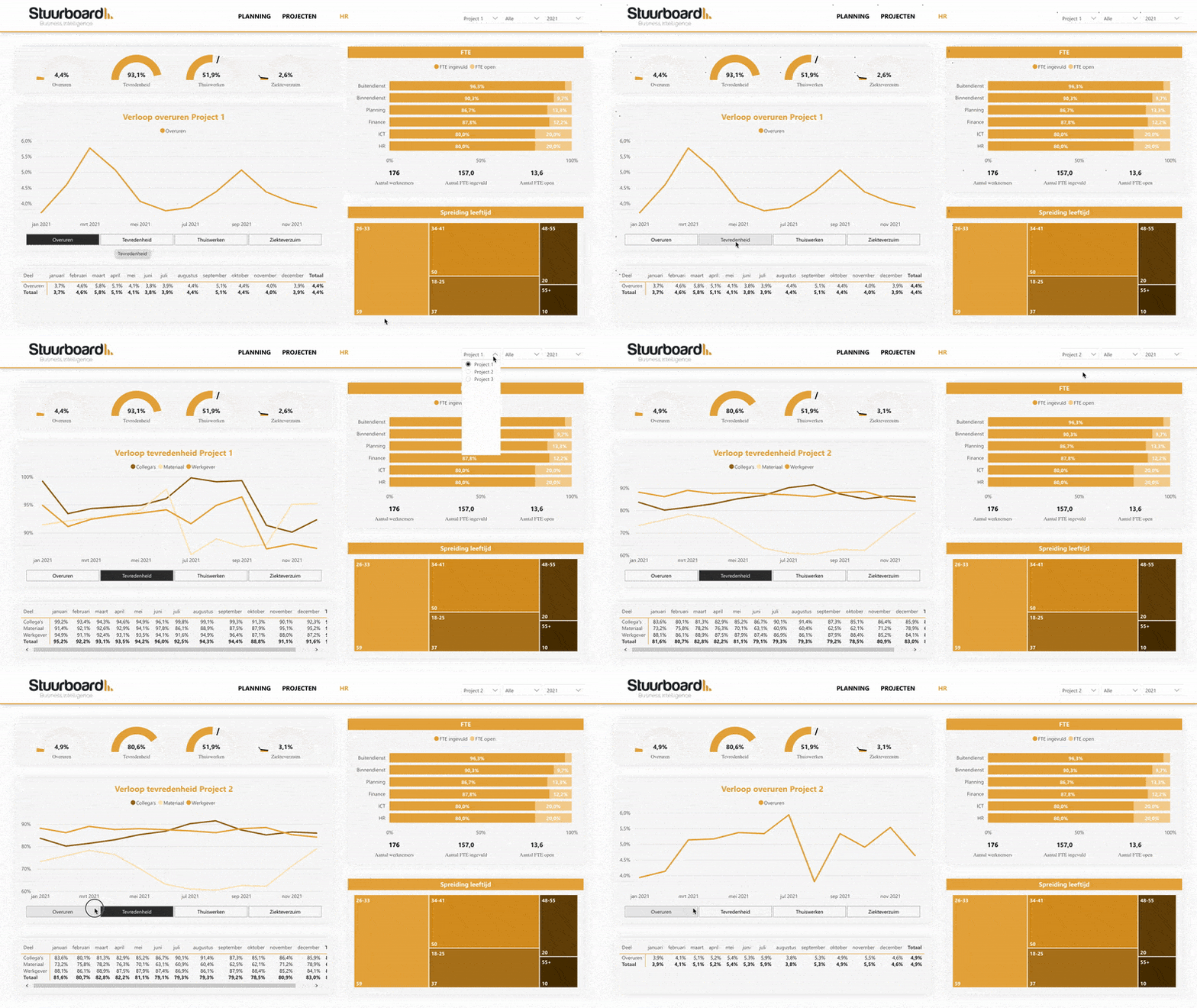
Hopefully you have also managed to create dynamic titles in Power BI. Do you have questions? Feel free to contact us.
Our tip: Use ” ” to add a space between the two outputs.
Frequently asked questions
How do I decide what to use a dynamic title for?
The input for a dynamic title comes from filters. Think about which filter value is meaningful to show in the title. A commonly used example is adding the selected period to a chart, so the title automatically changes from 'Revenue' to 'Revenue 2024'. Filtering by department is also a good use case: the title then automatically changes to 'Employee satisfaction Finance' or 'Employee satisfaction Marketing' based on the slicer selection.
How do I create a dynamic title using a table in Power BI?
Make sure the title values are present in a column in your table, one value per row. Select the visual to which you want to link the title. Enable the title via the format panel and click the formula icon next to the title text. Under 'What field should we base this on?' select the correct column and click 'OK'. The title will now automatically change when a filter value is selected.
How do I create a dynamic title using a DAX expression in Power BI?
Click on a table in the data model and choose 'New measure' via 'Table tools'. Write a DAX formula that returns the desired text based on a filter value, such as SELECTEDVALUE(Table[Column], 'Default title'). Use the ' & ' operator to combine multiple values, such as a fixed label followed by the selected period. Then link this measure to the title of the visual via the formula icon in the format panel.