
Custom Theme in Power BI
You set up a custom theme in Power BI via 'Customize current theme' in Power BI Desktop. You adjust colors, font, font size, and settings for visuals, page background, and the filter pane. The theme is saved as a JSON file and imported into other reports via 'Browse for themes'. This ensures a consistent corporate identity across all Power BI reports in your organization.
When creating a dashboard in Microsoft Power BI, a report theme is used. A theme contains default colors and layouts that are applied to visuals in the report. These can be customized so that the report automatically adopts the desired colors and layouts.
1. Creating a custom theme in Power BI
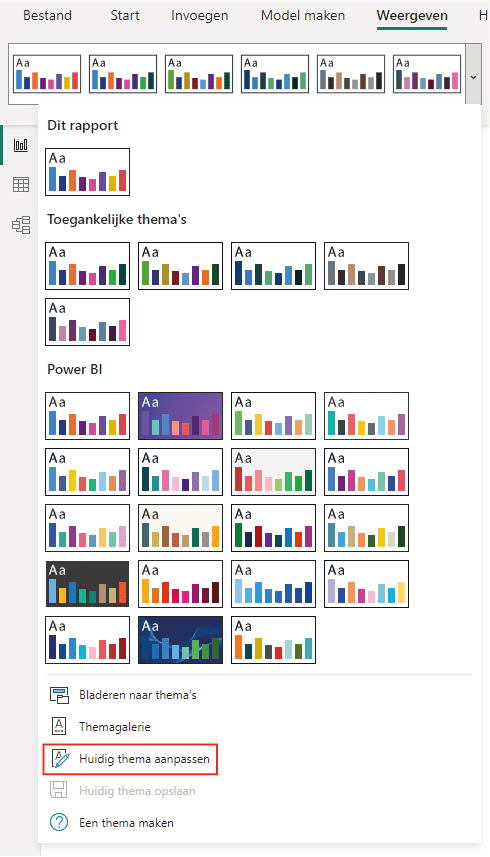
In addition to using default themes, it is also possible to configure a theme entirely to your own preferences. You can customize the current theme by selecting ‘Customize current theme’ in Power BI Desktop.
A screen then opens that shows the theme components. It is possible to personalize options for colors, text, visuals, page, and filter pane. Adjusting the colors has the greatest effect on the report. You can set up to eight theme colors, which appear in the visuals in the report.
A color can be set in three ways: by selecting a color, and by entering a HEX code or RGB code. This is useful when you want the color to match, for example, the colors of your website.
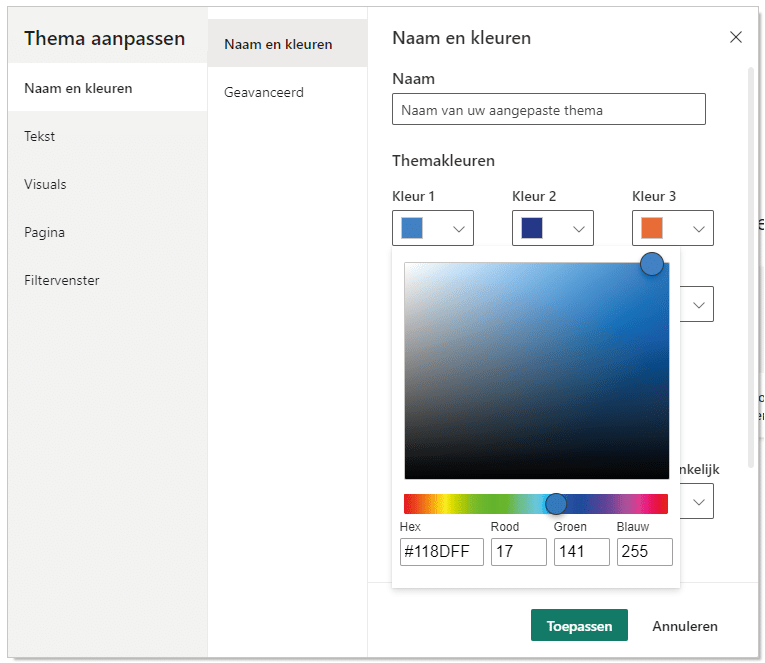
In addition to the colors, you can adjust the following in the categories:
-
Text: The text settings consist of the font, font size, and font color. These can be set separately for main titles, axis titles, axis labels, and callout values, among others.
-
Visuals: For visuals, backgrounds, borders, headers, and tooltips can be set as defaults.
-
Page: The page settings relate to the background and page background. Here you can choose the color and transparency.
-
Filter pane: The colors, transparency, and font sizes can be set separately for the filter pane and available and applied filter cards.
2. Exporting and importing a theme
Once a theme has been configured to your liking, you can apply it to the current report. You can also export it, after which it can be used in other reports by you or your colleagues. This is possible by simply clicking ‘Save current theme’, after which it can be saved as a JSON file.
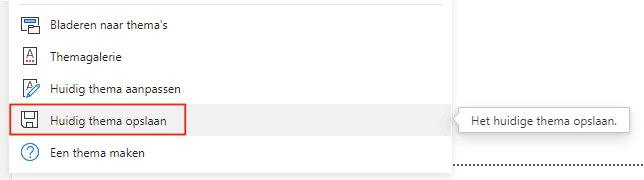
Do you want to import the theme into another report? Then click ‘Browse for themes’. Using a custom theme in Microsoft Power BI offers all kinds of possibilities for your dashboard. Are you curious about more possibilities or do you have questions? Feel free to contact us.
Our tip: Save a well-configured template as a starting point for new reports. This saves time and ensures consistency in corporate identity.
Frequently asked questions
How do I create a custom theme in Power BI?
Open Power BI Desktop and go to the 'View' tab. Click the arrow next to 'Themes' and choose 'Customize current theme'. A screen opens with customization options for colors, text, visuals, page, and filter pane. Set up to eight theme colors using HEX codes or the color picker. These colors are automatically applied to all visuals in the report. Click 'Apply' when you are satisfied with the settings.
How do I export and import a Power BI theme?
In the theme customization screen, click 'Save current theme' to save the theme as a JSON file. You can share this file with colleagues or use it in other reports. To import a theme, click 'Browse for themes' and select the JSON file. The theme is then immediately applied to the current report. By exporting and importing themes, you use the same corporate identity everywhere without re-entering settings.
Which elements can I customize in a Power BI theme?
In a Power BI theme, you can customize the following elements: colors (eight theme colors that appear in all visuals), text (font, font size, and color per text type such as main titles, axis labels, and callout values), visuals (default settings for backgrounds, borders, and headers), page (background color and transparency), and filter pane (colors and font sizes of filter cards). By defining all these elements in one theme, you maintain consistency in every report.