
Change Page Size in Power BI
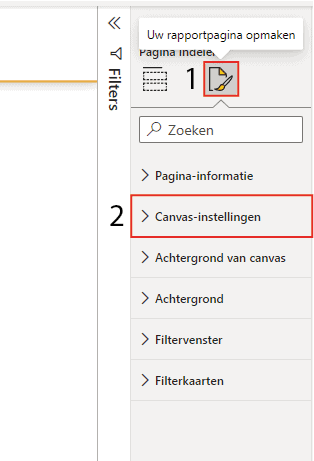
You change the page size in Power BI via 'Format your report page' and then 'Canvas settings'. You can choose from fixed sizes such as 16:9, 4:3 or Letter, or a fully custom size with your own height and width in pixels. Each page has its own size; changes only apply to the selected page. Adjusting the size is useful for tooltips, wide screens or specific print formats.
Microsoft Power BI lets you change the page size. This makes it possible to make the page larger than the default size. A different size is useful when you work with a wide screen or want to create a tooltip.
1. Change page size in Power BI
The first step is navigating to the canvas settings. (1) Click ‘Format your report page’ and then (2) open the canvas settings as shown below. This is the section where you can change the size of the page.
Several elements can be changed in the canvas settings. With the type, you can choose from 16:9, 4:3, Letter, Tooltip or a custom size. For adding a tooltip, it makes sense to select the Tooltip option. Choosing a custom size makes it possible to change the height and width at pixel level. The vertical alignment indicates at what height on the screen the report will be positioned.
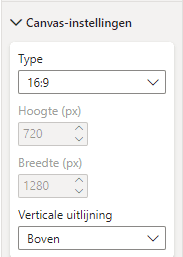
Choosing a custom size therefore lets you determine the size yourself. This gives you complete freedom to set it up exactly as you want. Changing the size only affects the page you have selected. You can then duplicate the page if needed, or adjust the size per page separately.
Hopefully you have also managed to change the page size in Power BI. Do you have questions? Feel free to contact us.
Our tip: Use the ‘Tooltip’ size specifically for tooltip pages and keep the size small, preferably 320 by 240 pixels or smaller. A tooltip page that is too large causes hover windows to be inconveniently large and reduces the readability of the report.
Frequently asked questions
How do I change the page size in Power BI?
Open the report in Power BI Desktop and select the page whose size you want to change. Click the paintbrush icon on the right ('Format your report page') and open the 'Canvas settings' section. Choose a type: 16:9 (default), 4:3, Letter, Tooltip or Custom. With Custom you set your own width and height in pixels. The change only applies to the selected page and has no effect on other pages in the report.
Which page size should I use for a tooltip in Power BI?
For a tooltip, use the 'Tooltip' type in the canvas settings. This size is specially designed for small hover windows that appear when a user moves over a visual. Choose 'Tooltip' as the size and set the page as a tooltip via the page settings (enable 'Tooltip' under 'Page information'). Power BI then recognises the page as a tooltip page available for linking to visuals in the report.
Does a page size change apply to all pages in Power BI?
No, a change in page size only applies to the page that is currently selected. If you want multiple pages to have the same size, you need to adjust each page individually. You can duplicate a page after setting the size, so new pages already have the desired size. If you're working with a custom size for the entire report, set this as a first step before placing any visuals.