
Connect an Excel File in OneDrive to Power BI
You connect an Excel file in OneDrive to Power BI by opening the file in the OneDrive app, copying the URL via 'File > Info > Copy path', and removing the '?web=1' part at the end. Then enter the URL in Power BI via 'Get data > Web'. This also allows colleagues to refresh the report, because the source file is in the cloud rather than on a local drive.
Connecting an Excel file in Power BI is fairly straightforward within the Power BI Desktop environment. However, the problem with a direct connection to an Excel file is that Power BI will create a link to the local file on your computer.
1. Get the connection URL in Excel via OneDrive
For this step, it is of course important that you have a Microsoft account with a OneDrive subscription. Make sure the relevant Excel file is stored in this OneDrive. The location within OneDrive is up to you.
Navigate to the location in OneDrive where the file is stored. Click the three dots > ‘Open’ > ‘Open in app’. This step is very important — if the file opens in the browser, this will not work.
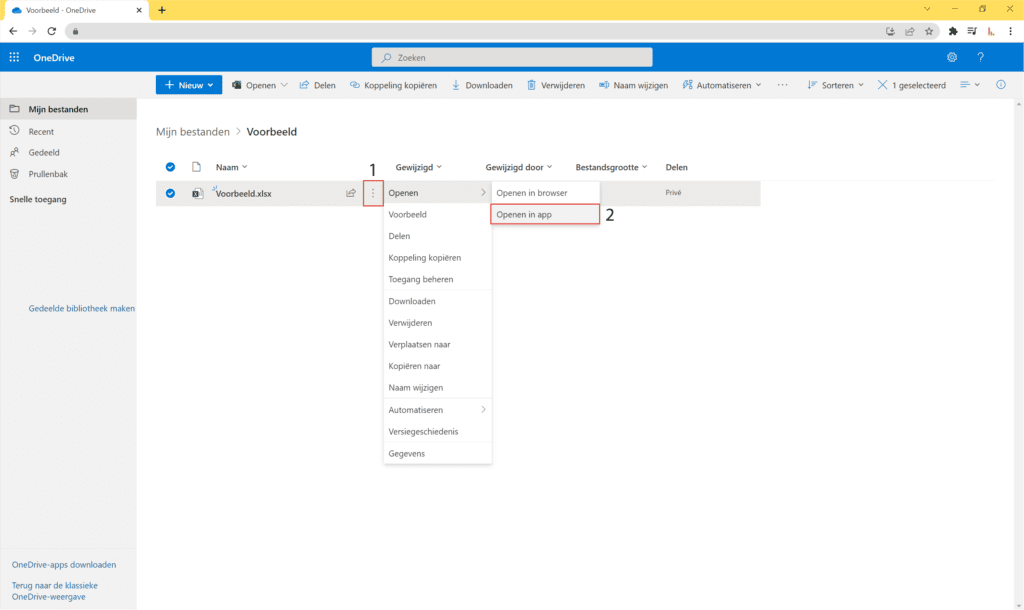
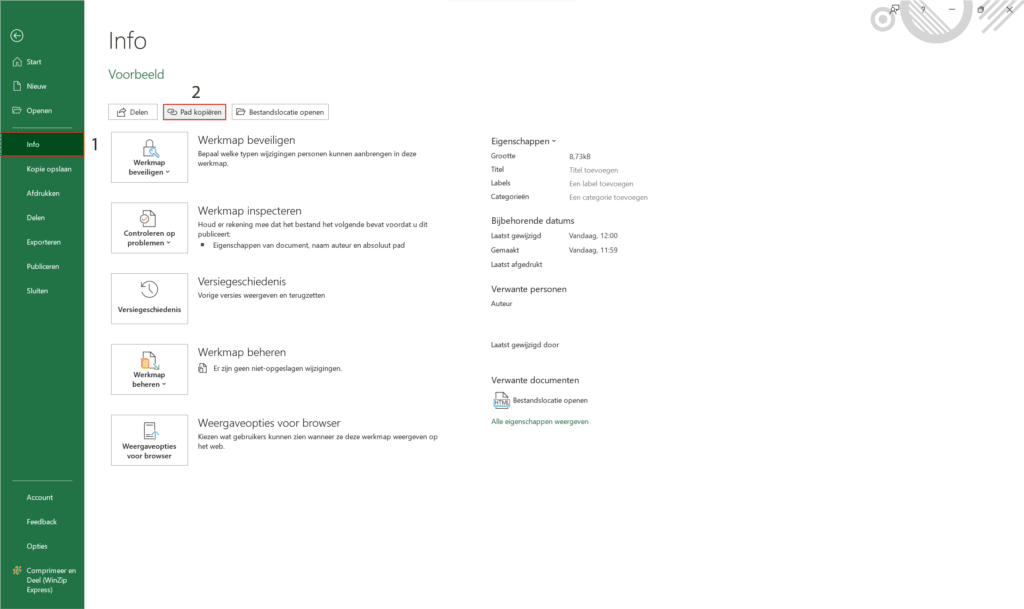
The browser will likely prompt you to open Excel. Click open. Excel will open the selected file. Once in Excel, click ‘File’ in the top left, then ‘Info’, then ‘Copy path’.
2. Link the Excel URL in Power BI Desktop
Next, open Power BI and click ‘Get data’ > ‘Web’.
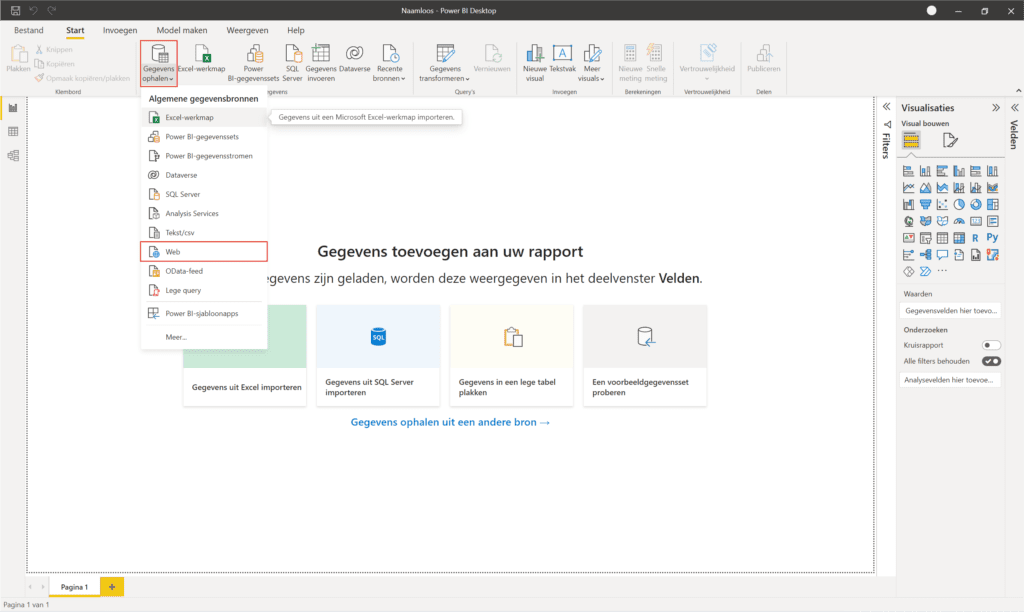
A pop-up will appear where you can paste the URL you copied earlier. An important adjustment needs to be made to the URL before moving on to the next step.
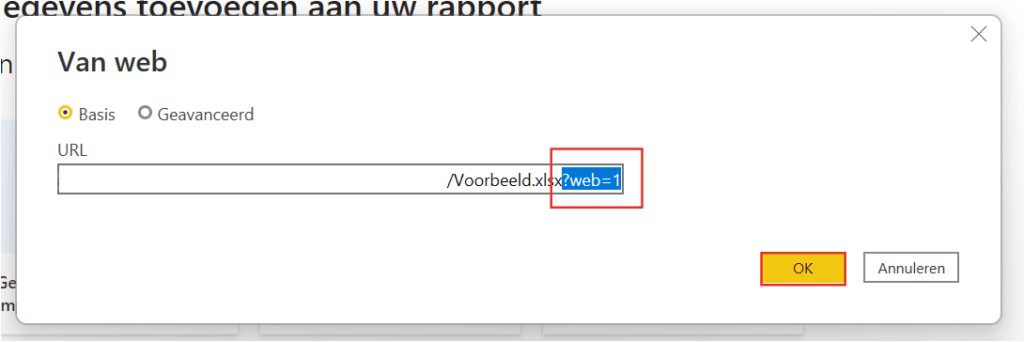
Paste the URL — it will always end with your file name followed by ‘?web=1’. This last part needs to be removed from the URL to ensure the connection works. Then click ‘OK’.
You will now get another pop-up. This shows that the file comes from a ‘my-sharepoint.com’ folder. This means the connection was successful!
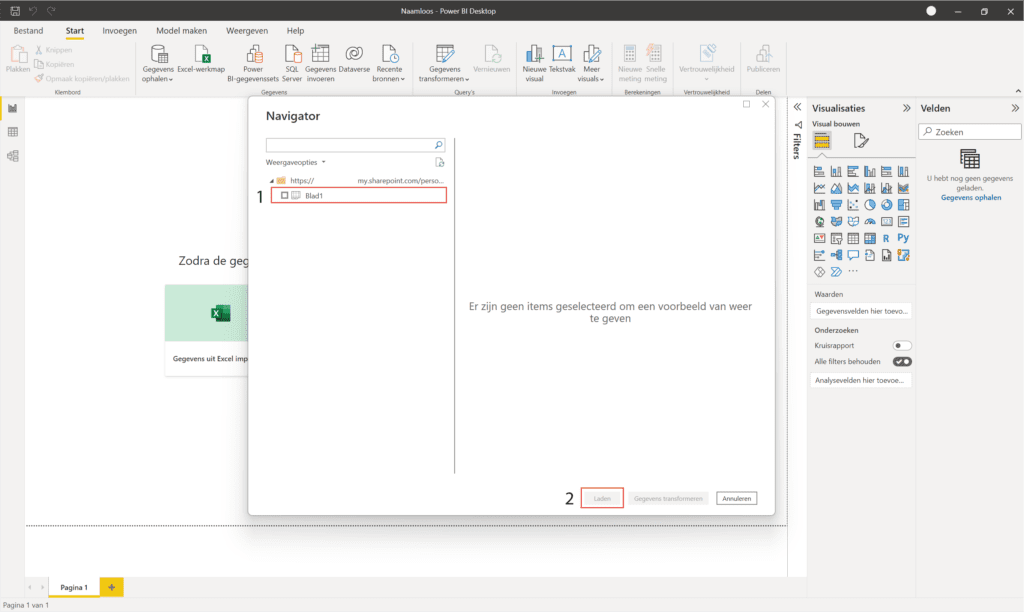
This way, you have successfully connected an Excel file in OneDrive to Power BI. When you share the file with others, they can also refresh the data. Have questions? Feel free to contact us.
Our tip: Make sure the Excel file on OneDrive is always formatted as a table via ‘Insert > Table’, not just as a plain range. Power BI recognises table structures better, which makes the connection more stable and ensures new rows are automatically included in the next refresh.
Frequently asked questions
How do I get the connection URL for an Excel file in OneDrive?
Navigate to the Excel file in OneDrive. Click the three dots next to the file and choose 'Open > Open in app'. It is important that the file opens in the Excel desktop application, not in the browser. Once in Excel, click 'File' in the top left and then 'Info'. Click 'Copy path'. You now have the URL of the file in your clipboard. Note: the URL ends with '?web=1'; you must remove this part before entering the URL in Power BI.
How do I link the OneDrive URL to Power BI Desktop?
Open Power BI Desktop and click 'Get data'. Choose 'Web' and paste the copied OneDrive URL. Remove the '?web=1' part at the end of the URL so that only the file path remains. Click 'OK'. Power BI connects to the OneDrive file. You will see a confirmation screen showing that the connection runs via a SharePoint URL. Select the desired tab or table and click 'Load'.
Why do I need to put the Excel file on OneDrive instead of saving it locally?
With a local Excel connection, Power BI creates a link to the file path on your computer. Colleagues who want to refresh the report will get an error because the path does not exist on their computer. By putting the file on OneDrive, the connection is based on a web address that is accessible to everyone. This also makes it possible to set up automatic refresh in the Power BI service, so the dashboard always shows up-to-date data.