
Excel file as a source in Power BI
You connect an Excel file to Power BI via 'Get Data > Excel workbook' in Power BI Desktop. Select the file on your computer, choose the desired tables or sheets, and click 'Load'. Note: a local connection only works on your computer. For automatic refresh and collaboration, save the Excel file on OneDrive or SharePoint and connect it via a web connection.
Microsoft Excel is a widely used tool for tracking all kinds of data. This article explains how to easily connect an Excel file to Power BI as a data source to generate new insights.
1. Connecting an Excel file to Power BI
If you want to add an Excel file to Power BI for your own use, this is very straightforward. Open Power BI Desktop. If you open a new blank file, Power BI will ask you to add data. You can simply click ‘Import data from Excel’.
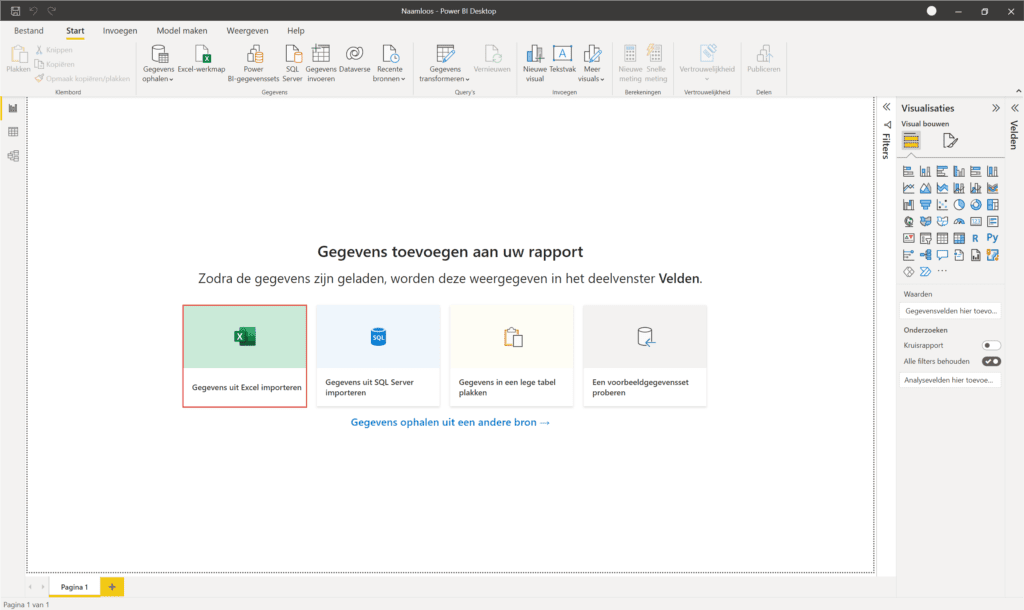
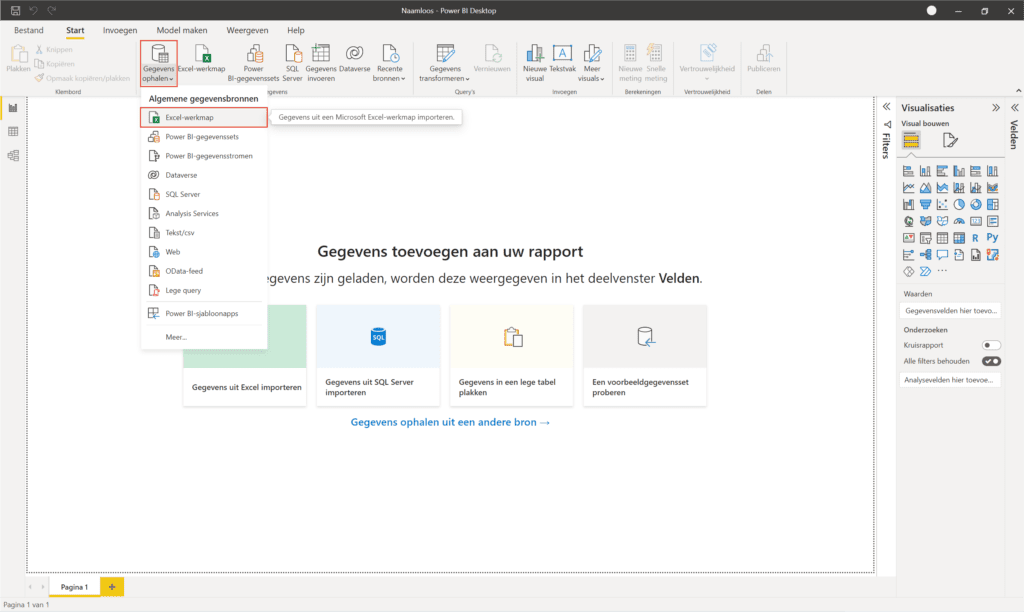
If you do not see this screen or are already working in an existing Power BI file, go to ‘Get Data’ in the top left and choose ‘Excel workbook’.
A pop-up will now appear. Browse to the Excel file on your computer that you want to use and click ‘Open’. Once Power BI has finished loading you can start working with your data. You will find this data on the right side of the screen in the ‘Fields’ section.
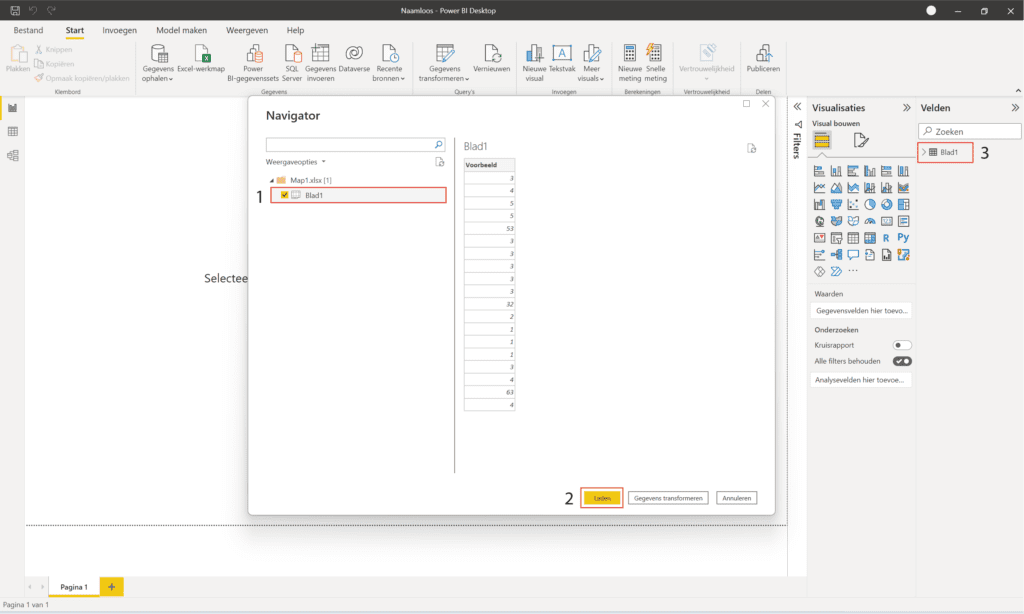
Importing an Excel file as a source in Power BI this way creates a link between a folder on your computer and Power BI. As a result, the data can only be refreshed in Power BI Desktop on your computer. That is why we also show you how to import an Excel file via OneDrive, so your colleagues can enjoy the reports too.
Our tip: Always store source files on SharePoint or OneDrive rather than a local drive. This way, Power BI’s automatic refresh also works outside the office.
Frequently asked questions
How do I import an Excel file as a source in Power BI?
Open Power BI Desktop. If you open a new file, click 'Import data from Excel' on the start screen. If you are working in an existing file, go to 'Get Data' in the top left and choose 'Excel workbook'. Browse to the Excel file on your computer and click 'Open'. Select the tables or sheets you want to import and click 'Load'. The data will appear in the fields panel on the right.
What is the drawback of a local Excel connection in Power BI?
With a direct connection to an Excel file on your computer, Power BI creates a link to the local file path. This means the data can only be refreshed on your computer. If a colleague tries to refresh the report, they will get an error because that file path does not exist on their computer. For collaboration and automatic refresh it is better to put the Excel file on OneDrive or SharePoint and connect it via a web connection.
Where do I find the imported Excel data after loading it into Power BI?
After loading, the imported data appears in the fields panel on the right side of Power BI Desktop. You see the table name with the available columns beneath it. Via the Data tab in the navigation menu on the left you can view the contents of the table. Via Transform Data you open the Power Query Editor to further edit the data before creating visuals.