
Last refresh time in Power BI
You can display the last refresh time in Power BI by creating a blank query with the formula DateTime.LocalNow(). Then add a DAX column that accounts for daylight saving time. This ensures the time is displayed correctly in the Power BI Service, which uses UTC by default instead of the local time zone.
Microsoft Power BI offers several ways to display the last refresh time of the data in your dashboard. One of the methods Power BI provides requires changing many settings and uses UTC. This article walks you through a simpler approach.
Microsoft Power BI offers several ways to display the last refresh time of the data in your dashboard. One approach Microsoft documents requires changing many settings and uses UTC. That means it does not use Amsterdam time, which is UTC+1 or UTC+2 depending on daylight saving.
This can be done more simply, and in this article we will explain step by step how you can achieve this.
Step 1: Create a new query
First, a new query needs to be created. To do this, navigate to the Power Query Editor. Then (1) click ‘New Source’ and (2) ‘Blank Query’.
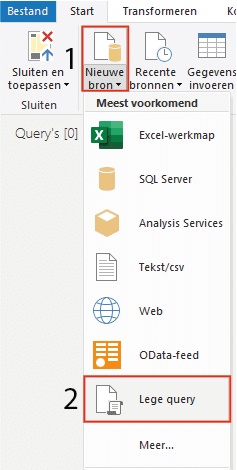
To fill the blank query with data, enter the following formula:
= #table(type table[Last refresh=datetime], {{DateTime.LocalNow()}})
The italicised part of the formula refers to the column title, so it can be changed to your preference.

Then change the name of the query by double-clicking on it. In this example we use the title ‘Last refresh time’.
Step 2: Add a DAX expression for the time in Power BI
The query created in the previous step shows the time when the data was refreshed. However, it does not yet account for time zones. Power BI Desktop uses the correct time zone, but when you publish the dashboard to the Power BI workspace a different time zone is used, causing the time to be displayed incorrectly. This can be resolved by using a DAX expression that accounts for daylight saving time as it applies in the Netherlands.
Select the query and add a new column as shown below.
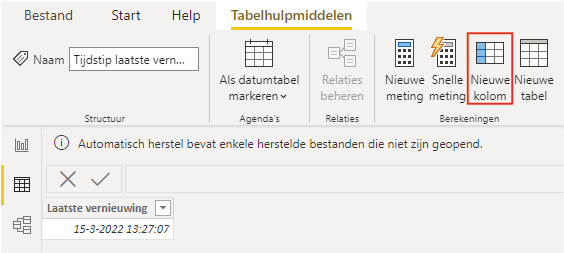
Paste the following formula into the new column:
Last refresh Netherlands = IF(‘Last refresh time’[Last refresh].[Year]=2022,IF(AND(‘Last refresh time’[Last refresh].[Date]>DATE(2022,3,26),‘Last refresh time’[Last refresh].[Date]<DATE(2022,10,30)),‘Last refresh time’[Last refresh]+0.083334,‘Last refresh time’[Last refresh]+0.041667),IF(‘Last refresh time’[Last refresh].[Year]=2023,IF(AND(‘Last refresh time’[Last refresh].[Date]>DATE(2023,3,25),‘Last refresh time’[Last refresh].[Date]<DATE(2023,10,29)),‘Last refresh time’[Last refresh]+0.083334,‘Last refresh time’[Last refresh]+0.041667),IF(‘Last refresh time’[Last refresh].[Year]=2024,IF(AND(‘Last refresh time’[Last refresh].[Date]>DATE(2024,3,30),‘Last refresh time’[Last refresh].[Date]<DATE(2024,10,27)),‘Last refresh time’[Last refresh]+0.083334,‘Last refresh time’[Last refresh]+0.041667))))
This formula accounts for daylight saving time through 2024 by checking the dates on which it applies. This gives you a column that displays the time with UTC+2 during summer time or UTC+1 during winter time.
Note:
The formula in step 2 only shows the correct time in the Power BI workspace. If you only need to display the time in Power BI Desktop, step 1 is sufficient.
This way you can add the last refresh time to your dashboard in Microsoft Power BI. Take a look at the other articles in our knowledge base. Do you have questions? Feel free to contact us.
Our tip: Always add the last refresh time to a fixed position on every page of your dashboard, preferably in the header or footer. Users will automatically check whether the data is current before making decisions based on the report.
Frequently asked questions
Why is the last refresh time incorrect in Power BI Service?
Power BI Desktop uses the local time zone of your computer, but Power BI Service uses UTC (Coordinated Universal Time) by default. The Netherlands uses UTC+1 in winter and UTC+2 in summer. When you publish a dashboard to Power BI Service, the time is therefore shown one or two hours too early. The solution is a DAX column that corrects the time based on the daylight saving dates, so the displayed time always matches the local Dutch time.
How do I create a blank query for the last refresh time in Power BI?
Open the Power Query Editor via the Home tab and click New Source, then Blank Query. In the formula bar, enter the following formula: = #table(type table[Last refresh=datetime], {{DateTime.LocalNow()}}). This creates a table with one column and one row containing the current date and time at the moment of refresh. Give the query a recognisable name, such as 'Last refresh time', and close the editor. Then add a DAX column for time zone correction.
How do I add the last refresh time as text on my Power BI page?
After creating the query and the DAX column with time zone correction, add a card visual or text visual to your report page. Link the corrected date column to it. Set the number format to a readable date-time format such as 'dd-MM-yyyy HH:mm'. This way, dashboard users always see when the data was last refreshed, which increases trust in the currency of the information.