
How to Add a Date Table in Power BI
You add a date table in Power BI via the 'Data' tab using the DAX formula CALENDAR(DATE(year,month,day), DATE(year,month,day)). This table generates all dates within a specified range and serves as a central source for date filters. By creating relationships between the date table and the date columns in your fact tables, you can filter data from multiple sources with a single slicer.
To filter information from multiple sources by date in a Power BI dashboard, it is useful to use a date table. This allows you to create relationships with the date columns across your different tables.
To filter information from multiple sources by date in a Power BI dashboard, it is useful to use a date table. This allows you to create relationships with the date columns across your different tables. Ultimately, this makes it possible to filter all desired information from a single date column.
In this article from our knowledge base, we will walk you through how to achieve this step by step.
Step 1: Create a new table in Power BI
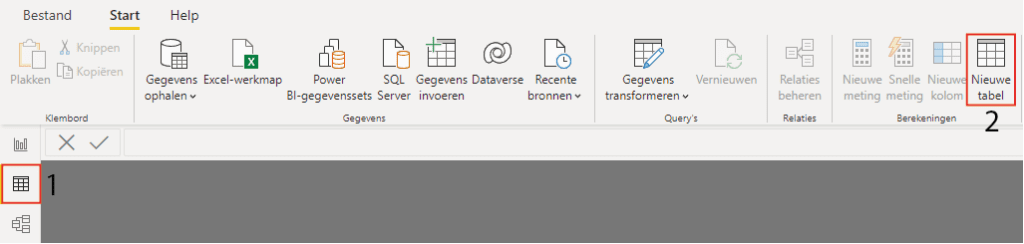
First, a new table needs to be created. You can do this by (1) going to ‘Data’ in the navigation menu on the left, and then (2) clicking ‘New table’ at the top.
Step 2: Write a DAX expression
To populate the new table with data, a DAX expression needs to be written — in other words, a formula needs to be created. The formula to generate a date column is:
Date = CALENDAR(DATE(Year,Month,Day),DATE(Year,Month,Day))
The name of the table in this case is ‘Date’, but you can give it any name you like. The only thing left to do is replace ‘Year, Month, Day’ with the values you want. The first ‘DATE’ is the start date and the second ‘DATE’ is the end date. In the image below, (1) shows the formula, and as you can see, Power BI generates the column with all dates within the range you specified.
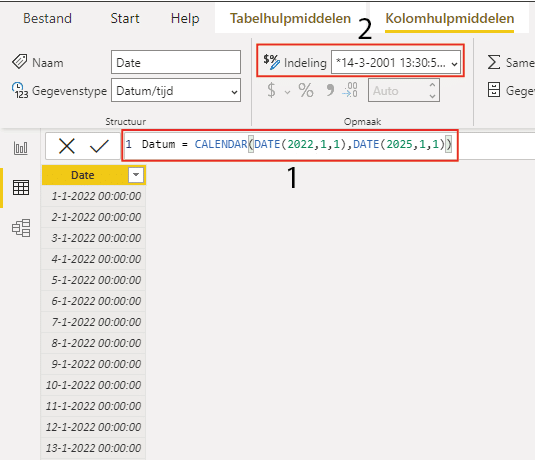
Power BI uses a default format for the column you just created, but (2) you can change it by selecting a different layout from the list. Use this table to create relationships with other date columns and as input for a filter, so you can filter the data exactly as you want.
Our tip: Make the start and end dates of your date table dynamic by using the MIN() and MAX() functions on the date column in your fact table instead of fixed dates. This way, the date table automatically grows with your data and you never have to update the formula manually.
Frequently asked questions
How do I add a date table in Power BI?
Go to the navigation menu on the left in Power BI Desktop and click 'Data'. Click 'New table' at the top. Enter the following DAX formula: Date = CALENDAR(DATE(2020,1,1), DATE(2025,12,31)). Replace the start and end dates with the period you want to analyse. Power BI will automatically generate a column containing all dates within that range. You can then create relationships between this date table and the date columns in your other tables.
Why do I need a date table in Power BI?
A date table is needed to filter by date across multiple tables from a single central point. Without a date table, you have to set up separate date filters for each table, which is error-prone and leads to inconsistent analyses. With a date table, you create relationships to all date columns in your model and use a single slicer to filter all visuals simultaneously by year, quarter, month, or day.
How do I set the date format for the date table?
Power BI uses a default format for the date column generated by the CALENDAR formula. You can change the format by selecting the column in the data view and choosing a different layout from the 'Column tools' tab at the top, such as DD-MM-YYYY or YYYY-MM-DD. Choose a format that matches the rest of your report for a consistent display in filters and slicers.