
Custom Tooltips in Power BI
With custom tooltips in Power BI, you display an extra report page with additional information when hovering over a visual. You create a new page, set it as a tooltip via 'Canvas settings > Tooltip', and fill the page with relevant visuals. You then link the tooltip page to a visual via 'Format visuals > Tooltips > Type: Report page'. This provides deeper insights without cluttering the dashboard with extra visuals.
Power BI offers the option to add a tooltip value to a visual. This means that when you hover over a visual, you will see a value associated with that visual. This is also known as tooltip info.
Power BI offers the option to add a tooltip value to a visual. This means that when you hover over a visual, you will see a value associated with that visual. However, sometimes you want to show more information than a single value. And that is possible! Using the custom tooltips feature in Power BI, you can display an unlimited amount of data on hover. In the GIF below, you can see how we apply this to a sales dashboard to show the desired information for a single province, without it taking up space on the dashboard. In this article, we show you how.
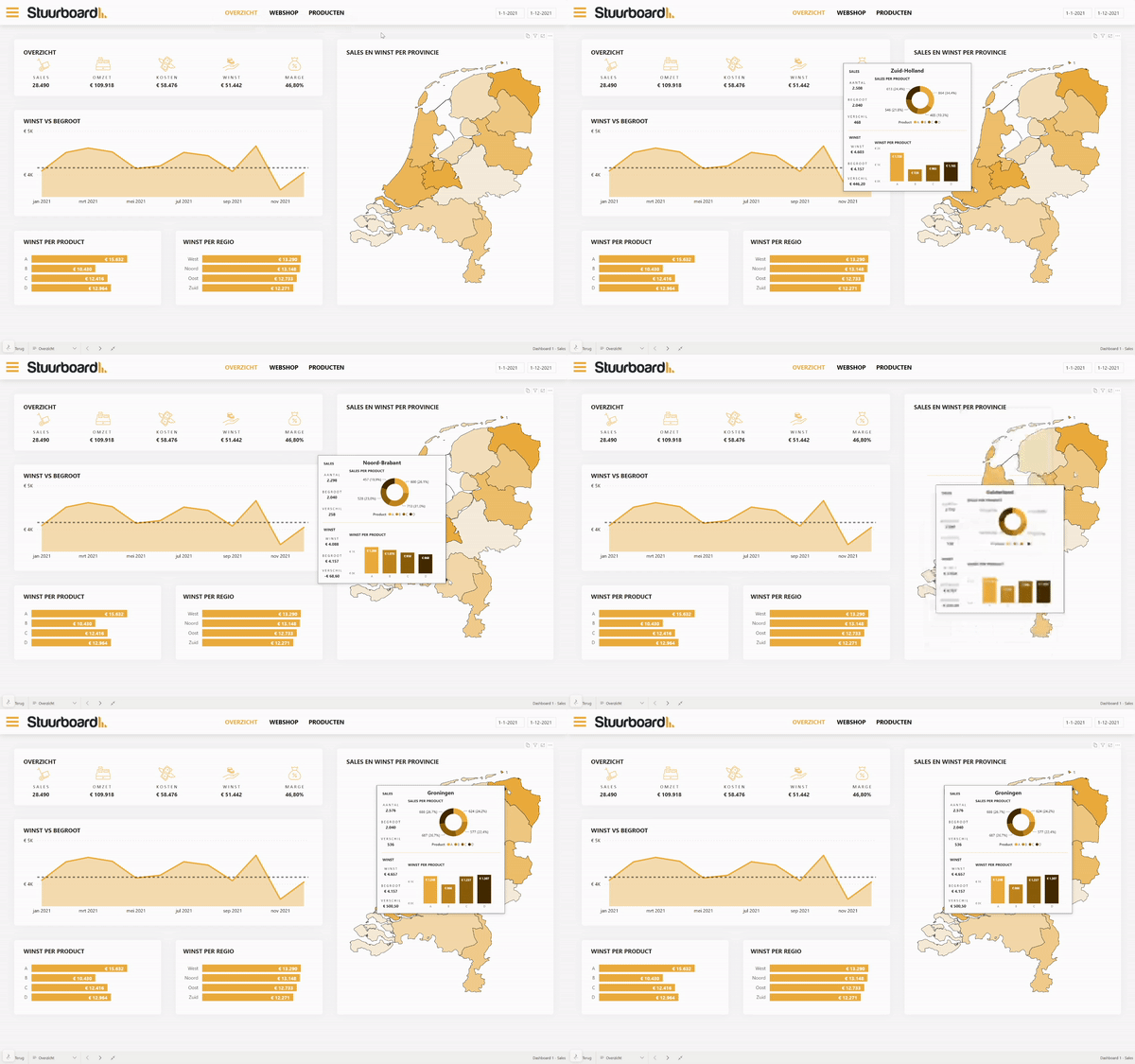
1. Create a custom tooltip in Power BI
First of all, it is important that we have a working dashboard in which we can create the custom tooltip. In this example, we use a sales dashboard. To create the tooltip, we first add a new page to our existing dashboard by clicking the plus icon at the bottom left.

A new page will now be created within the dashboard. This will ultimately serve as the template that acts as the tooltip, so we need to make this clear to Power BI. To do this, click ‘Canvas settings’ > ‘Tooltip’ in the ‘Visualisations panel’ on the right.
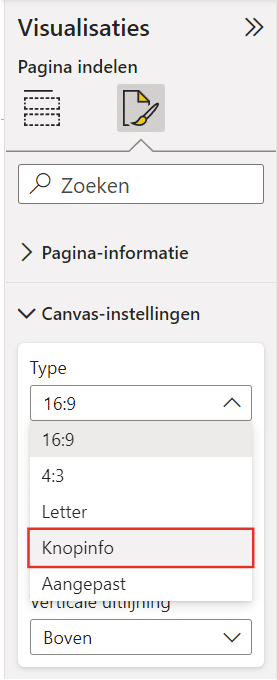
By double-clicking the new page at the bottom left of the screen (which will probably be named ‘Page 1’), you can change the name of the page.

You can now create a visualisation on this page that you ultimately want to see as a tooltip. It is important that this visual contains information that corresponds to the visual you will later link the tooltip to. If that is not the case, there will be little to show. In our case, we will ultimately add the tooltip to a map. We therefore use data about sales per province, so that we can display additional information there.
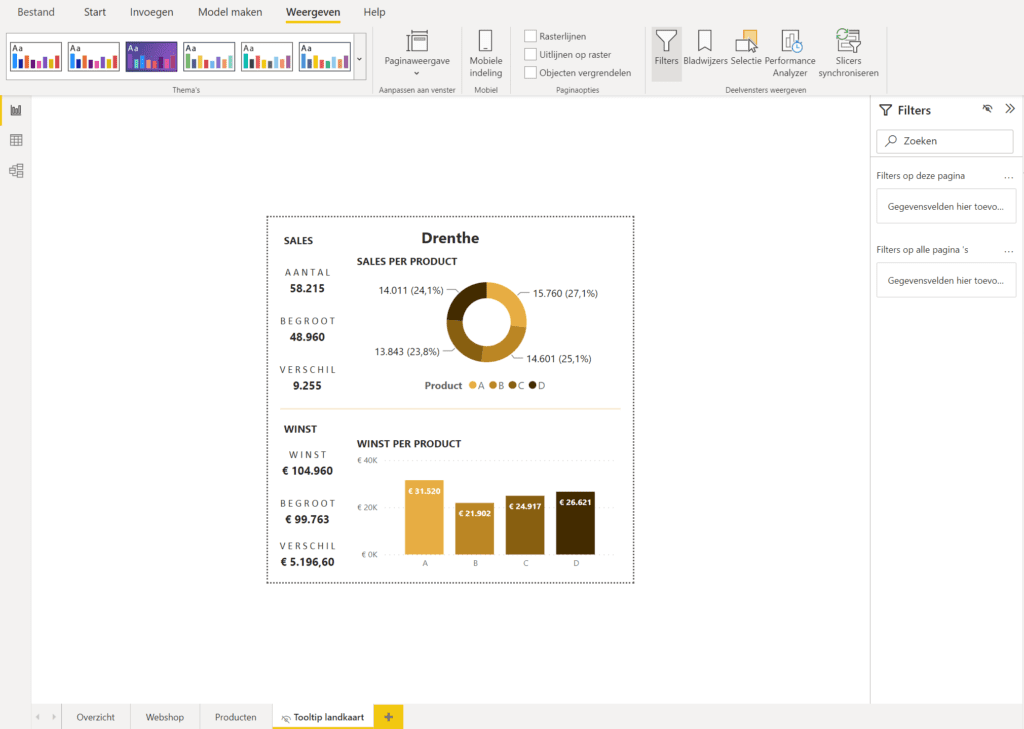
2. Add the tooltip to a visual
Now that the tooltip has been created, we can add it to the visual. Go back to the screen with the visual to which you ultimately want to add the tooltip. Select the desired visual and go to ‘Format visuals’ > ‘Tooltips’ and select under ‘Type’ > ‘Report page’, and under ‘Page’ > the page you created in the previous step.
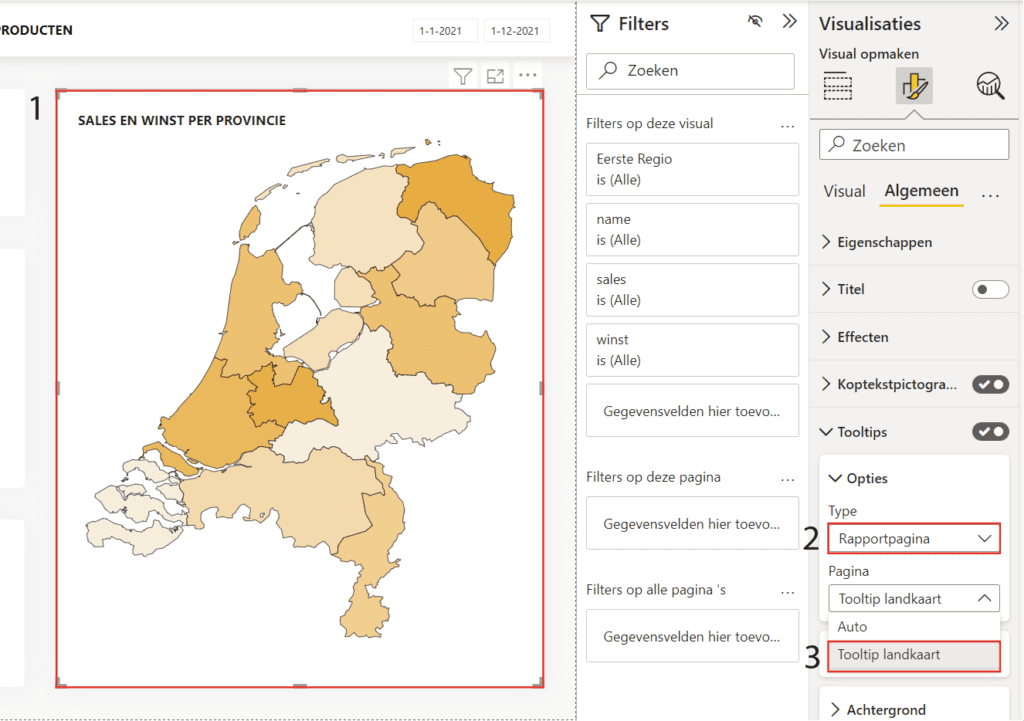
After following this article, you can display custom tooltips in Power BI when hovering over a visual with your mouse. This allows you to display more information without sacrificing space in your report. Also check out the other articles in our knowledge base. Have questions? Feel free to contact us.
Our tip: Make sure the visuals on the tooltip page match the data of the main visual. If you link a tooltip to a map with provinces, make sure the tooltip page is filtered to the correct province. Power BI handles this automatically via the context, but always verify that the relationships in your data model are set up correctly.
Frequently asked questions
How do I create a custom tooltip in Power BI?
Add a new page to your dashboard by clicking the plus icon at the bottom left. Give the page a clear name, such as 'Tooltip Province'. Go to the page settings on the right and choose 'Tooltip' under 'Canvas settings'. This tells Power BI to recognise this page as a tooltip page. Then add the visuals to this page that you want to display when a user hovers over an element in the main dashboard, such as a chart or table with detail information.
How do I link a custom tooltip to a visual in Power BI?
Go back to the page with the visual to which you want to add the tooltip. Select the visual and go to 'Format visuals'. Find the 'Tooltips' section and set 'Type' to 'Report page'. Select the tooltip page you created earlier under 'Page'. When you hover over the visual, the custom tooltip appears with the visuals you placed on the tooltip page.
What are the advantages of custom tooltips over standard tooltips?
Standard tooltips in Power BI only show a single value when hovering. With custom tooltips, you can display a full report page with multiple visuals, tables, and additional context. This is especially useful for map visuals or bar charts where you want to show additional information per region or category, such as a top 5 or a trend over time. Custom tooltips save space on the dashboard while making it more informative.