
Using Bookmarks in Power BI
Bookmarks in Power BI capture a snapshot of filters, the visibility of visuals, and the current page. You link a bookmark to a button or image, so users can switch between views with a single click or show and hide a filter menu. This lets you create interactive dashboards without adding extra pages. Create a bookmark via the View menu and link it to an action in the formatting options of a button or visual.
When building a dashboard in Microsoft Power BI, you add all kinds of visual elements. This can range from a company logo to charts and everything in between. You may have built a chart, but actually want to show the underlying data in a table or matrix.
Step 1: Decide what you want to do with a bookmark
Using bookmarks in Power BI offers many possibilities, so it is important to think about what you need them for. When you activate a bookmark, you essentially activate pre-configured filters and visuals. These are the options a bookmark offers: filter values, display of visuals, current or all pages, and selected or all visuals.
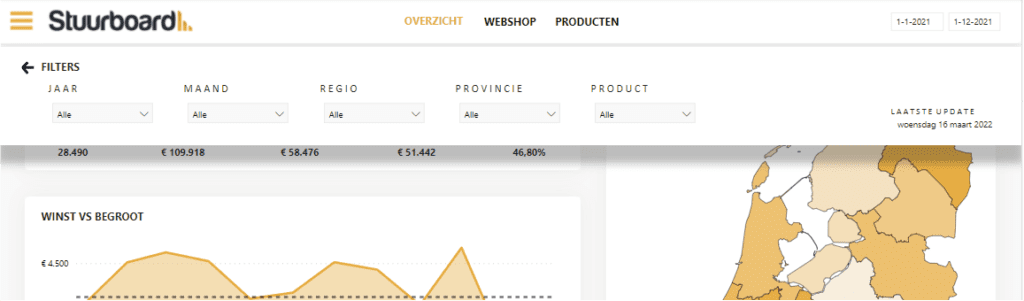
In this article, we use an example where a filter menu can be expanded. In this case, the goal is to display the filters when desired, without having a large impact on the normal view of the dashboard.
Step 2: Create a bookmark in Power BI
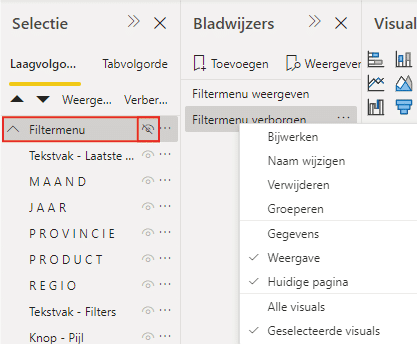
Once you have a clear goal for the bookmark, it is important to identify the associated visual elements. Place all visual elements in the dashboard first — in this example they will be hidden again later in this step. To see the visual elements in order, click ‘Selection’ at the top. You will then see all visual elements on the current page, which you can rename or group.
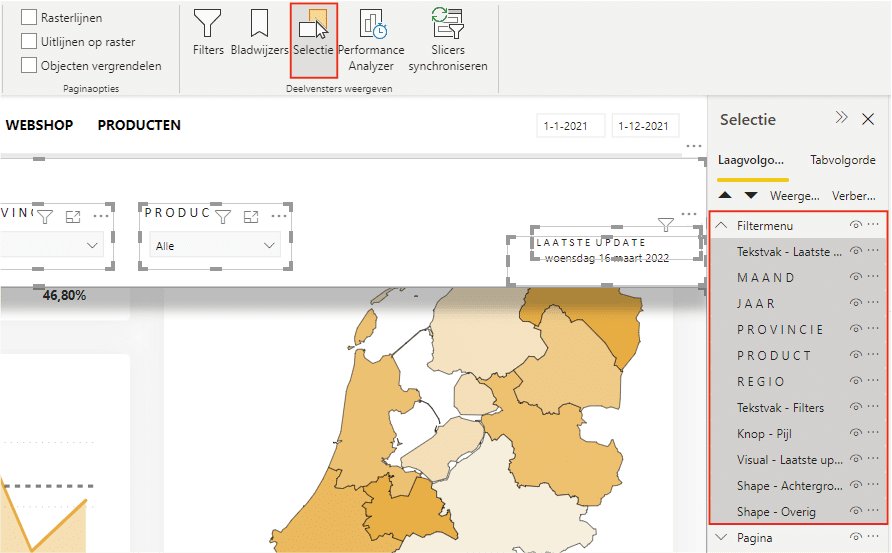
For this bookmark, we will use the ‘Selected visuals’ option. First click (1) ‘Bookmarks’ at the top and then (2) ‘Add’, as shown below.
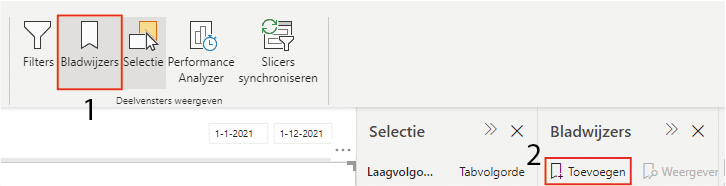
Once a bookmark has been added, you can change its name and configure it. In this example, we will not use configured filter values and it only applies to certain visual elements. Right-click the bookmark and uncheck (1) ‘Data’ and check (2) ‘Selected visuals’. Then select (3) the relevant visual elements or the group they belong to, and click (4) ‘Update’.
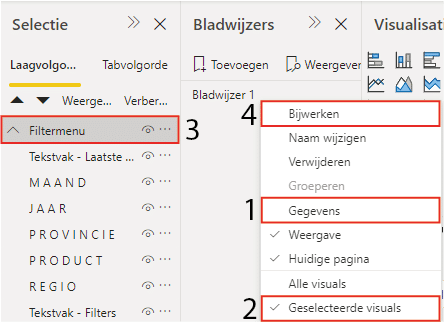
The bookmark we have just configured will display the filter menu, but you also want a bookmark that hides the filter menu. Repeat the previous steps, but click the ‘eye’ icon in the selection. For a group, you only need to do this once; otherwise you have to do it for each visual element separately.
Step 3: Use a bookmark with a visual in Power BI
The bookmarks have been created but are not yet linked to a button to activate them. In this example, we use a menu icon, but it can be any button. To add the bookmark to the menu icon, select the visual and activate ‘Action’ via the ‘Format button’. Here you can choose the type — in this case ‘Bookmark’ — and select the correct bookmark. You can also add a tooltip that appears next to the cursor when you hover over the menu icon.
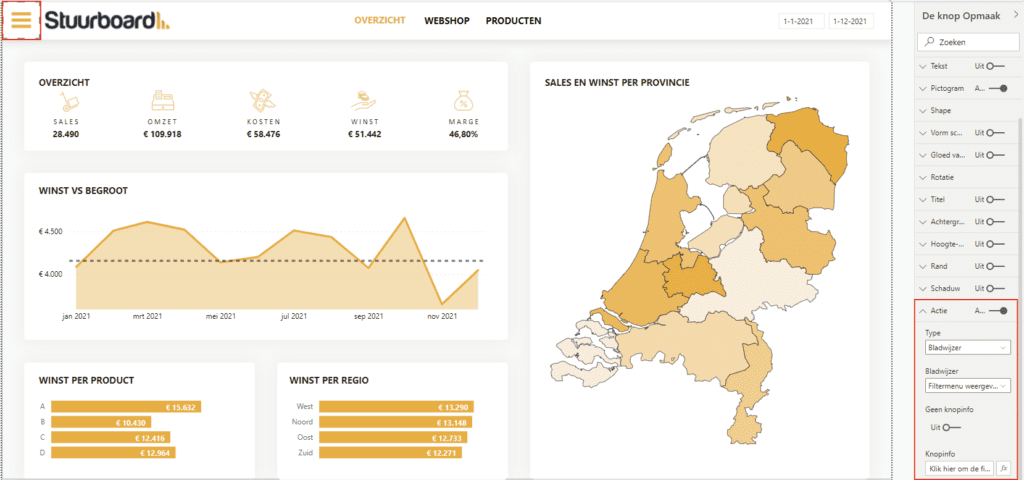
To hide the filter menu again, you can link that particular bookmark to another button. In this case, we choose to use a transparent shape that fills the screen below the filter menu.
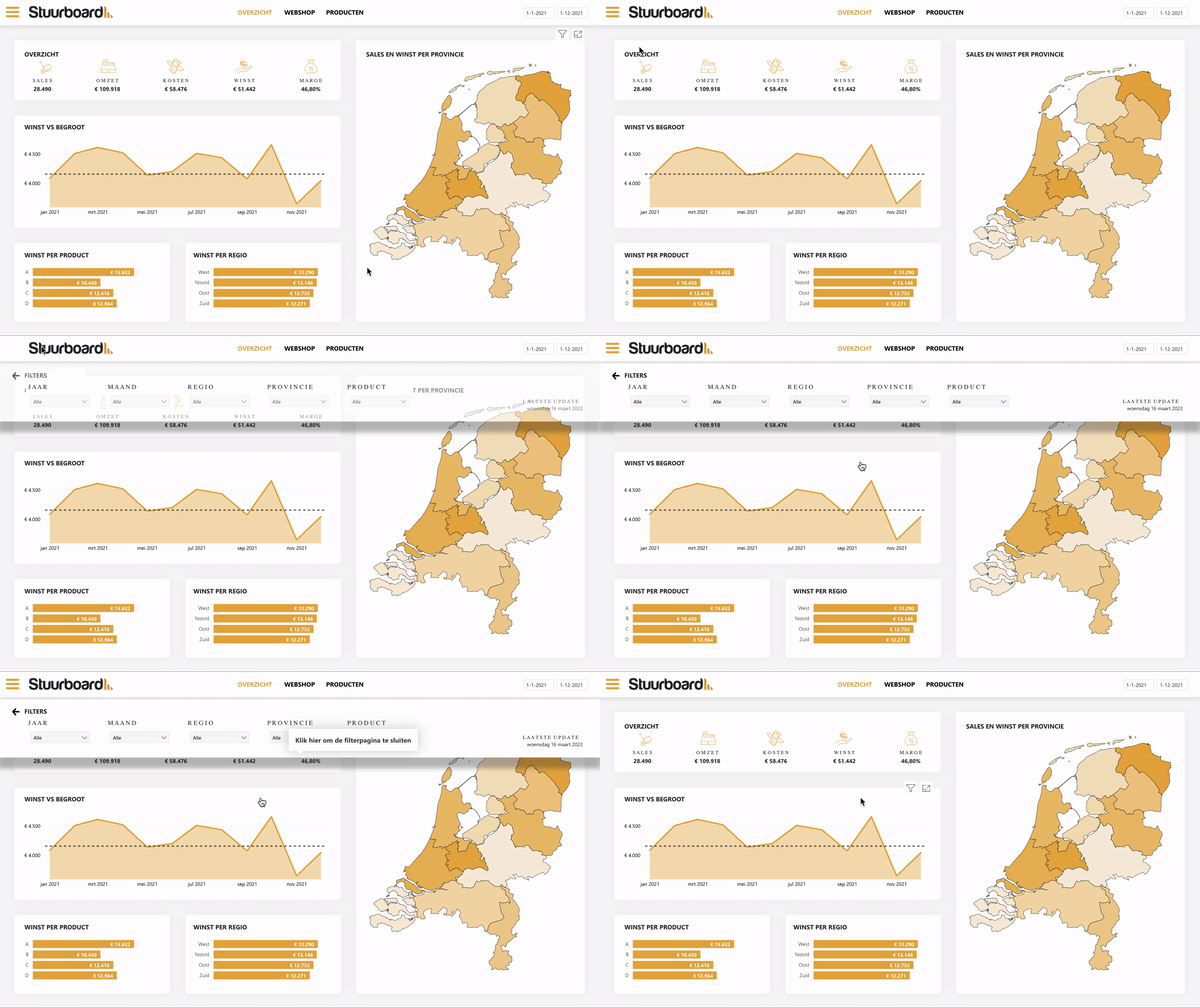
When you have successfully set up the bookmarks, you get a result like the one shown below.
Using bookmarks in Microsoft Power BI offers all kinds of possibilities for your dashboard. Curious about more options or have questions? Feel free to contact us. Also check out the other articles in our knowledge base.
Our tip: Use groups in the selection panel to manage multiple visuals at once. When you set up a bookmark for a group, you only need to configure the visibility once instead of for each individual visual element. This saves time and prevents errors in complex dashboards with many elements.
Frequently asked questions
How do I add a bookmark in Power BI?
Open the Bookmarks panel via the 'View' menu and click 'Add'. Give the bookmark a clear name. Specify whether the bookmark should capture filter values, the visibility of visuals, and the current page. By linking the bookmark to a button or image via 'Format > Action', you activate it with a single click. This allows you to switch between different views or show and hide a filter menu without adding extra pages.
When should I use bookmarks in Power BI?
Bookmarks are useful when you want to give users the ability to switch between different views of the same dashboard, such as a table view versus a chart view. They are also handy for expanding and collapsing a filter menu, or for activating a specific filter value with one click. Any situation where you want to lock in a pre-set state of the dashboard is a good use case for bookmarks.
What options are available when configuring a bookmark?
When setting up a bookmark, you can choose which aspects are captured. The 'Data' option captures the current filter values. The 'Display' option saves the visibility of visuals. The 'Selected visuals' option ensures the bookmark only applies to the selected visuals and not the entire dashboard. By turning off 'Data' and enabling 'Selected visuals', you can specifically capture the visibility of a group of visuals without affecting filters.