
How to Organise Your Power BI Dashboard
You add structure to a Power BI dashboard via the Selection panel under View. There you can see all visual elements on the page. You can rename items by double-clicking them, and group related items via right-click and Group. This makes the dashboard clear for colleagues and simplifies working with bookmarks.
Building a dashboard or report in Power BI is often a process of trial and error. In most cases it will never be a straight path to the desired result, which means things can get a bit messy in Power BI.
1. Reveal the current structure in Power BI
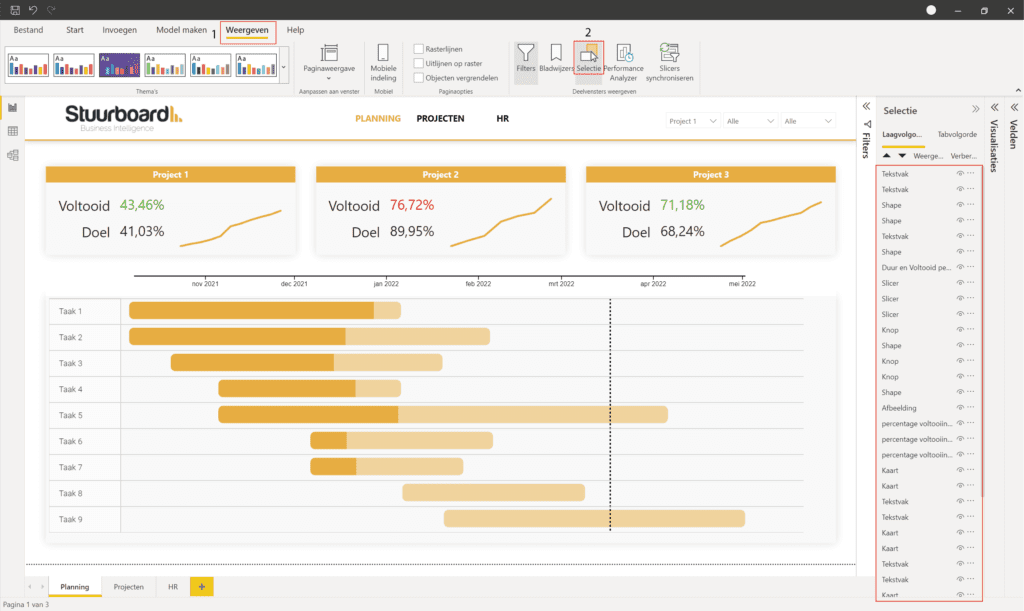
Before we can add structure, it is of course important that we can first see the current structure. For this, we go to ‘View’ in the top left and then ‘Selection’. This will open a panel on the right showing the structure that Power BI automatically generates. Here you can find every element you have added to your dashboard or report. By clicking on an element, you will see it become selected in the dashboard.
2. Rename elements in Power BI
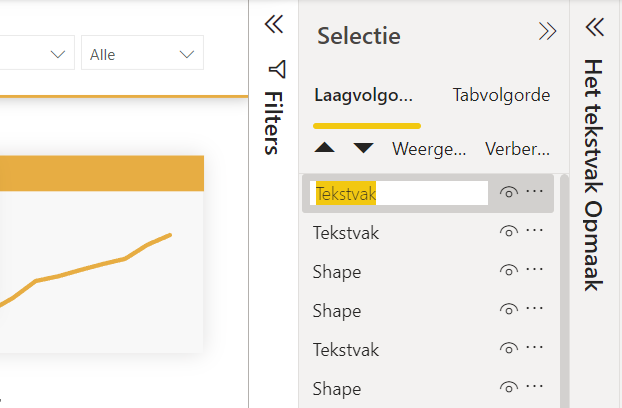
By double-clicking on an element, we can rename it. You will see that the element you want to rename becomes selected in your dashboard or report.
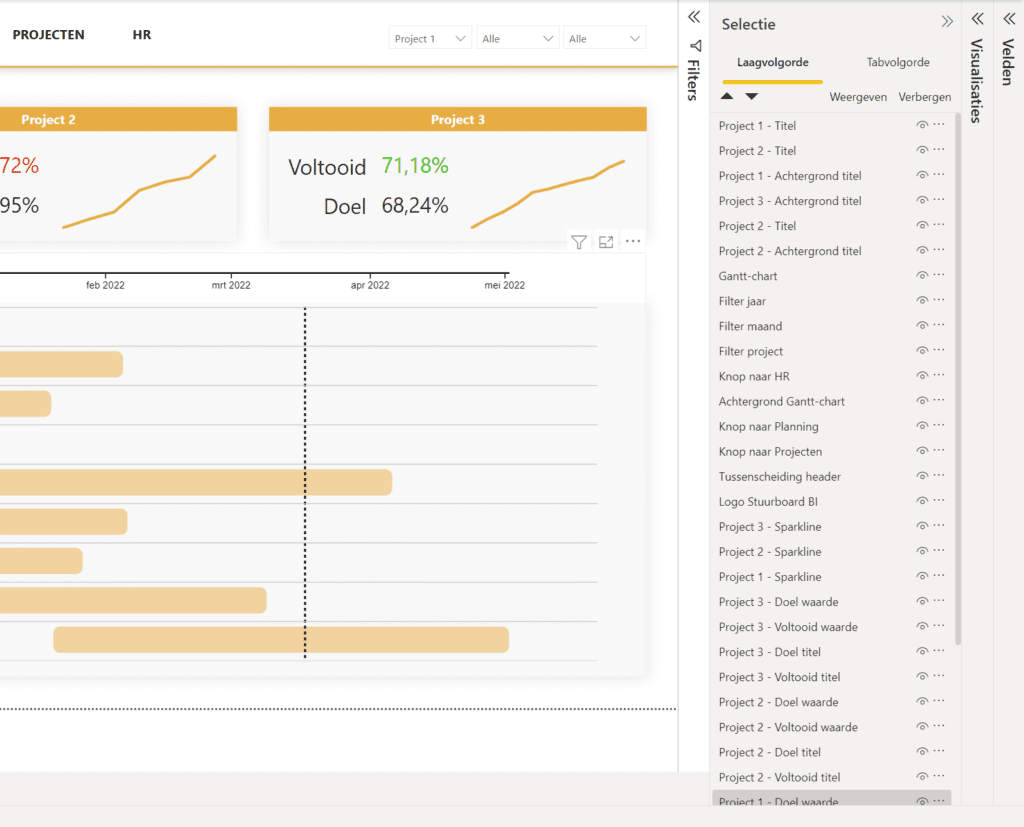
Give each element an easy and recognisable name so that it is clear to everyone. As shown below, this will already be much clearer for an external team member. However, we can do even more to simplify things.
3. Group elements in Power BI
In our example, we have now given all individual elements a new name. However, there are many elements that belong together, and we can group these.
Hold the CTRL key and select all elements that could belong together. Are they in the right order? Also try clicking the top element with the CTRL key and the bottom one with CTRL+SHIFT. Then right-click one of the elements and go to ‘Group’ > ‘Group’.
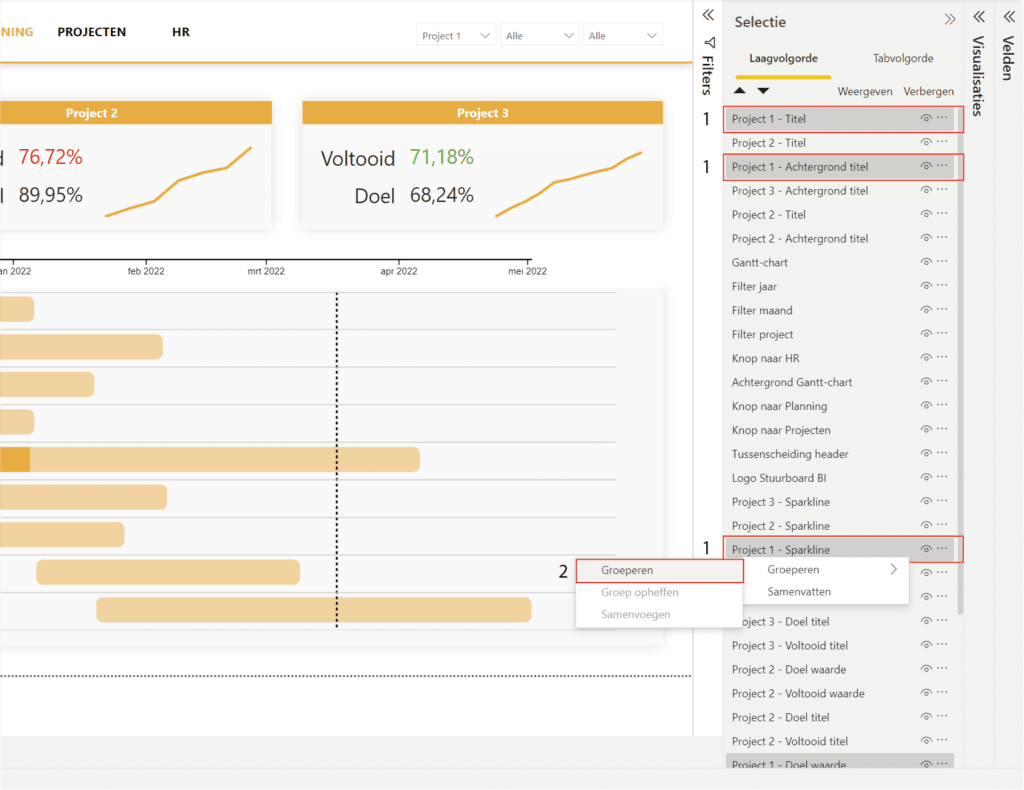
You will now see that all elements end up in a subfolder. This will automatically be named ‘Group 1’, but we can of course give it a name of our own choosing by double-clicking it.
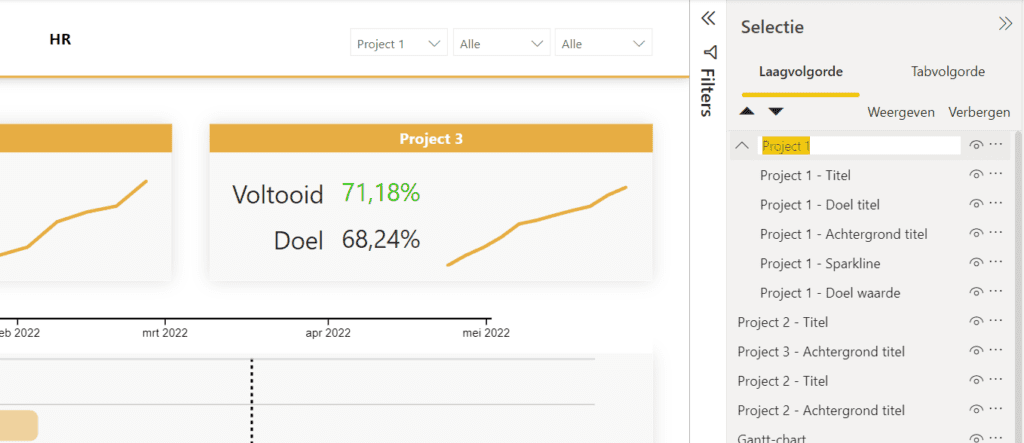
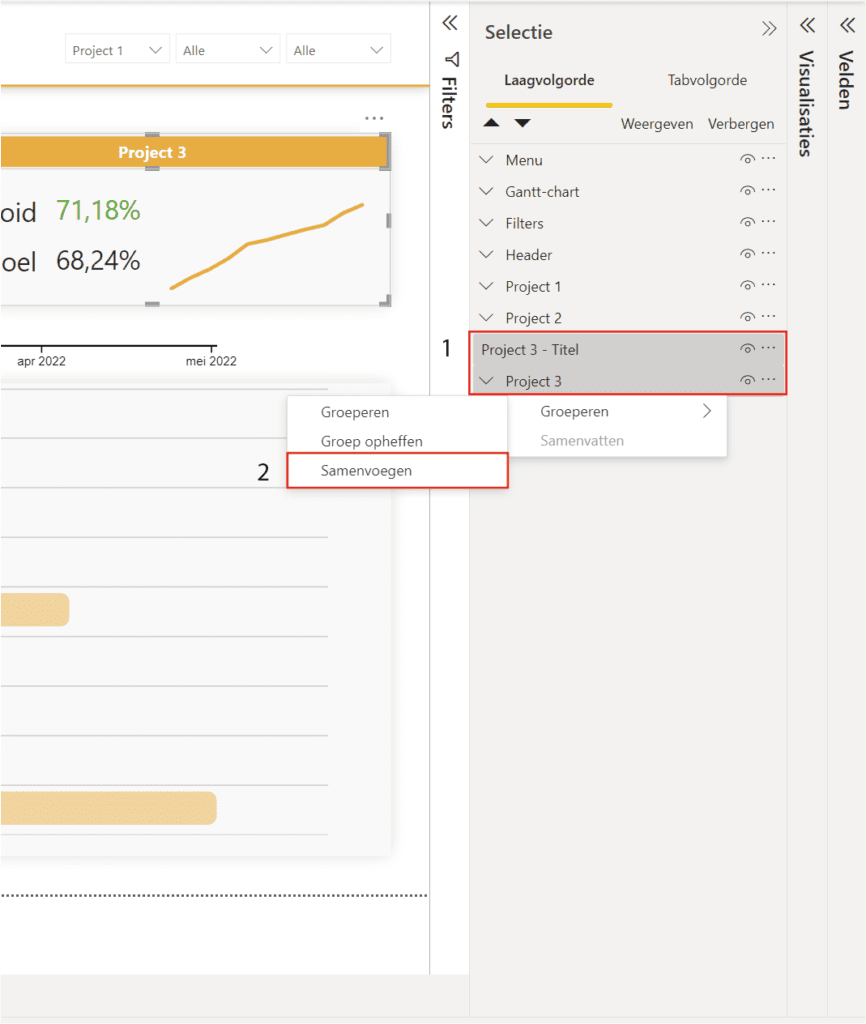
By doing this for all elements, you can organise everything clearly. If you happen to forget an element during the process, simply select the element and the group you want to add it to. Then right-click one of the two items and go to ‘Group’ > ‘Merge’.
You will see this gives a lot more structure, making it easy to work with for someone else who needs to use the Power BI dashboard.
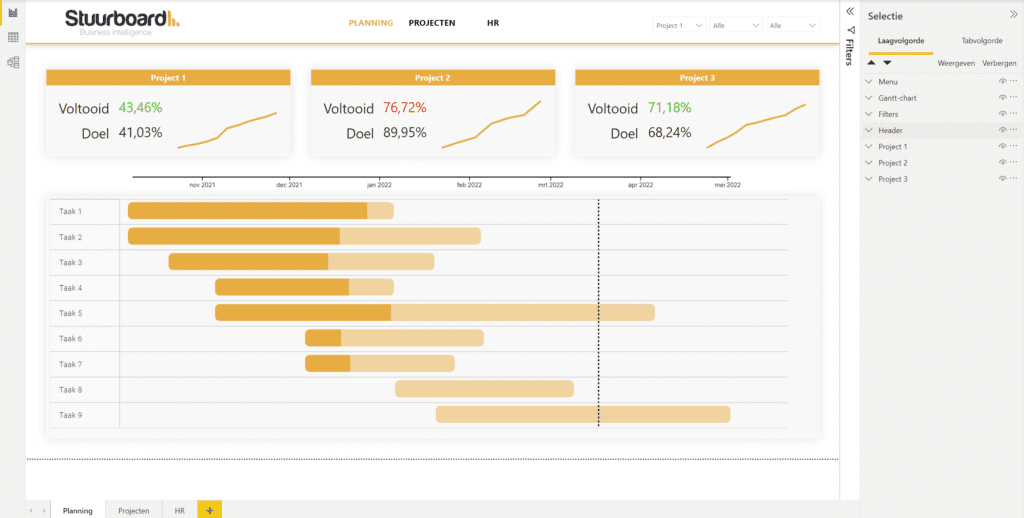
This structure also contributes to the ease with which you can create bookmarks.
Our tip: Give each group in the Selection panel a name that indicates what the group does, such as ‘Header’, ‘KPI row’, or ‘Revenue chart block’. If you later add bookmarks or share the report with a colleague, the structure is immediately clear without having to go through the entire page.
Frequently asked questions
How do I make the current structure of my Power BI dashboard visible?
Go to View in the top left and click Selection. This opens a panel on the right with all visual elements on the page, in the order Power BI generated them. Clicking on an element in the panel selects the corresponding item in the dashboard. This gives you immediate insight into which elements are present and how they are arranged, even if some elements overlap or are hidden behind other visuals.
How do I rename visual elements in the Selection panel of Power BI?
Double-click on the element in the Selection panel to rename it. Give each item a clear and recognisable name, such as 'Revenue by region chart' or 'Year slicer'. This is especially important if colleagues work with the report or if you use bookmarks, because bookmarks use element names as references. A well-named structure makes the dashboard easier to maintain and understand.
How do I group multiple visual elements in Power BI for a better overview?
Hold the CTRL key and select all elements that belong together in the Selection panel. Then right-click one of the selected elements and go to Group > Group. The elements are merged into a subfolder that is named 'Group 1' by default. Rename the group by double-clicking it. To add an element to an existing group later, select the element and the group together and choose Group > Merge.