
Mobile layout in Power BI
In Power BI you create a mobile layout via the 'View' tab and the 'Mobile layout' button. You drag existing visuals onto a mobile grid without changing the original desktop report. The mobile version is visible in the Power BI app on a phone or tablet. This lets you serve users optimally regardless of the device they use to view the dashboard.
Microsoft Power BI offers the ability to create a mobile layout for a dashboard. This can be done without making any changes to the original dashboard.
Step 1: Switch to the mobile layout in Power BI
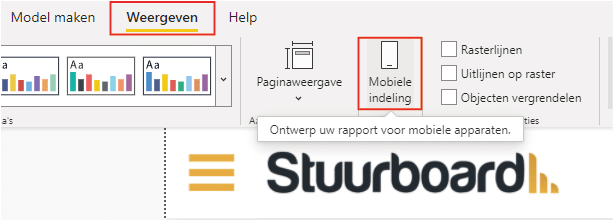
To start designing the mobile layout, you need to switch to mobile layout mode in Power BI Desktop. Open the dashboard for which you want to create a mobile layout and navigate to the ‘View’ tab. Then click ‘Mobile layout’, as shown below.
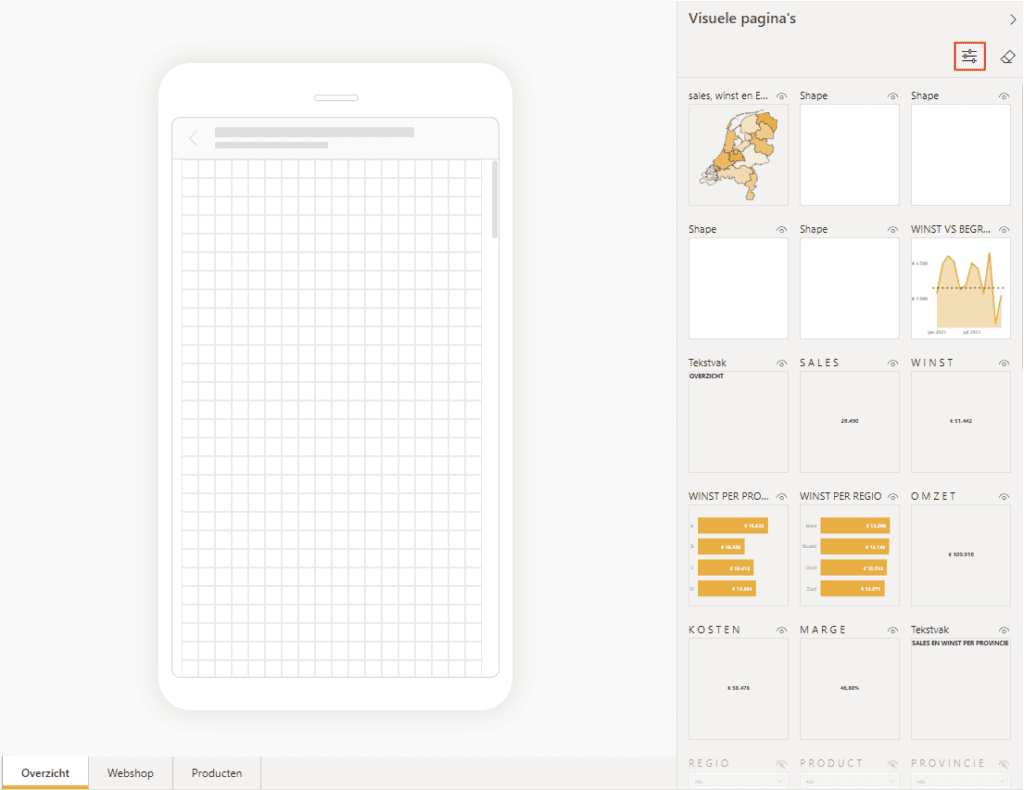
When switching to mobile layout in Power BI Desktop you will see the screen below. It shows the shape of a mobile device. Power BI maintains the pages as they appear in the desktop version. On the right side of the screen are all visual elements present on that page. This makes it easy for Power BI to create the mobile version page by page.
Note: if you use bookmarks and some visual elements are hidden by default, they will also be hidden in the mobile version. If you want to see only the visible ones, click the highlighted filter and choose ‘Visible’.
Step 2: Arrange the mobile version
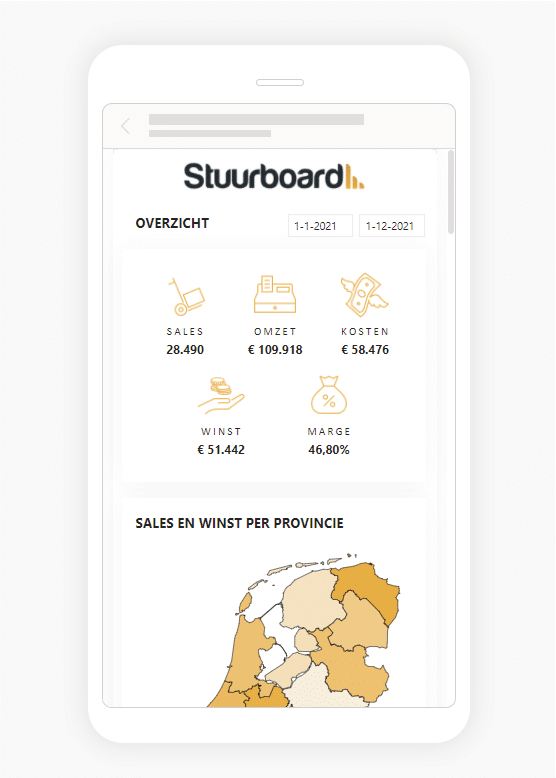
Arranging the mobile version is fairly straightforward because you choose from the existing visual elements. The mobile format can make layout more challenging depending on how you have arranged the desktop version. The first step is dragging a visual element onto the grid. Then resize it so it is suitable for the mobile version. Note: this has no effect on the size in the desktop version.
In this example we have converted the ‘Overview’ page to a mobile version.
Step 3: Use the mobile version
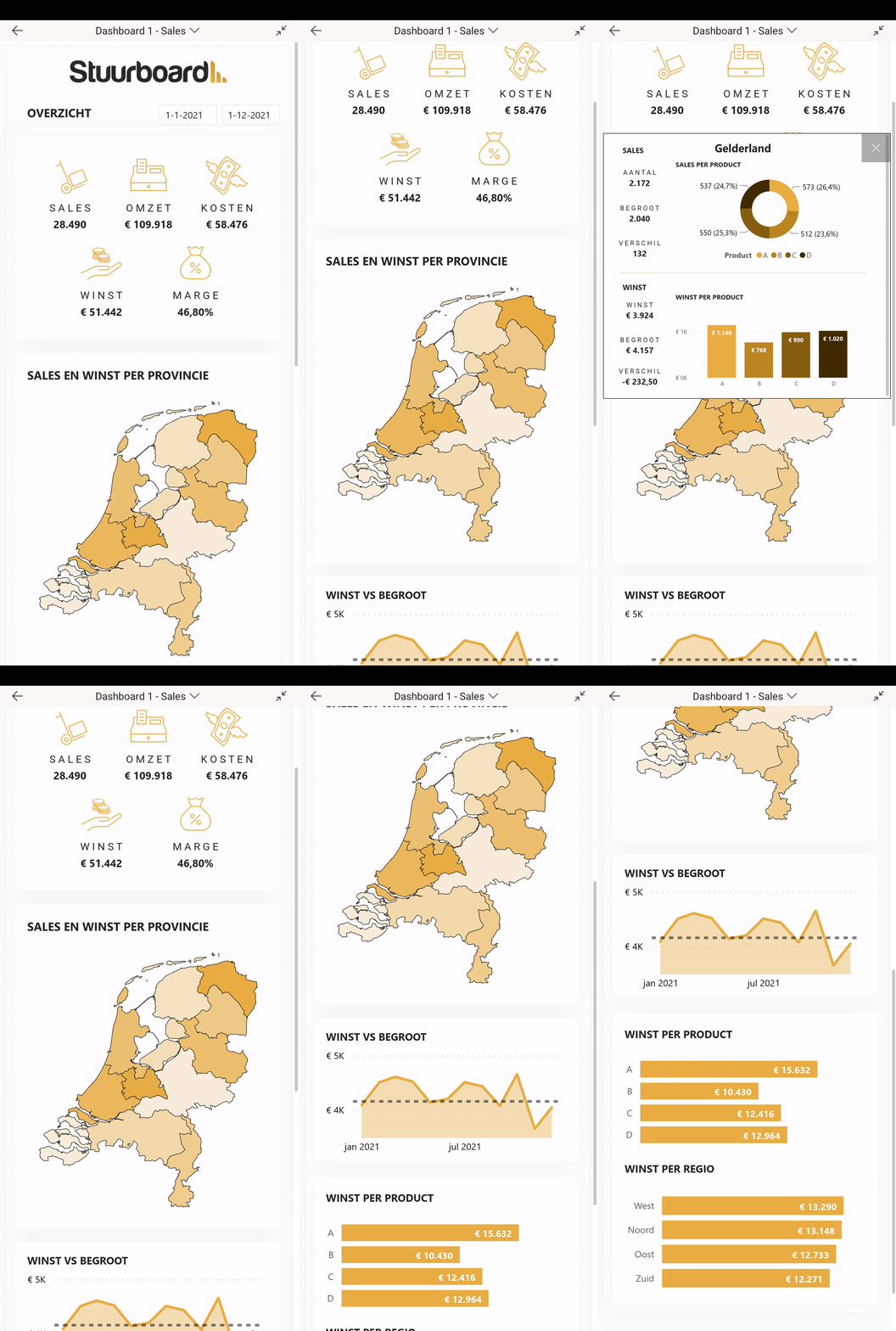
To use the mobile version of your Power BI dashboard, make sure you have the Power BI app installed on your phone. You can find it in the App Store and in the Google Play Store. Once logged in, navigation in the app works the same as on a computer. Every published dashboard can be opened in the Power BI app, and the mobile version opens automatically if a dashboard has one. The result is shown below.
Tip: Tooltips also work in the mobile version.
Hopefully you have also managed to create a mobile layout for a dashboard in Power BI. Do you have questions? Feel free to contact us.
Our tip: Design the mobile layout with a maximum of five to six visuals per page. Users on a phone have less screen space and prefer not to scroll through dozens of elements. Choose the most relevant visuals for the mobile view and leave the details to the desktop version.
Frequently asked questions
How do I create a mobile layout for a Power BI dashboard?
Open the report in Power BI Desktop and navigate to the 'View' tab. Click 'Mobile layout'. You will now see a mobile canvas onto which you can drag visuals from the right-hand panel of available visual elements. Resize each visual so it is suitable for the mobile format. The changes do not affect the desktop version. Save the file and publish it to the workspace; the mobile layout will then be visible in the Power BI app.
Which visuals are available in the Power BI mobile layout?
All visual elements present on the selected report page are available in the mobile layout. You choose which visuals to include in the mobile version and in what order to place them. Visuals that are hidden by default via bookmarks are also hidden in the mobile layout. If you want to see only visible visuals in the overview, click the filter button in the right-hand panel and choose 'Visible'.
How do I view the mobile layout of a Power BI dashboard on my phone?
Install the Power BI app from the App Store (iOS) or Google Play Store (Android). Log in with the same account you use in Power BI Desktop or the workspace. Navigate to the published report. If the report has a mobile layout, it will automatically be displayed on a phone. On a tablet or in landscape orientation the desktop version may be shown, depending on the report settings.