
Using a Power BI Template
A Power BI template (PBIT file) is a reusable template with preset report formatting, a data model and queries. You create a template by exporting an existing report via File > Export > Power BI template. Colleagues open the PBIT file, which automatically creates a new PBIX report. This gives you a consistent starting point for new reports without starting from scratch every time.
Power BI lets you use a template — a file in which standards for report formatting, the data model and queries can be preset. Using one makes working with new reports within your organisation considerably more streamlined.
Step 1: Creating a Power BI template
To use a Power BI template, you first need to create one. A template is created from a report that you want to serve as the basis for future reports. This way, all your colleagues can use the template to create new reports. The template carries everything across in terms of report formatting, the data model and queries. It is also possible to include a custom theme in the report, which is then included in the template. Once the report is ready to serve as a template, it needs to be exported. To do this, go to File in the menu, (1) click Export and then (2) click Power BI template.
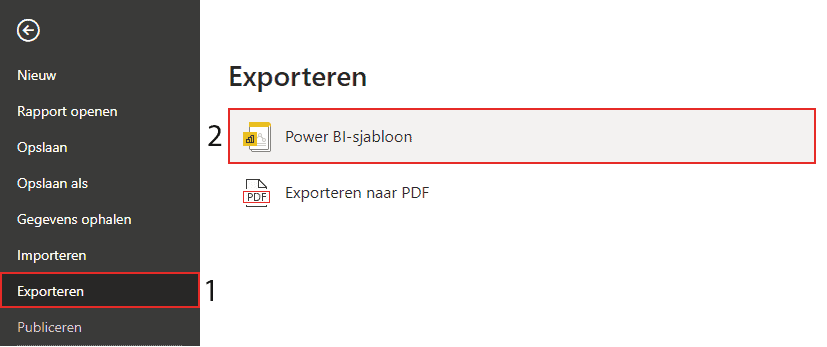
When exporting the Power BI template, you can add a description. Note here what the template is for and which data sources are connected. Then save it in the desired location.
Step 2: Using the template
Using a Power BI template is simple. Click the PBIT file, after which a new PBIX file will be opened. This file is not yet saved, so do that right away. You or a colleague can then lay out and format the report as desired. The template can be used an unlimited number of times and makes the work considerably more efficient.
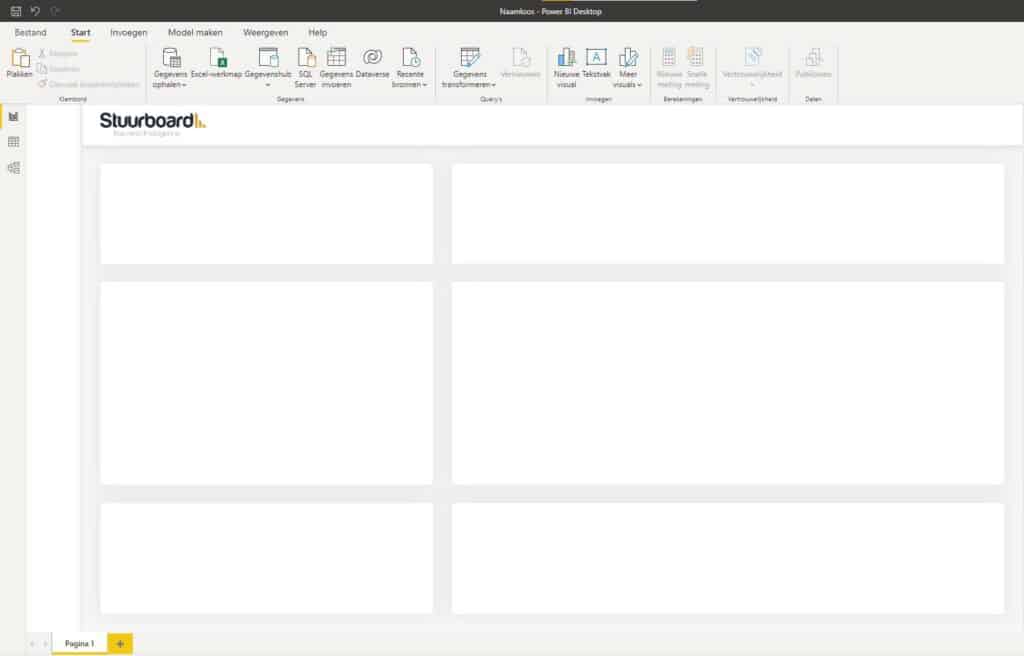
Hopefully you have also managed to create and use a Power BI template. Do you have questions? Feel free to contact us.
Our tip: Add a clear description when exporting your template. Note which data sources need to be connected and what type of report the template is intended for. This saves colleagues time when setting up new reports and prevents mistakes when connecting data.
Frequently asked questions
What is the difference between a PBIT and a PBIX file?
A PBIT file is a Power BI template that contains the report formatting, the data model and queries, but no actual data. When you open a PBIT file, Power BI automatically generates a new PBIX file to which the data still needs to be connected. A PBIX file is the complete working file including data and formatting. The template is used as a starting point; the PBIX file is the end result that you save and share.
What is included in a Power BI template?
A Power BI template includes all report formatting, including page layout, backgrounds and colour themes. The data model (tables, columns, relationships and calculations) and all Power Query transformations are also saved. What is not included is the actual data itself — that needs to be reconnected when opening the template. You can also add a description when exporting, so colleagues know which data sources they need to connect.
How do I use a Power BI template with multiple colleagues?
Save the PBIT file in a shared location such as SharePoint or OneDrive. Colleagues can open the file by double-clicking it, after which Power BI creates a new PBIX file. Each colleague then connects the required data sources and saves the report as their own PBIX file. The template itself remains unchanged and can be reused any number of times. To update the template, simply export an improved report as a PBIT again.