
Using a What-If Parameter in Power BI
In a Power BI dashboard, it is possible to add a what-if parameter that lets you influence the visualised information. In this example, we show how applying discounts will affect the sales of your company.
In a Power BI dashboard, it is possible to add a what-if parameter that lets you influence the visualised information. In this example, we show how applying discounts will affect the sales of your company.
Step 1: Set up the what-if parameter in Power BI
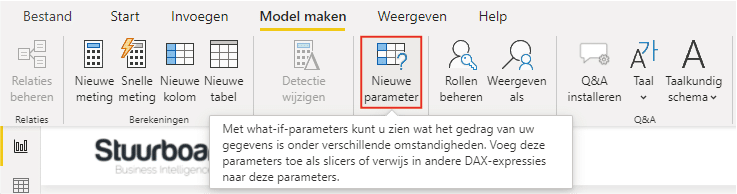
Power BI has a built-in button to add a parameter. Click the button shown below.
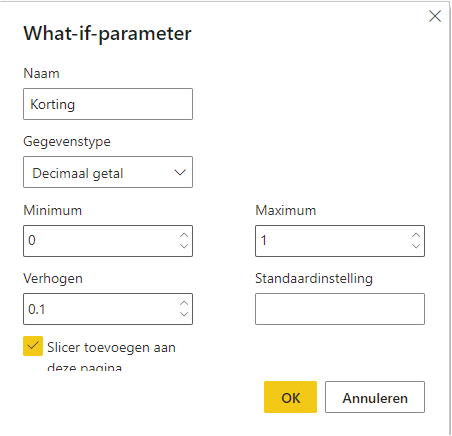
A screen then appears where you can configure the parameter. Importantly, you can set the minimum and maximum of the parameter here. Use 0 and 1, for example, if you want to work with a percentage, as long as you choose the right range for your parameter. The number you enter for ‘Increment’ will determine the interval steps you can perform with the filter. If you have a default value for the parameter, enter it here as well.
In this example, we create a parameter to measure the effect of a discount percentage.
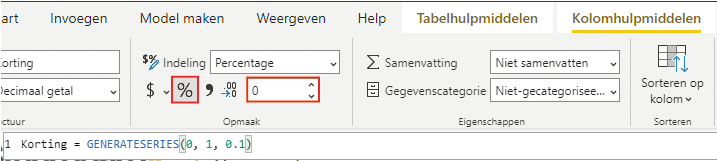
Once you click ‘OK’, the parameter is created and the filter appears in the dashboard. This can be formatted as you like. In addition, a table is added containing the formula on which the filter is based. For this example, we change the format of the formula to percentage. You can do this by selecting the formula/table and then clicking ’%’ via ‘Column tools’. You can then change the number of decimal places as desired.
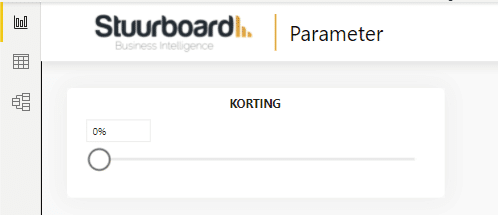
After completing this step, you have a filter like the one shown below.
Step 2: Use the parameter
After completing the previous step, you have a filter and a formula, but these still need to be linked to the data on which you want the parameter to have an effect. In this example, the discount will affect the value of budgeted sales, which is displayed in a clustered column chart.
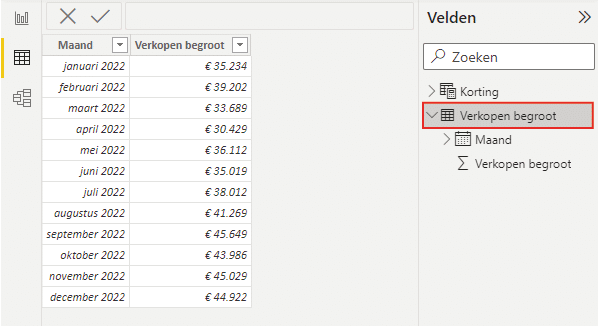
To make the parameter affect the data from ‘Budgeted sales’, a connection between them needs to be created. A direct relationship is not possible, so a new DAX expression (i.e. a formula) needs to be added to ‘Discount’. Since in this example we want to measure the effect of the discount on budgeted sales, we add the following DAX expression:
Budgeted sales = SUM(‘Budgeted sales’[Budgeted sales])*(1-Discount[Discount Value])
You can add all kinds of DAX expressions, but for this example we also add a formula to calculate the discount amount:
Discount amount = SUM(‘Budgeted sales’[Budgeted sales])*Discount[Discount Value]
The DAX expressions created can be added to a clustered column chart, after which the parameter can be used. This gives you the following result:
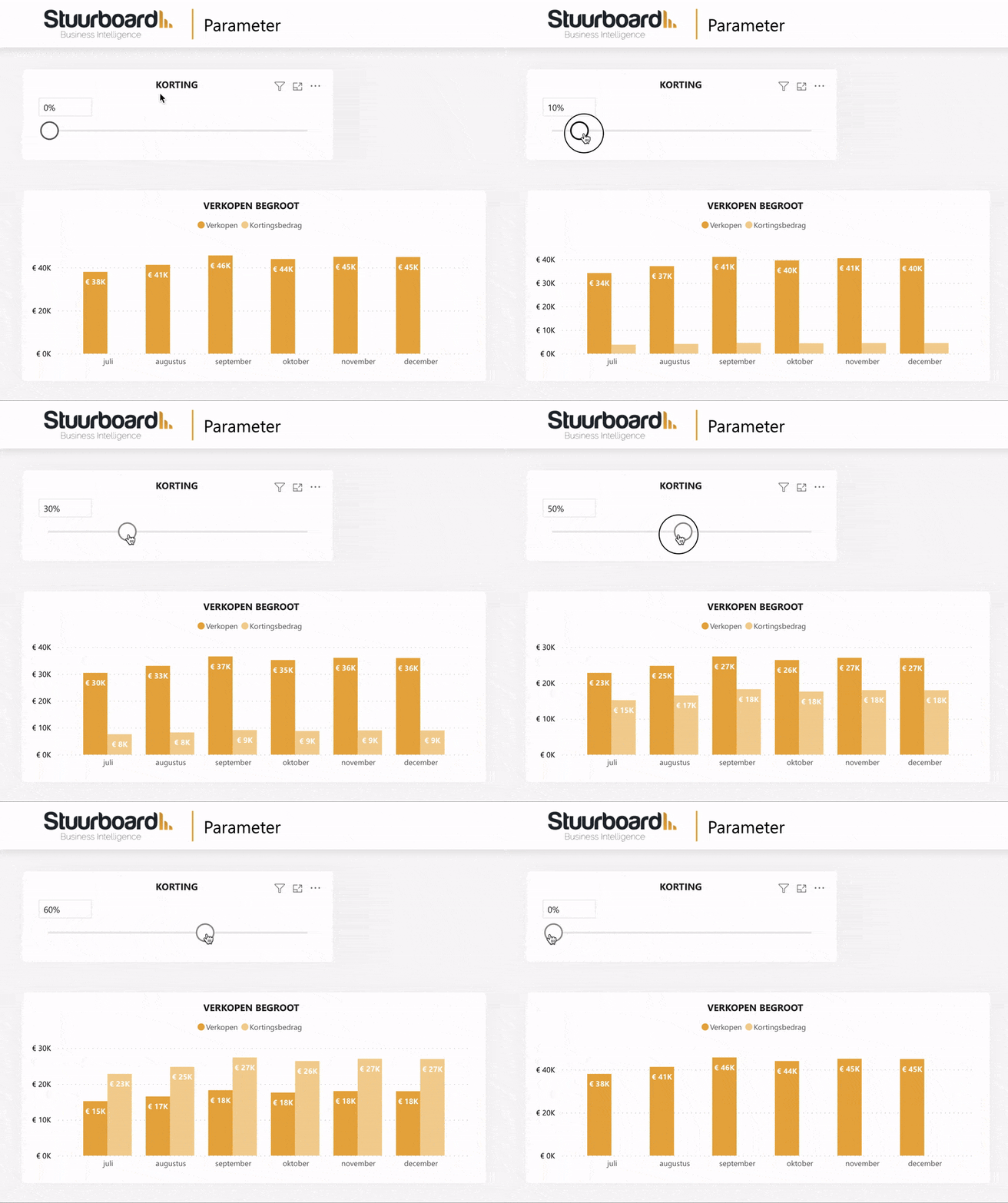
This way, you can add a what-if parameter to your Power BI dashboard. You can use it for all kinds of applications.
Our tip: Set the range of the parameter deliberately based on realistic scenarios. Use 0 to 1 for percentages and choose a fine enough interval so that the slicer has precisely enough steps. A too coarse setting makes the simulation less useful for decision-makers.
Frequently asked questions
How do I add a what-if parameter in Power BI?
In Power BI Desktop, click the 'New parameter' button in the ribbon. Set the minimum, maximum, and interval granularity; for a discount percentage, for example, choose minimum 0, maximum 1, and interval 0.01. Power BI automatically creates a slicer and a table with the parameter value. Change the format of the parameter column to percentage via 'Column tools'. The parameter is then available as a field in DAX formulas.
How do I link a what-if parameter to my data in Power BI?
A what-if parameter has no direct relationship with your data tables. You link the parameter to your data by creating a new DAX measure that uses the parameter value in the calculation. For example, to calculate the effect of a discount on budgeted sales, create a measure: Budgeted sales = SUM('Budgeted sales'[Budgeted sales]) * (1 - Discount[Discount Value]). Add this measure to your visual so the slicer directly affects the displayed values.
What are the use cases for a what-if parameter in Power BI?
A what-if parameter is useful for scenario analyses where you want to show the impact of a variable without changing the source data. Examples include: calculating different discount percentages on revenue, simulating cost savings at different occupancy rates, calculating profit margins at varying purchase prices, or showing growth scenarios at different percentages. The parameter makes your dashboard interactive and gives decision-makers direct insight into the consequences of choices.